1. Kushki One Payment App
Kushki Docs
English
  • Español
  • English
  • Home
  • Quick Start
    • Frequently Asked Questions
    • Moving to Production
    • Policy for Important API Changes
    • Test Data
    • Error Codes
    • Latest Features
  • Payment Glossary
    • Payments Glossary
  • One-time card payments (Online)
    • Supported card brands
    • Functionalities by business model
    • Network Tokens
    • One-step Payments
      • How do Card Payments Work?
      • Accept a Card Payment
      • Direct charge (without token)
      • Accept One-Time Payments with OTP
      • OTP Authentication Error Codes
      • Error codes for single card payments
    • Two-steps Payments
      • How do one-time payments with authorization and capture work?
      • Receive payments with authorization and capture
    • Webpay Plus Payments
      • Accept Payments through Webpay Plus
      • Reserve funds with Webpay Plus
    • Refunds
      • Returns, cancellations, and refunds
    • 3DS Authentication
      • Introduction to 3DS
      • 3DS API integration
      • 3DS integration with kushki.js library
      • 3DS API integration plus kushki.js library
      • 3DS Error Codes
    • Apple Pay Payments
      • Apple Pay Configuration
      • Apple Pay Sandbox testing
  • Recurring Card Payments (Online)
    • Functionalities by business model
    • External subscriptions to Kushki
    • Authenticate your subscriptions with 3DS
    • Accept one-click payments with 3DS
    • Error codes in recurring charges
    • Apple Pay for Subscriptions
    • Scheduled payments
      • How do Credit or Debit Card Payment Recurring Charges Work?
      • Create a recurring charge
      • Manage your Scheduled Charges
    • OneClick Webpay Scheduled Payments
      • Recurring Payments through Webpay OneClick
      • Reserve funds in subscriptions with Webpay OneClick
    • One Click Payments with Webpay OneClick
      • Webpay OneClick Payments
      • Reserve funds in one click payments with Webpay OneClick
    • OneClick Payments
      • Accepting One-Click Payments
      • How does authorization and capture work in OneClick payments?
      • Receive OneClick payments with authorization and capture
  • Card-present payments
    • Accept card present payments
    • Test data
    • Webhooks for card present
    • Raw card-present API
      • Raw card-present API overview
      • Cryptographic key exchange
      • Sample script to encrypt information
      • Take Payments
      • Frequently Asked Questions
      • Error codes for card-present transactions
    • Transactions
      • Transactions
      • Cancel payments
    • Kushki One
      • First Steps
      • Autenticación y Cifrado de Requests
      • Accept payments with Kushki One
      • Amount Format
      • Async services and webhooks
      • Printing on SmartPOS terminal
      • Unified Error Catalog — Kushki ONE Connect
    • Kushki One Payment App
      • Overview
      • Process a payment
      • Split payment on the terminal
      • Refunds and PreAuth & Capture
      • Review Your Transactions
      • Terminal Setup
  • Wire Transfers
    • Banks and transaction details for bank transfer payments.
    • Receive Wire Transfers
    • Check the Status of a Transaction
  • Cash Payments
    • How do Cash Payments Work?
    • Accept a Cash Payment
    • Authorized locations
    • Error Codes for declined cash transaction
  • Money Disbursement
    • Wire Transfer
      • How does the dispersion by means of bank transfer work?
      • Payment Distribution to Bank Accounts
      • Error codes for transfer dispersions
  • Plugins
    • Shopify
      • Shopify
      • Plugin Operation
    • VTEX
      • VTEX Integration Guide
  • Payment Links
    • Smartlinks
  • Payment forms and buttons
    • Kajita
      • How Does it Work?
      • Payment Kajitas
    • Payment Button
      • Overview
      • Generate a payment button
  • Branch Offices Management
    • How to Onboard Submerchants via API
  • Notifications
    • Good Practices
    • Check your Webhooks
    • One-time Payments Webhooks
      • Webhook for One-Time Payments made with a card
      • Webhook for One-Time Payments by Wire Transfer
      • Webhook for One-Time Payments in Cash
      • Webhook for Payments Made with Webpay Plus
    • Recurring Payments Webhooks
      • Webhook for Recurring Payments Made with Card
      • Webhook for recurring payments with Webpay OneClick
    • Payment Distribution Webhooks
      • Webhook for payment disbursement through wire transfer
    • Payment button Webhooks
      • Webhooks with Payment Button
    • Smartlinks Webhooks
      • Webhooks with Smartlinks
    • Refunds Webhooks
      • Webhook for Voids and Refunds
      • Chargeback Webhooks
HomeMexico 🇲🇽Ecuador 🇪🇨Chile 🇨🇱
Colombia 🇨🇴Peru 🇵🇪
HomeMexico 🇲🇽Ecuador 🇪🇨Chile 🇨🇱
Colombia 🇨🇴Peru 🇵🇪
Status
Soporte / Support
English
  • Español
  • English
  1. Kushki One Payment App

Terminal Setup

Configure refunds, users, language, receipts, split payments, and tips
🚧 Early Release — Beta
This product is in early access. Parameters, response structures and behaviors may change without prior notice. Do not use this version in production without coordinating with the Kushki integrations team first.
Administrator-only section
Changes in this section affect payment, refund, receipt and user-management behavior for every user of the terminal.
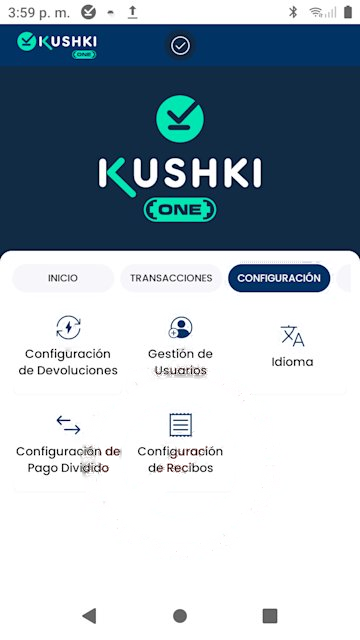
Open it by tapping the Settings tab in the top navigation bar. You will find six independent modules.
Terminal settings screen
Configuration works on two levels
Kushki enables each capability for your merchant account during terminal activation. Only after that can the administrator configure its behavior from here.
If a module is missing or its controls are inactive, the capability is not yet enabled at the Kushki level. Contact your account manager.

Refund Settings#

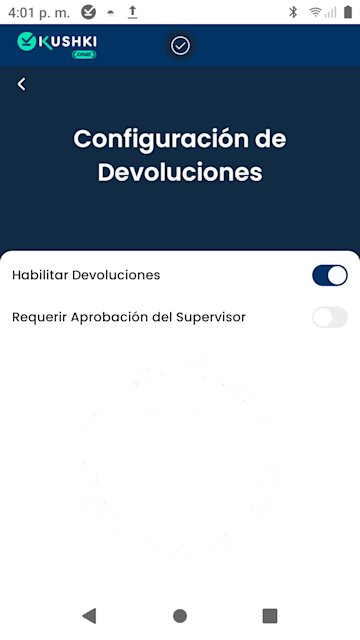
Controls whether cashiers can process refunds from the terminal and whether they need a supervisor's authorization to do it.
Refund settings screen
ParameterDescription
Enable RefundsTurns the ability to process refunds from the terminal on or off
Require Supervisor ApprovalWhen on, the cashier must enter administrator credentials to confirm every refund. Recommended at merchants with several cashiers
Disabling refunds blocks the flow entirely
If Enable Refunds is off, the refund flow becomes unreachable on the terminal. Refunds can then only be handled from the Kushki web portal.

User Management#

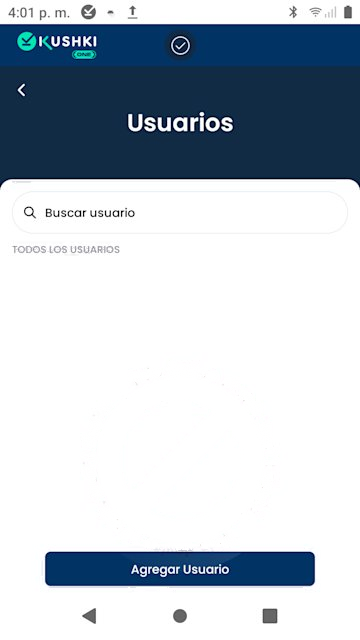
Create and manage the cashiers who can sign in to the terminal. Each one has their own name, PIN and access level.
User management screen

Add a cashier#

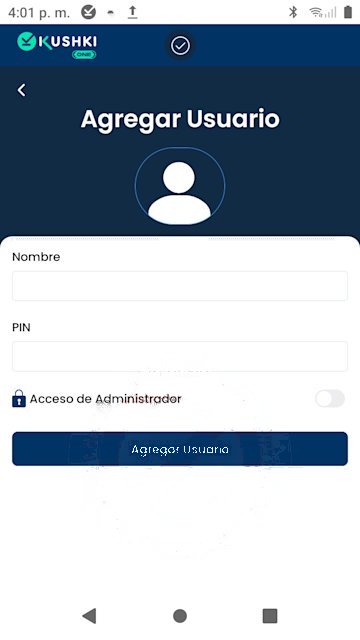
Tap Add User at the bottom of the screen and fill in the fields:
FieldDescription
NameThe cashier's name. It appears in reports filtered by employee
PINPersonal numeric code to sign in to the terminal
Administrator AccessGrants access to Settings and the ability to authorize refunds
Add user screen
Tap Add User to confirm.
Administrator access has no internal limits
A cashier with Administrator Access can change any setting, including disabling the refund controls. Grant that level only to trusted staff.

Language#

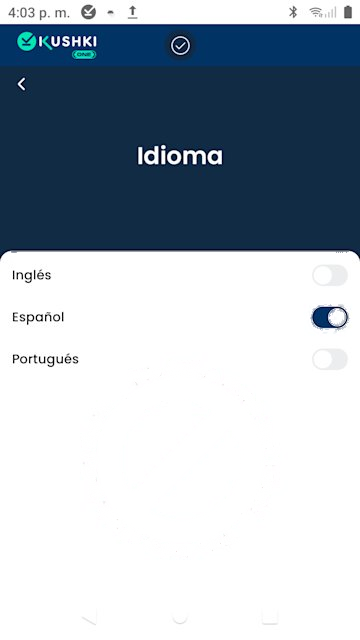
Changes the interface language for every user of the terminal. Available in Spanish, on by default, English and Portuguese. The change applies immediately and only one language can be active at a time.
Language selector

Receipt Settings#

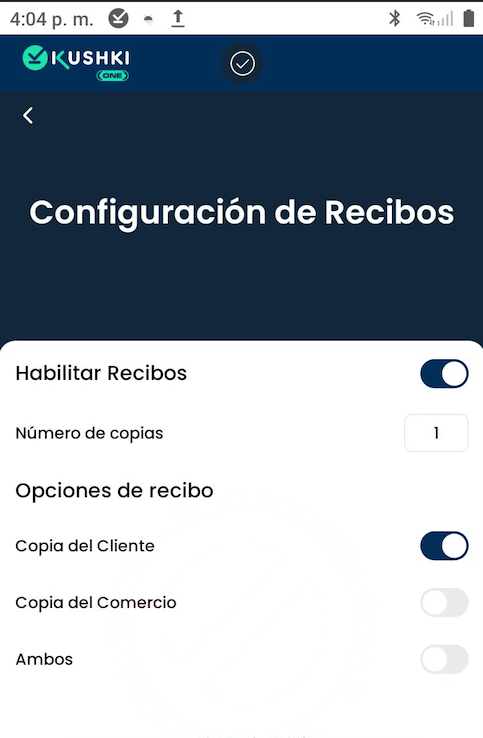
Defines whether the terminal prints receipts automatically at the end of every payment, and how many copies it produces.
Receipt settings screen
ParameterDescription
Enable ReceiptsTurns automatic printing at the end of a payment on or off
Number of copiesHow many prints per transaction. Defaults to 1
Customer CopyPrints only the cardholder's copy
Merchant CopyPrints only the copy for the business's records
BothPrints both copies on every transaction
Tap Save and Apply to confirm the changes.

Split Payment Settings#

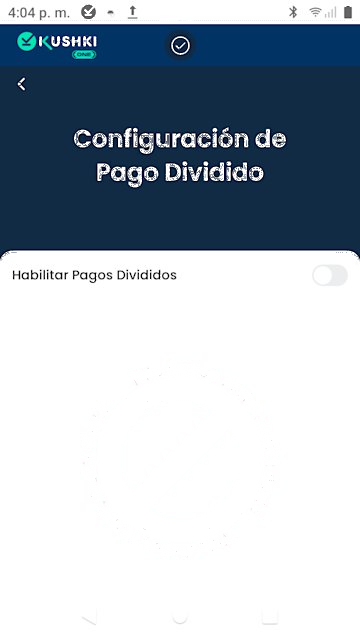
Enables the split payment flow, which lets you divide a sale amount into several sequential payments, in equal or custom parts. It is the standard flow at restaurants where several diners pay one check with different cards.
The Spanish interface labels this Pago Dividido
If your terminal runs in Spanish, this module and the corresponding operation appear as Pago Dividido.
Split Payment settings screen
Each payment in the series is processed as an independent transaction, with its own Ticket # and its own receipt. The app subtracts from the total until it is fully covered.
This is not e-commerce Split Payment
Split payment divides one sale amount across several consecutive payments at the same merchant.
E-commerce Split Payment is a different thing: it distributes a single charge across several destination accounts. The two are unrelated and share no configuration.
Requires prior enablement
Contact your account manager to enable split payment for your merchant account before you turn it on at the terminal.
Once enabled, see Split payment on the terminal for the full payment flow.

Tip Settings#

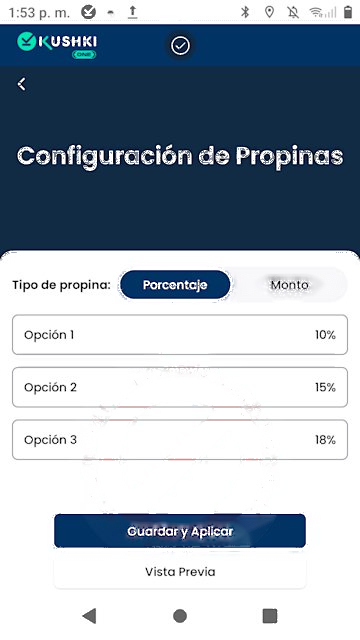
Defines how tip options are presented to the customer during the payment flow. The administrator picks the type and configures three quick options.

Tip type#

TypeDescription
PercentageOptions are calculated as a percentage of the sale amount, for example 10%, 15% and 18%. Useful when the tip scales with the total
Fixed amountOptions are values independent of the total, expressed in the currency configured on your terminal
Tip settings screen

Quick options#

Configure three values that will appear as buttons on the Add Tip? screen. On top of those three, the customer always sees Custom, to enter a free amount, and No Tip.
Use Preview to see how the options will look before saving. Tap Save and Apply for the changes to take effect.
How the tip is recorded
The tip is kept as a separate field on the receipt and in the Sales Summary. Its amount is added to the subtotal to form the Total charged to the card.
Process a payment
With the terminal configured, review the full card payment flow.
Refunds and Auth & Capture
Learn how to process refunds and manage pre-authorizations from the terminal.

Modificado en 2026-10-12 16:05:18
Anterior
Review Your Transactions
Siguiente
Wire Transfers
Built with