1. Card-present payments
Kushki Docs
English
  • Español
  • English
  • Home
  • Quick Start
    • Frequently Asked Questions
    • Moving to Production
    • Policy for Important API Changes
    • Test Data
    • Error Codes
    • Latest Features
  • Payment Glossary
    • Payments Glossary
  • One-time card payments (Online)
    • Supported card brands
    • Functionalities by business model
    • Network Tokens
    • One-step Payments
      • How do Card Payments Work?
      • Accept a Card Payment
      • Direct charge (without token)
      • Accept One-Time Payments with OTP
      • OTP Authentication Error Codes
      • Error codes for single card payments
    • Two-steps Payments
      • How do one-time payments with authorization and capture work?
      • Receive payments with authorization and capture
    • Webpay Plus Payments
      • Accept Payments through Webpay Plus
      • Reserve funds with Webpay Plus
    • Refunds
      • Returns, cancellations, and refunds
    • 3DS Authentication
      • Introduction to 3DS
      • 3DS API integration
      • 3DS integration with kushki.js library
      • 3DS API integration plus kushki.js library
      • 3DS Error Codes
    • Apple Pay Payments
      • Apple Pay Configuration
      • Apple Pay Sandbox testing
  • Recurring Card Payments (Online)
    • Functionalities by business model
    • External subscriptions to Kushki
    • Authenticate your subscriptions with 3DS
    • Accept one-click payments with 3DS
    • Error codes in recurring charges
    • Apple Pay for Subscriptions
    • Scheduled payments
      • How do Credit or Debit Card Payment Recurring Charges Work?
      • Create a recurring charge
      • Manage your Scheduled Charges
    • OneClick Webpay Scheduled Payments
      • Recurring Payments through Webpay OneClick
      • Reserve funds in subscriptions with Webpay OneClick
    • One Click Payments with Webpay OneClick
      • Webpay OneClick Payments
      • Reserve funds in one click payments with Webpay OneClick
    • OneClick Payments
      • Accepting One-Click Payments
      • How does authorization and capture work in OneClick payments?
      • Receive OneClick payments with authorization and capture
  • Card-present payments
    • Accept card present payments
    • Test data
    • Webhooks for card present
    • Raw card-present API
      • Raw card-present API overview
      • Cryptographic key exchange
      • Sample script to encrypt information
      • Take Payments
      • Frequently Asked Questions
      • Error codes for card-present transactions
    • Transactions
      • Transactions
      • Cancel payments
    • Kushki One
      • First Steps
      • Autenticación y Cifrado de Requests
      • Accept payments with Kushki One
      • Amount Format
      • Async services and webhooks
      • Printing on SmartPOS terminal
      • Unified Error Catalog — Kushki ONE Connect
    • Kushki One Payment App
      • Overview
      • Process a payment
      • Split payment on the terminal
      • Refunds and PreAuth & Capture
      • Review Your Transactions
      • Terminal Setup
  • Wire Transfers
    • Banks and transaction details for bank transfer payments.
    • Receive Wire Transfers
    • Check the Status of a Transaction
  • Cash Payments
    • How do Cash Payments Work?
    • Accept a Cash Payment
    • Authorized locations
    • Error Codes for declined cash transaction
  • Money Disbursement
    • Wire Transfer
      • How does the dispersion by means of bank transfer work?
      • Payment Distribution to Bank Accounts
      • Error codes for transfer dispersions
  • Plugins
    • Shopify
      • Shopify
      • Plugin Operation
    • VTEX
      • VTEX Integration Guide
  • Payment Links
    • Smartlinks
  • Payment forms and buttons
    • Kajita
      • How Does it Work?
      • Payment Kajitas
    • Payment Button
      • Overview
      • Generate a payment button
  • Branch Offices Management
    • How to Onboard Submerchants via API
  • Notifications
    • Good Practices
    • Check your Webhooks
    • One-time Payments Webhooks
      • Webhook for One-Time Payments made with a card
      • Webhook for One-Time Payments by Wire Transfer
      • Webhook for One-Time Payments in Cash
      • Webhook for Payments Made with Webpay Plus
    • Recurring Payments Webhooks
      • Webhook for Recurring Payments Made with Card
      • Webhook for recurring payments with Webpay OneClick
    • Payment Distribution Webhooks
      • Webhook for payment disbursement through wire transfer
    • Payment button Webhooks
      • Webhooks with Payment Button
    • Smartlinks Webhooks
      • Webhooks with Smartlinks
    • Refunds Webhooks
      • Webhook for Voids and Refunds
      • Chargeback Webhooks
HomeMexico 🇲🇽Ecuador 🇪🇨Chile 🇨🇱
Colombia 🇨🇴Peru 🇵🇪
HomeMexico 🇲🇽Ecuador 🇪🇨Chile 🇨🇱
Colombia 🇨🇴Peru 🇵🇪
Status
Soporte / Support
English
  • Español
  • English
  1. Card-present payments

Kushki One Payment App

Learn about the modules, roles, and payment flows of the native SmartPOS app
🚧 Early Release — Beta
This product is in early access. Parameters, response structures and behaviors may change without prior notice. Do not use this version in production without coordinating with the Kushki integrations team first.
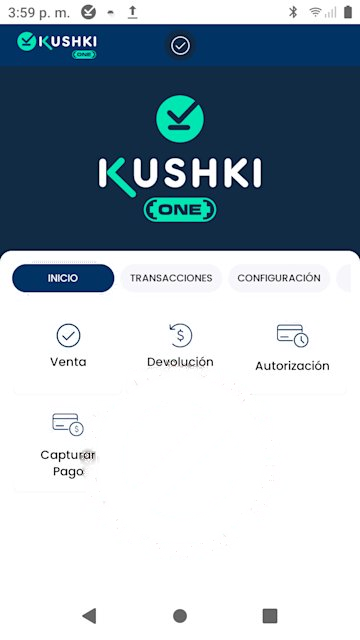
The Kushki ONE Payment App is the native application that runs directly on SmartPOS terminals (Sunmi P2 SE, Sunmi P3). It serves two purposes: it lets the cashier process card payments on their own, and it lets the merchant administrator review sales, tips and reports without leaving the device.
Overview of the Kushki ONE Payment App

How the app is organized#

The app has three sections, reachable from the top navigation bar.
SectionWhat it is for
HomeThe operations menu. This is where the cashier starts every transaction
TransactionsThe lookup hub. Holds the Sales List, the Sales Summary and the Tips List
SettingsUser management, language, receipts, refunds, tips and split payment

Operations available on Home#

OperationWhat it does
SaleImmediate card payment
RefundFull or partial refund of an earlier sale
AuthorizationReserves an amount without charging it yet
Capture PaymentCharges a pending authorization
Split PaymentDivides one check across several consecutive payments

How the payment flow works#

The cashier enters the amount and the customer presents their card by contactless, chip or magnetic stripe. The terminal sends the authorization request through Kushki to the card network. The result, Approved or Declined, appears on screen and is recorded automatically in the Sales List.
Every approved transaction produces:
A unique 18-digit Ticket #, which works as the reference both on the terminal and in the Kushki portal.
A printable receipt with a customer copy and a merchant copy.
A record available for email delivery, individually or as a consolidated report.
Declines are recorded too
Declined transactions appear in the Sales List with a Declined status and no Ticket # assigned. That lets the administrator audit failed attempts.

Configuration works on two levels#

App capabilities are enabled in two layers, and understanding the difference saves you from hunting for an option that is not there yet.
LevelWho controls itWhat it defines
KushkiThe Kushki team, during your terminal activationWhether the capability is available for your merchant account, and its maximum limits
TerminalThe merchant administrator, from SettingsHow the capability behaves day to day
If an option is missing from Settings
It means the capability is not yet enabled at the Kushki level for your merchant account. The administrator cannot turn it on from the terminal: contact your account manager.
Tips are a good example. Kushki has to enable them first. Once enabled, the administrator decides from the terminal whether they are percentage-based or fixed-amount, and which three quick values are offered to the customer.

Who does what#

Two roles use the app differently. Knowing the difference keeps the cashier out of settings that are not theirs to change.
RoleTypical accessRelevant guides
CashierHome, Sales ListProcess a payment · Refunds · Split payment
AdministratorSettings, Sales Summary, User ManagementTerminal settings · Review your transactions · Auth & Capture
Administrator access has no internal limits
A cashier with Administrator Access can change any terminal setting, including disabling the refund controls. Grant that level only to trusted staff.
Process a payment
Start with the main flow: enter the amount, present the card and handle the result.
Terminal settings
Adjust users, tips, receipts and refunds before you start operating.

Explore this section#

Process a paymentSemi-integrated payments on SmartPOSRead article →
Split payment on the terminalSplit a sale into several paymentsRead article →
Refunds and PreAuth & CaptureRefunds and pre-auths on SmartPOSRead article →
Review Your TransactionsReview sales and daily closingRead article →
Terminal SetupSet up refunds, users, receipts and tipsRead article →
Modificado en 2026-10-15 15:30:51
Anterior
Unified Error Catalog — Kushki ONE Connect
Siguiente
Overview
Built with