Find and check your webhooks from the Console1.
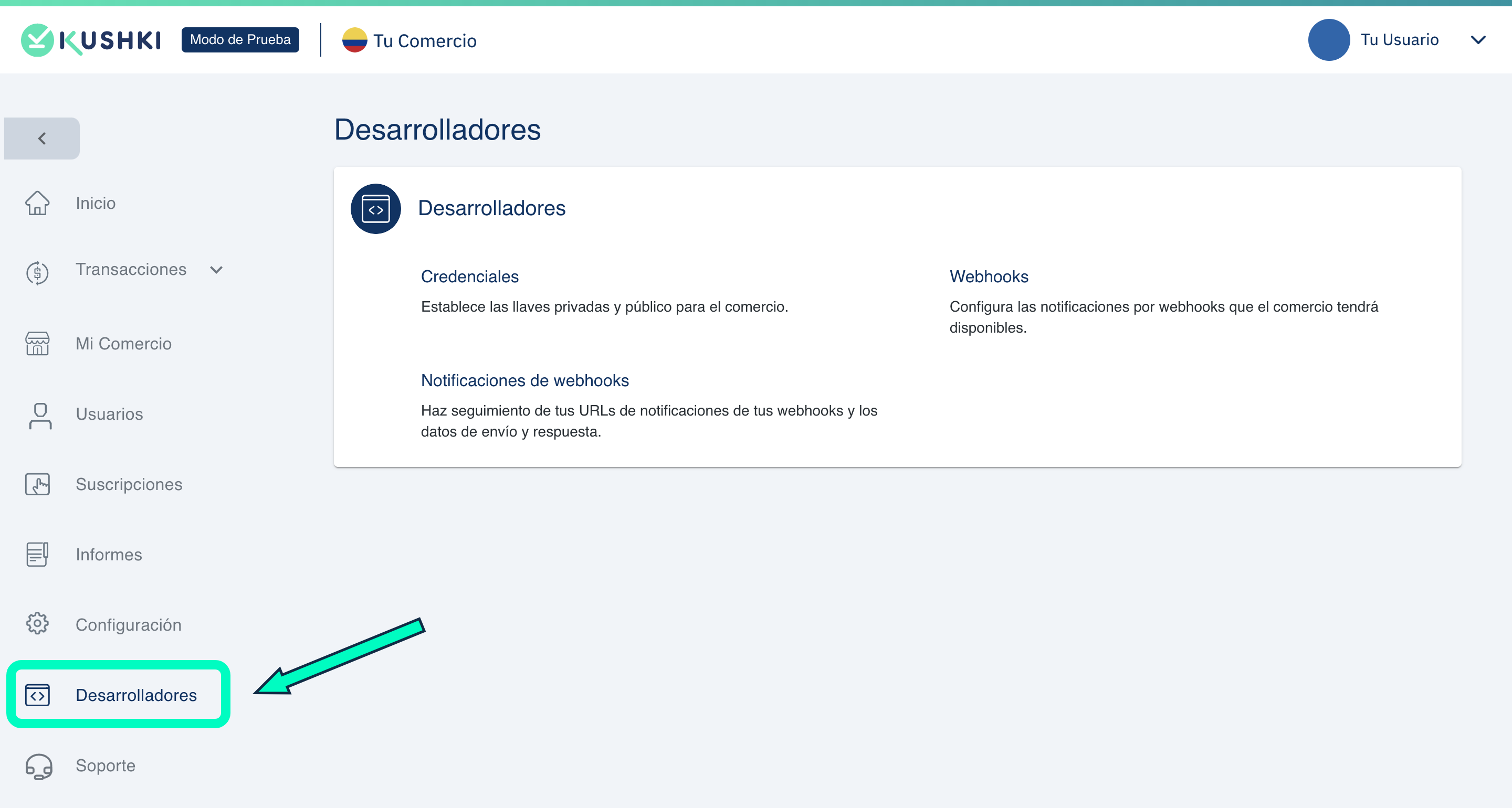
Access the Developers tab, from your Administration Console.
2.
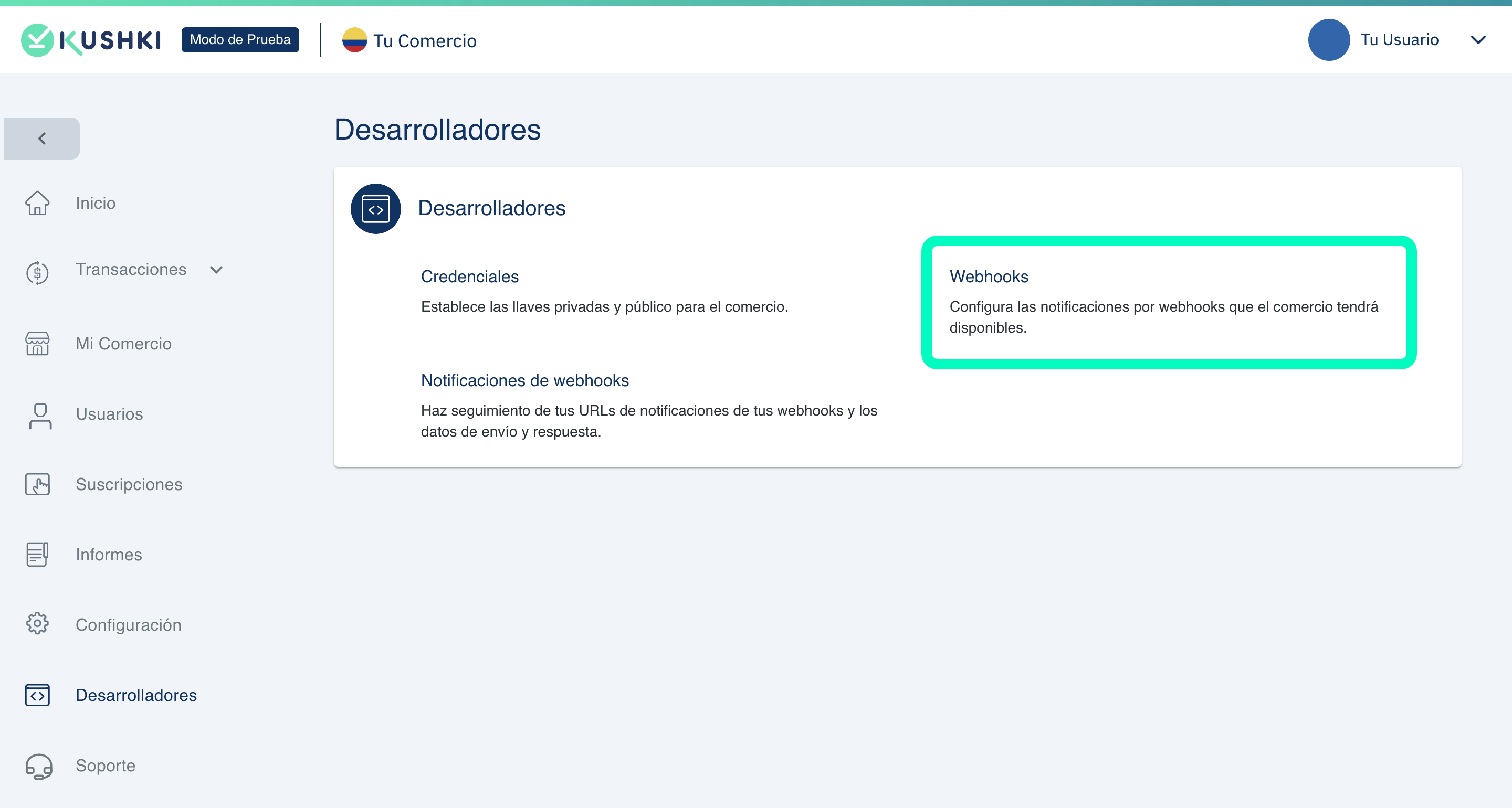
Click on the Webhooks section.
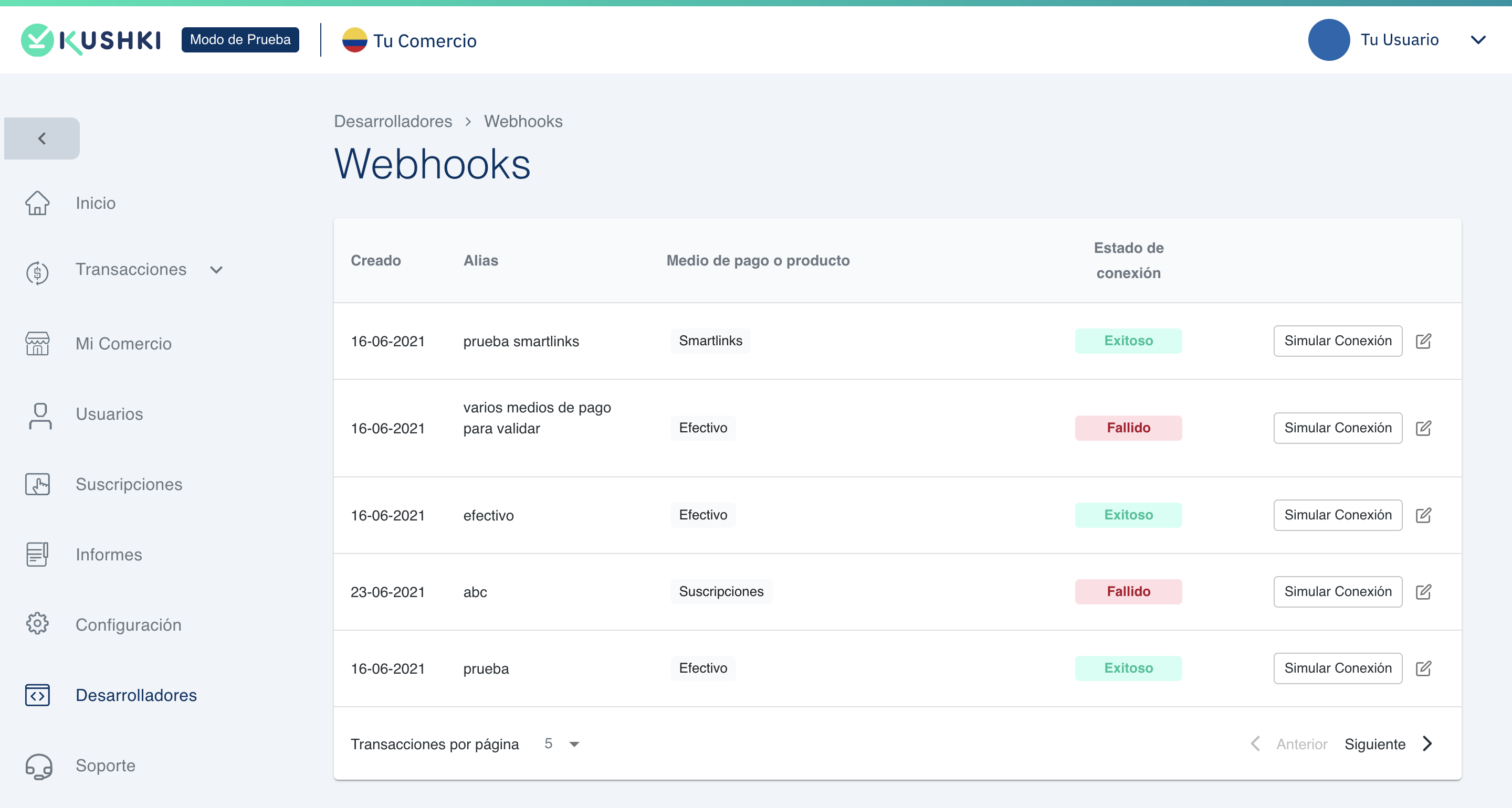
Simulate a connection#
To simulate a notification click on the Simulate connection button, select a product or payment method and the event and enter the corresponding code section, depending on the method you wish to simulate.Once your webhooks are created, you will be able to add custom headers for each one (additional to the headers sent by Kushki), as follows:1.
Click the edit icon to the right of one of your webhooks.
Add a label and a string for your header.
2.
Click on Save Webhook.
To add another header, click the + button
You can add up to 4 custom headers.
Check the notifications received from your webhooks#
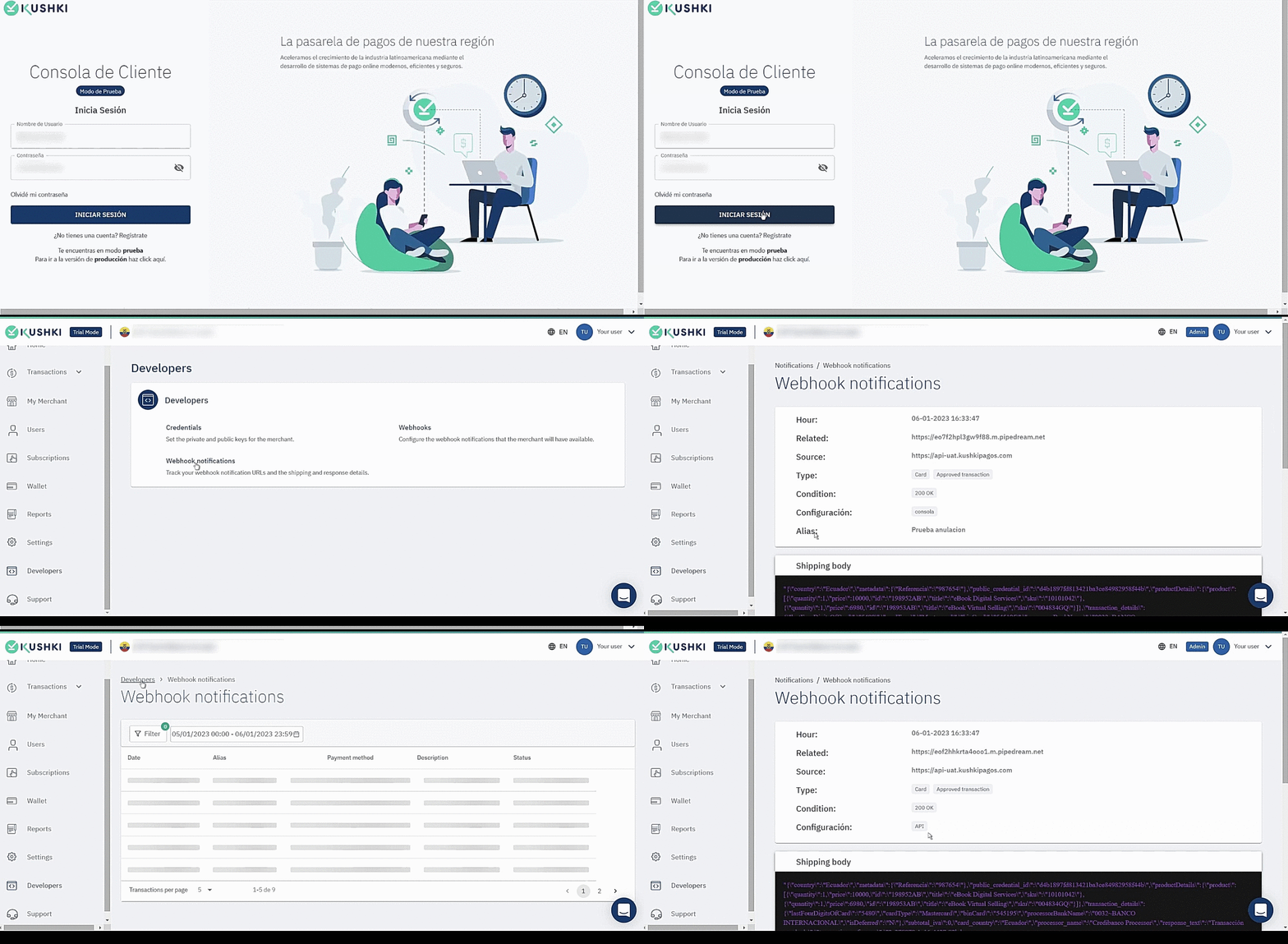
If you wish to consult the notifications received you must follow these steps:1.
Log in to your administrative Console with your master user.
2.
In the left side menu, select the Developers module.
3.
Within the developers window, select Webhooks Notifications.
4.
When you log in you will be able to view all notifications received. Click on the notification you want to see the detail.
5.
Within the webhook detail, there is a field called Configuration which will indicate whether the notification was made via API or Console. If it is via console, the Alias field will appear with which it was configured.