1. Ecuador 🇪🇨
Kushki Docs
English
  • Español
  • English
  • Home
  • Quick Start
    • Frequently Asked Questions
    • Moving to Production
    • Policy for Important API Changes
    • Test Data
    • Error Codes
    • Latest Features
  • Payment Glossary
    • Payments Glossary
  • One-time card payments (Online)
    • Supported card brands
    • Introduction to 3DS
    • Functionalities by business model
    • How do third party commissions work?
    • Integration guide Third Party Commissions
    • One-step Payments
      • How do Card Payments Work?
      • Accept a Card Payment
      • Accept One-Time Payments with OTP
      • OTP Authentication Error Codes
      • Error codes for single card payments
    • Scheduled payments
      • How do Credit or Debit Card Payment Recurring Charges Work?
      • Create a recurring charge
      • Manage your Scheduled Charges
    • Refunds
      • Returns, cancellations, and refunds
    • 3DS Authentication
      • 3DS API integration
      • 3DS integration with kushki.js library
      • 3DS API integration plus kushki.js library
      • 3DS Error Codes
  • Recurring Card Payments (Online)
    • Functionalities by business model
    • Error codes in recurring charges
    • Authenticate your subscriptions with 3DS
    • External subscriptions to Kushki
    • OneClick Payments
      • Accepting One-Click Payments
  • Wire Transfers
    • How do Payments by Wire Transfers Work?
    • Banks and transaction details for bank transfer payments
    • Receive Wire Transfers
    • Check the Status of a Transaction
  • Cash Payments
    • How do Cash Payments Work?
    • Accept a Cash Payment
    • Authorized locations
    • Error Codes for declined cash transaction
  • Plugins
    • Shopify
      • Shopify
      • Plugin Operation
    • VTEX
      • VTEX Integration Guide
  • Payment Links
    • Smartlinks
  • Payment forms and buttons
    • Kajita
      • How Does it Work?
      • Payment Kajitas
    • Payment Button
      • Overview
      • Generate a payment button
  • Branch Offices Management
    • How to Onboard Submerchants via API
  • Notifications
    • Good Practices
    • Check your Webhooks
    • One-time Payments Webhooks
      • Webhook for One-Time Payments made with a card
      • Webhook for One-Time Payments by Wire Transfer
      • Webhook for One-Time Payments in Cash
    • Recurring Payments Webhooks
      • Webhook for Recurring Payments Made with Card
    • Payment button Webhooks
      • Webhooks with Payment Button
    • Smartlinks Webhooks
      • Webhooks with Smartlinks
    • Refunds Webhooks
      • Webhook for Voids and Refunds
      • Chargeback Webhooks
HomeMexico 🇲🇽Ecuador 🇪🇨
Chile 🇨🇱Colombia 🇨🇴Peru 🇵🇪
HomeMexico 🇲🇽Ecuador 🇪🇨
Chile 🇨🇱Colombia 🇨🇴Peru 🇵🇪
Status
Soporte / Support
English
  • Español
  • English
  1. Ecuador 🇪🇨

Cash Payments

How do Cash Payments Work?#

Allow your customers without a bank account to purchase your products or services from your website
If your users do not have a bank account or do not want to cover additional charges, due to interests or fees, and you want to provide them with the possibility to purchase products or services through your website or app, the cash payment option is ideal. With this method, your customers will only need the payment reference and cash in order to complete the purchase.

Payment process#

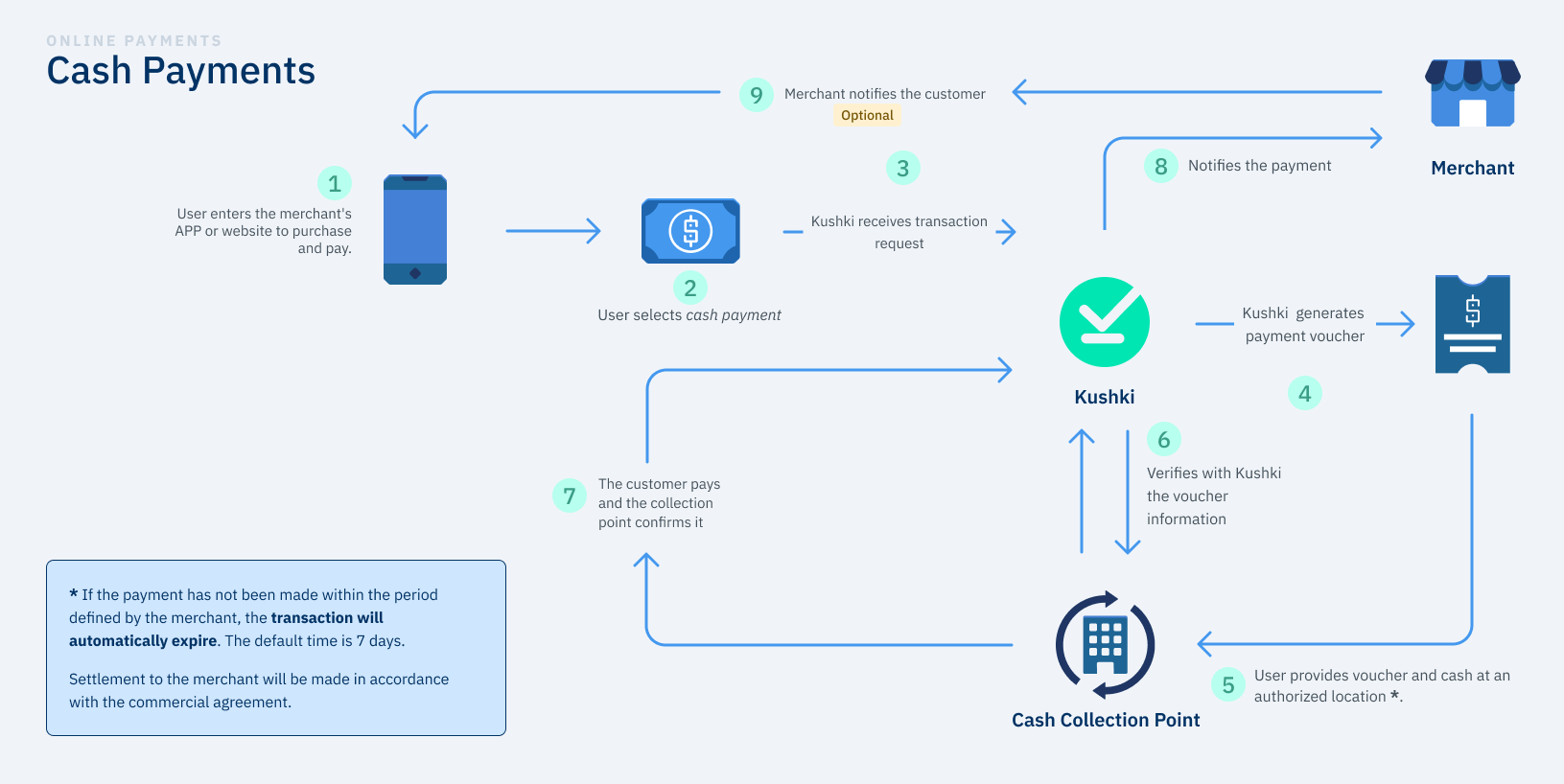
The cash payment process consists of generating a reference or code, making the payment at a physical point, and confirming the receipt of the money.
Cash in EN

1. User enters to your website or app#

Within your app or website, the user selects the products to buy and goes to the checkout.

2. Selection of payment method#

During the checkout, the user selects cash as payment method.

3. Initiate the transaction#

Your merchant sends the transfer request to Kushki to initiate the transaction.

4. Reference or payment code#

Kushki receives the transaction request and generates the reference/pin and the voucher or payment receipt.

5. Physical point of payment#

The user must go to a physical point of any of the collection entities with the receipt or payment reference, there the cashier will validate the data and allow the customer to make the deposit for the amount corresponding to the purchase.

6. Verification#

The collection office enters the payment reference, and Kushki confirms that it is correct. The payment is made.

7. Payment#

Once the payment reference is confirmed, the cash collection is made and the collection office notifies Kushki.

8. Payment confirmation#

Once the user makes the payment, the money from the transaction is credited to the merchant's account in Kushki, and Kushki notifies the merchant.

9. Notification#

As an optional step, the merchant can notify the user of the result of the transaction.


Explore this section#

Accept Cash PaymentsStart accepting cash paymentsRead article →
How do Cash Payments Work?Sell to customers without a bank accountRead article →
Accept a Cash PaymentSell to customers without a bank accountRead article →
Authorized locationsAuthorized collection pointsRead article →
Error Codes for declined cash transactionErrors in declined cash paymentsRead article →
Modificado en 2026-10-15 15:30:12
Anterior
Check the Status of a Transaction
Siguiente
How do Cash Payments Work?
Built with