We explain how a payment by wire transfer works in KushkiIf your users do not have a credit card or wish to use the available balance in their bank accounts to make an online purchase, the account debit (wire transfer) is the ideal and fast payment option.
The payment process by wire transfer consists of allowing your customer to use the available balance in their bank account to pay for a purchase on your website or app. To do so, you must redirect your customer to the website of the bank entity of their choice at checkout to authorize the transaction amount to be debited from their account.
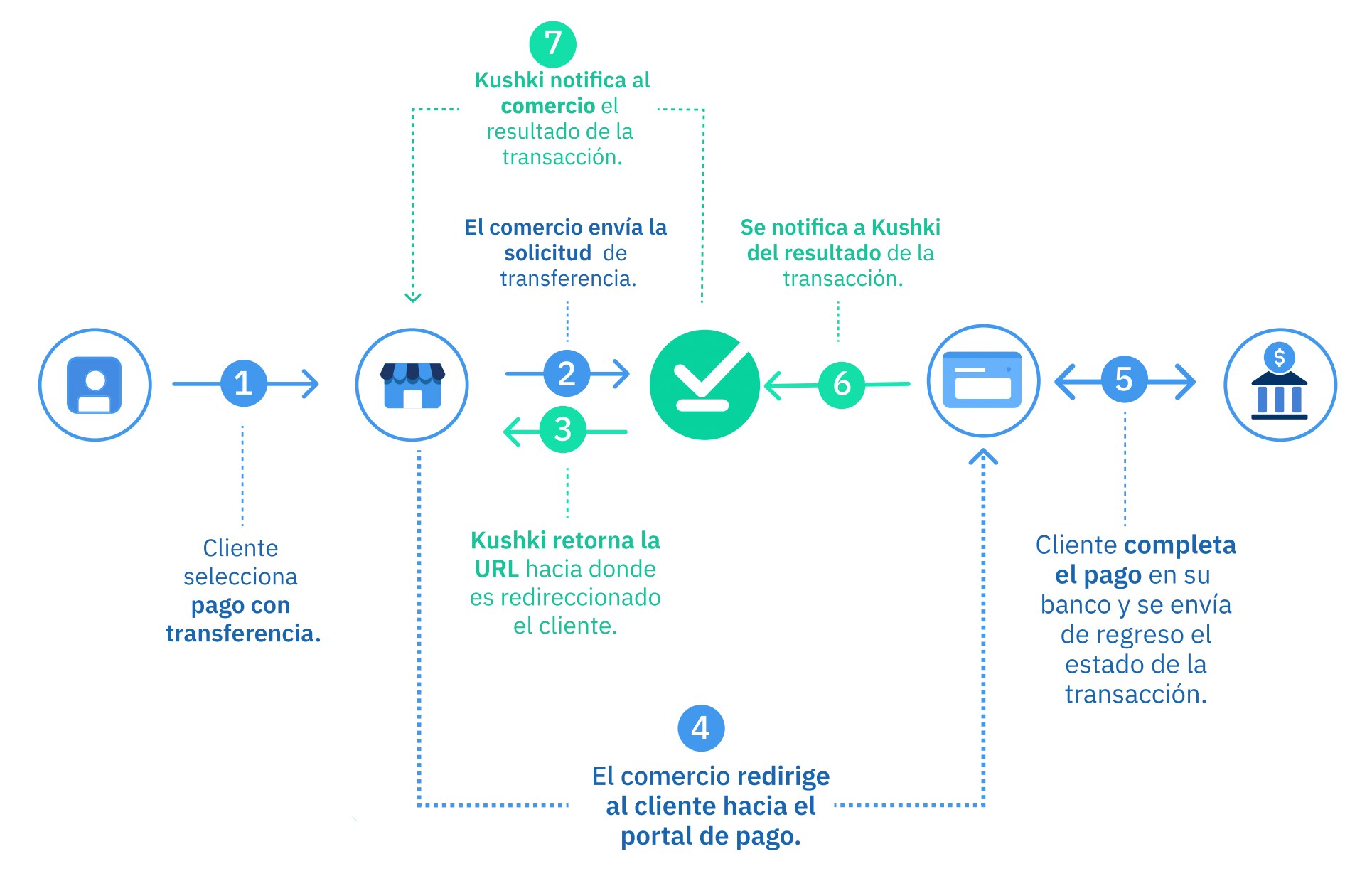
The payment process with transfers consists of allowing your customer to use the available balance in their bank account to pay for a purchase on your site or app. To do so, you must redirect your customer to the site of the bank they select at checkout, so they can authorize the debit of the transaction amount from their account.In Ecuador you can offer transfers through two processors: traditional bank transfer and DeUna!, the digital wallet backed by Banco Pichincha. The integration flow is the same in both cases; the only thing that changes is the way your customer completes the payment.1. Selection of the payment methodWithin your app or website, the user must select transfer as the payment method and fill in the payment form data.2. Sending the requestYour merchant sends the transfer request to Kushki so it can initiate the transaction.3. Sending the URLKushki confirms the creation of the transaction and returns the URL to which you must redirect the user.4. Redirection for bank selectionYour merchant redirects the user to the indicated URL, so they can select their bank and make the transfer.5. Bank portal login and authorizationWhen the user enters their bank's site, they authenticate, verify the transaction data (operation description, amount and account to be debited) and accept that the transaction amount be debited from their account balance.6. Debit confirmationWhen the user authorizes the transfer, the bank confirms the result of the operation to Kushki.7. Kushki notificationKushki notifies you of the final status of the transaction.
DeUna! is the digital wallet with the widest adoption in Ecuador. Your customer pays with the balance in their DeUna! account from the app, without registering a card or selecting a bank.
Processor activation
DeUna! is enabled as a processor for your merchant from the Kushki Console, and the Kushki team does it. There is no parameter in the request to select the processor: once enabled, the same Init Transaction endpoint starts returning the DeUna! fields.
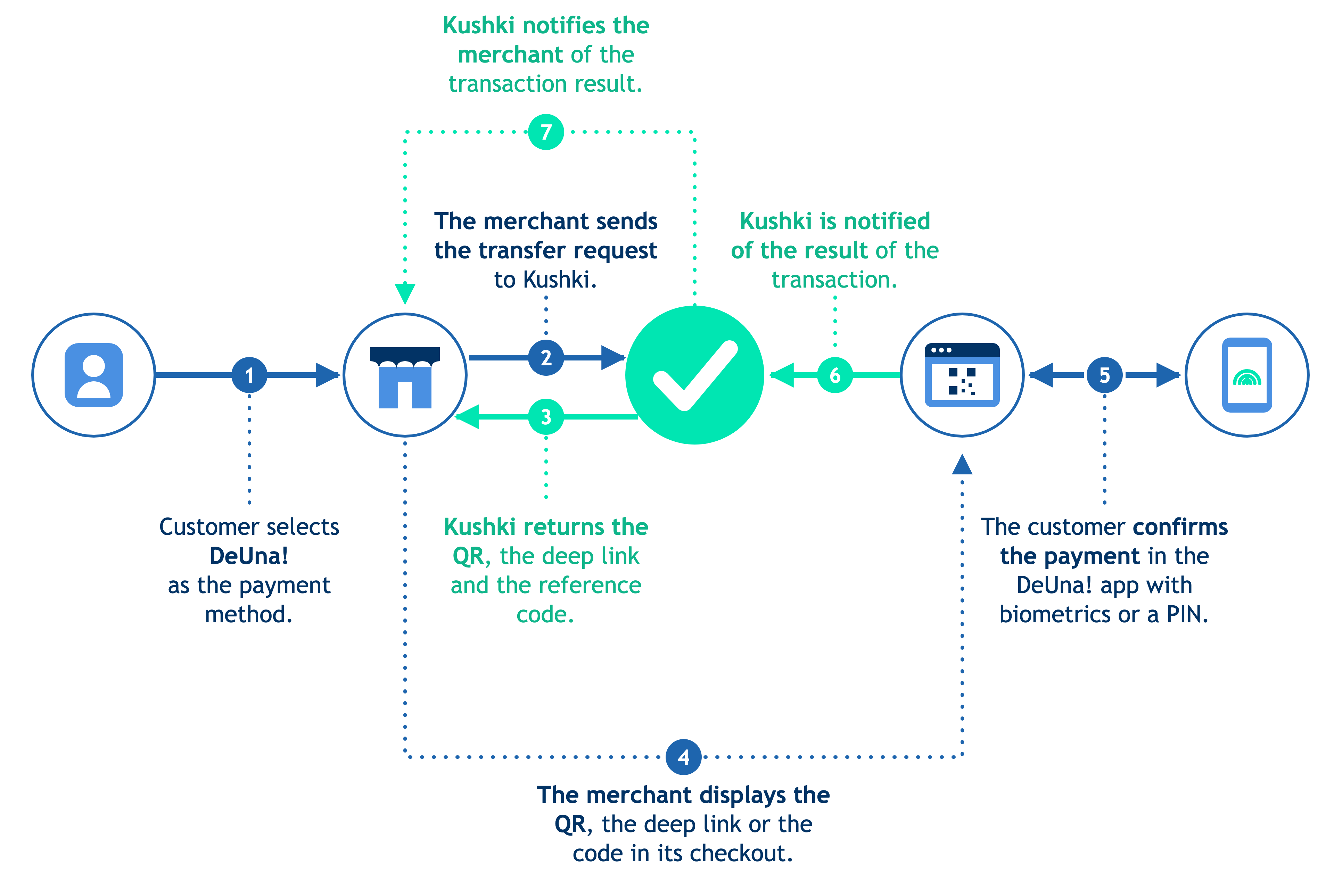
Steps 1, 2, 3, 6 and 7 are identical to the traditional transfer. Steps 4 and 5 change. 4. Displaying the payment experienceInstead of redirecting the user to a bank portal, your merchant displays the experience that matches its channel: render the qr in your checkout, present the redirectUrl as a payment button, or display the referenceCode so the customer can type it into the app.With the QR and the reference code, the user never leaves your site.5. Confirmation in the DeUna! appThe user opens DeUna!, verifies the transaction data (merchant, order number and amount) and confirms the payment with their biometrics or PIN. The amount is debited immediately from their account balance.
The qr field contains a PNG image encoded in Base64, with the data:image/png;base64, prefix already included. You must read the value and render it as an image in your checkout: Kushki does not host the QR image for you.
Do not add the prefix twice
Because qr already carries the data:image/png;base64, prefix, concatenating it again produces an invalid data URI and the image fails silently: you will see a blank space with no error in the console.
The QR, the deep link and the reference code expire in 3 minutes, while the transaction token lasts 30 minutes. Generate the payment experience at the moment your customer is ready to pay, show a countdown on screen, and request a new token if it expires.