1. Notifications
Kushki Docs
English
  • Español
  • English
  • Home
  • Quick Start
    • Frequently Asked Questions
    • Moving to Production
    • Policy for Important API Changes
    • Test Data
    • Error Codes
    • Latest Features
  • Payment Glossary
    • Payments Glossary
  • One-time card payments (Online)
    • Supported card brands
    • Introduction to 3DS
    • Functionalities by business model
    • How do third party commissions work?
    • Integration guide Third Party Commissions
    • One-step Payments
      • How do Card Payments Work?
      • Accept a Card Payment
      • Accept One-Time Payments with OTP
      • OTP Authentication Error Codes
      • Error codes for single card payments
    • Scheduled payments
      • How do Credit or Debit Card Payment Recurring Charges Work?
      • Create a recurring charge
      • Manage your Scheduled Charges
    • Refunds
      • Returns, cancellations, and refunds
    • 3DS Authentication
      • 3DS API integration
      • 3DS integration with kushki.js library
      • 3DS API integration plus kushki.js library
      • 3DS Error Codes
  • Recurring Card Payments (Online)
    • Functionalities by business model
    • Error codes in recurring charges
    • Authenticate your subscriptions with 3DS
    • External subscriptions to Kushki
    • OneClick Payments
      • Accepting One-Click Payments
  • Wire Transfers
    • How do Payments by Wire Transfers Work?
    • Banks and transaction details for bank transfer payments
    • Receive Wire Transfers
    • Check the Status of a Transaction
  • Cash Payments
    • How do Cash Payments Work?
    • Accept a Cash Payment
    • Authorized locations
    • Error Codes for declined cash transaction
  • Plugins
    • Shopify
      • Shopify
      • Plugin Operation
    • VTEX
      • VTEX Integration Guide
  • Payment Links
    • Smartlinks
  • Payment forms and buttons
    • Kajita
      • How Does it Work?
      • Payment Kajitas
    • Payment Button
      • Overview
      • Generate a payment button
  • Branch Offices Management
    • How to Onboard Submerchants via API
  • Notifications
    • Good Practices
    • Check your Webhooks
    • One-time Payments Webhooks
      • Webhook for One-Time Payments made with a card
      • Webhook for One-Time Payments by Wire Transfer
      • Webhook for One-Time Payments in Cash
    • Recurring Payments Webhooks
      • Webhook for Recurring Payments Made with Card
    • Payment button Webhooks
      • Webhooks with Payment Button
    • Smartlinks Webhooks
      • Webhooks with Smartlinks
    • Refunds Webhooks
      • Webhook for Voids and Refunds
      • Chargeback Webhooks
HomeMexico 🇲🇽Ecuador 🇪🇨
Chile 🇨🇱Colombia 🇨🇴Peru 🇵🇪
HomeMexico 🇲🇽Ecuador 🇪🇨
Chile 🇨🇱Colombia 🇨🇴Peru 🇵🇪
Status
Soporte / Support
English
  • Español
  • English
  1. Notifications

Check your Webhooks

Find and check your webhooks from the Console
Once you have requested the creation of a webhook via console or via API, you will be able to query it as follows:
1.
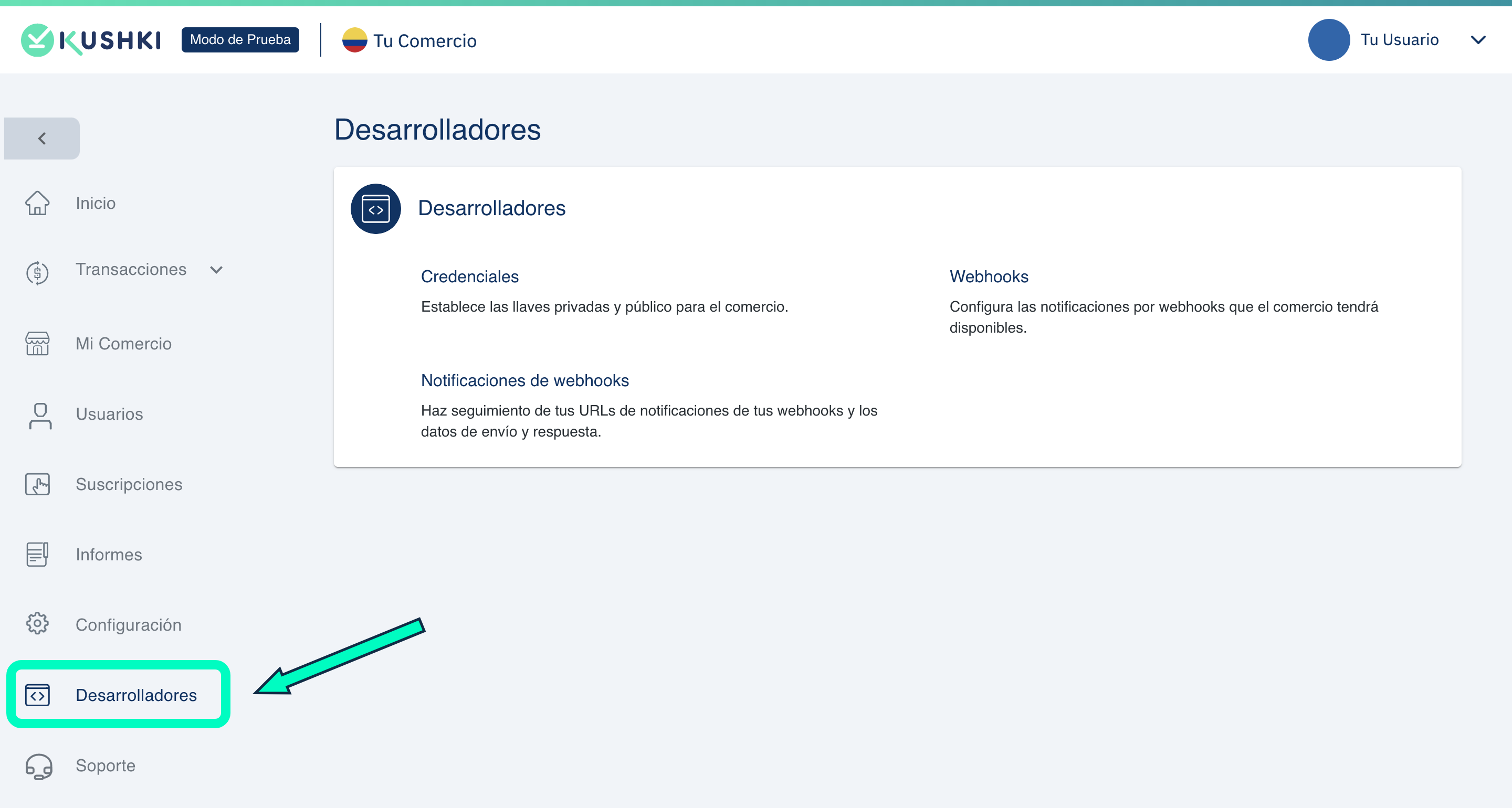
Access the Developers tab, from your Administration Console.
webhooks_desarrolladores
2.
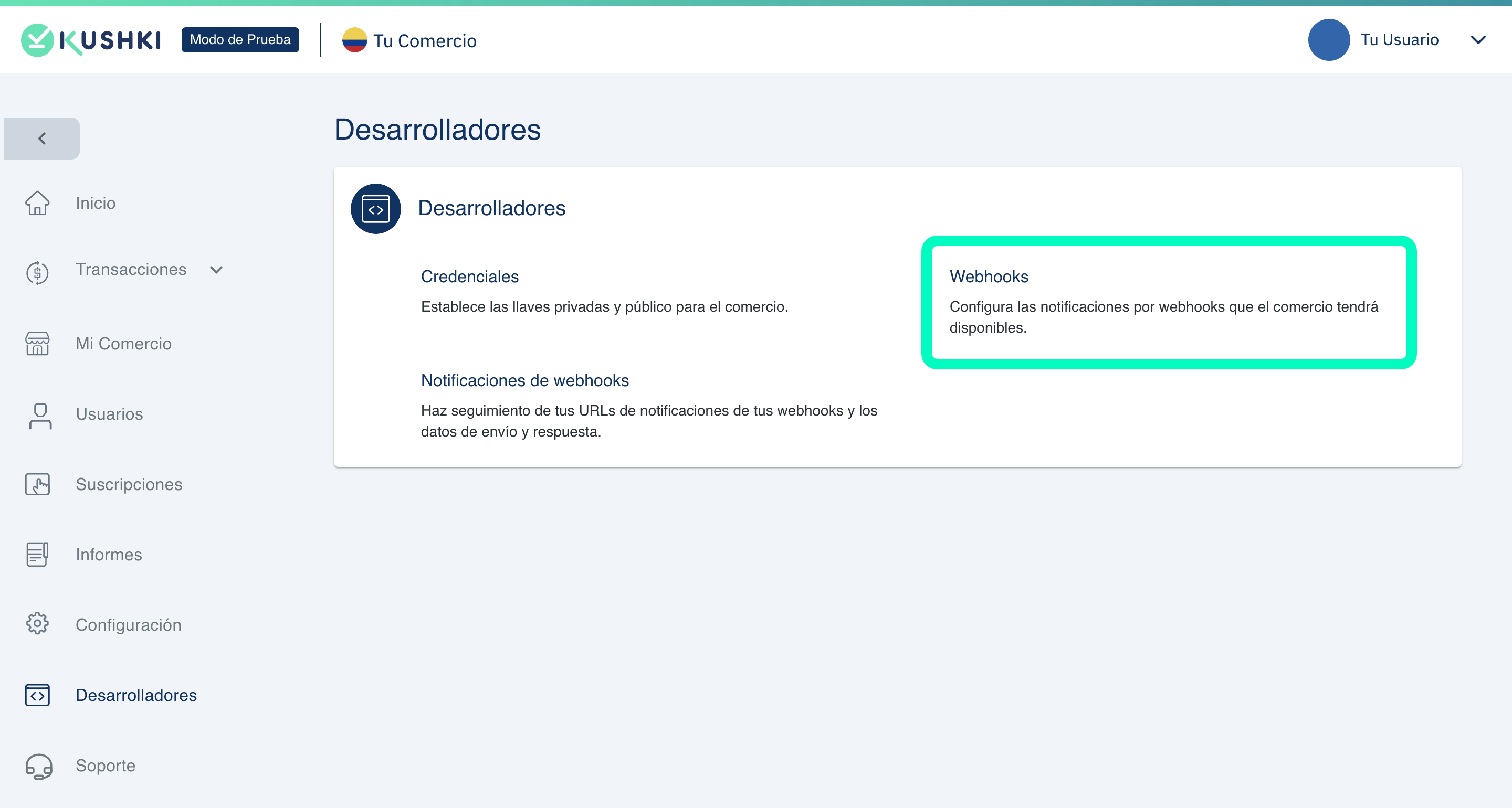
Click on the Webhooks section.
zona-webhooks
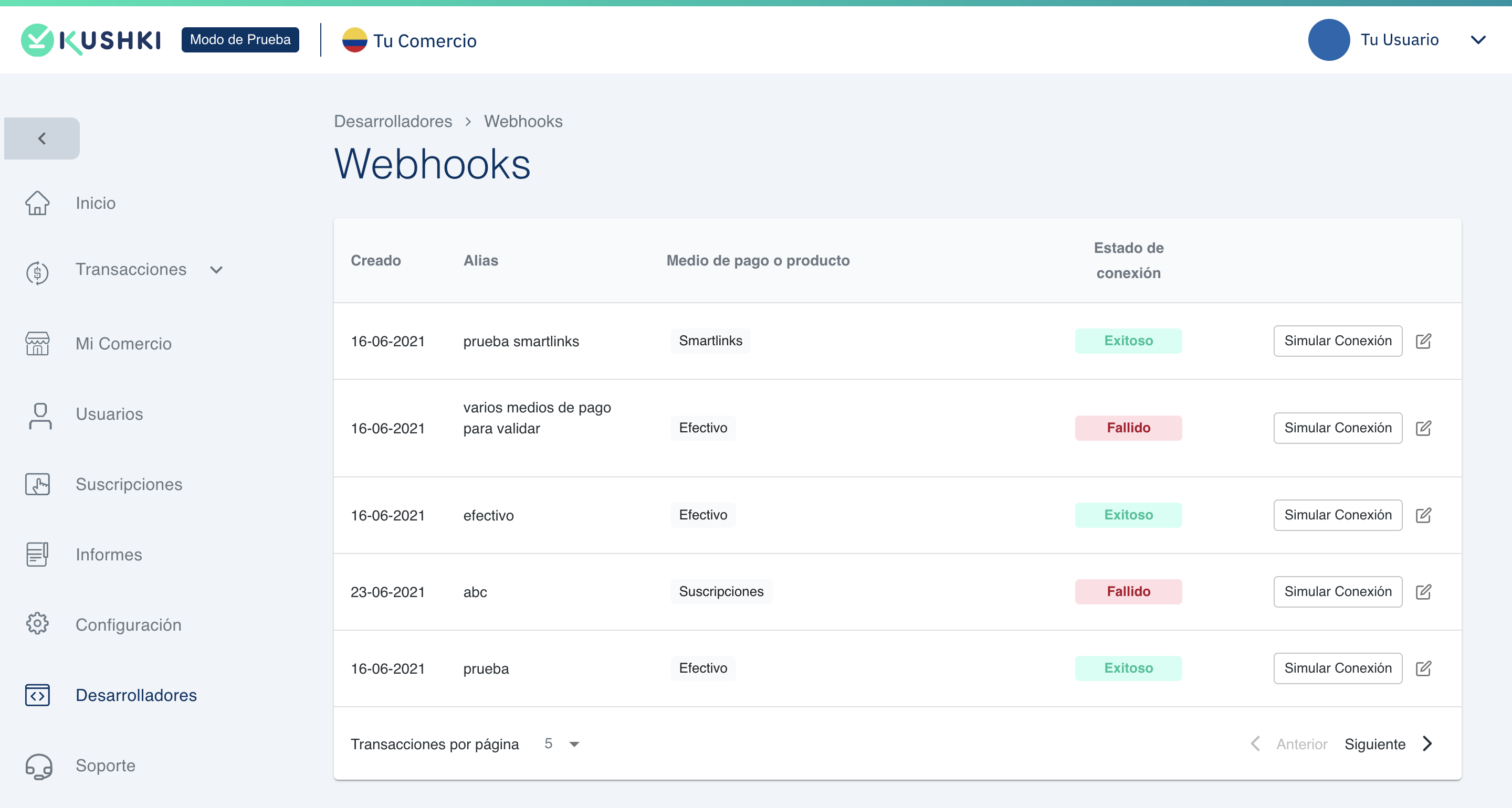
You will see the list of your created webhooks.
Webhooks_lista
In the list of webhooks you will be able to know the creation date, the identification alias (only for those created by console), the payment method or product for which it is configured, as well as the connection status.

Check the URLs and events configured in your webhooks#

To consult the data with which one of your webhooks was configured, click on the label corresponding to Connection Status, whether it has the legend Successful or Failed.

Simulate a connection#

To simulate a notification click on the Simulate connection button, select a product or payment method and the event and enter the corresponding code section, depending on the method you wish to simulate.

Edit the headers of your webhooks#

Once your webhooks are created, you will be able to add custom headers for each one (additional to the headers sent by Kushki), as follows:
1.
Click the edit icon to the right of one of your webhooks.

Add a label and a string for your header.
2.
Click on Save Webhook.

To add another header, click the + button
You can add up to 4 custom headers.

Check the notifications received from your webhooks#

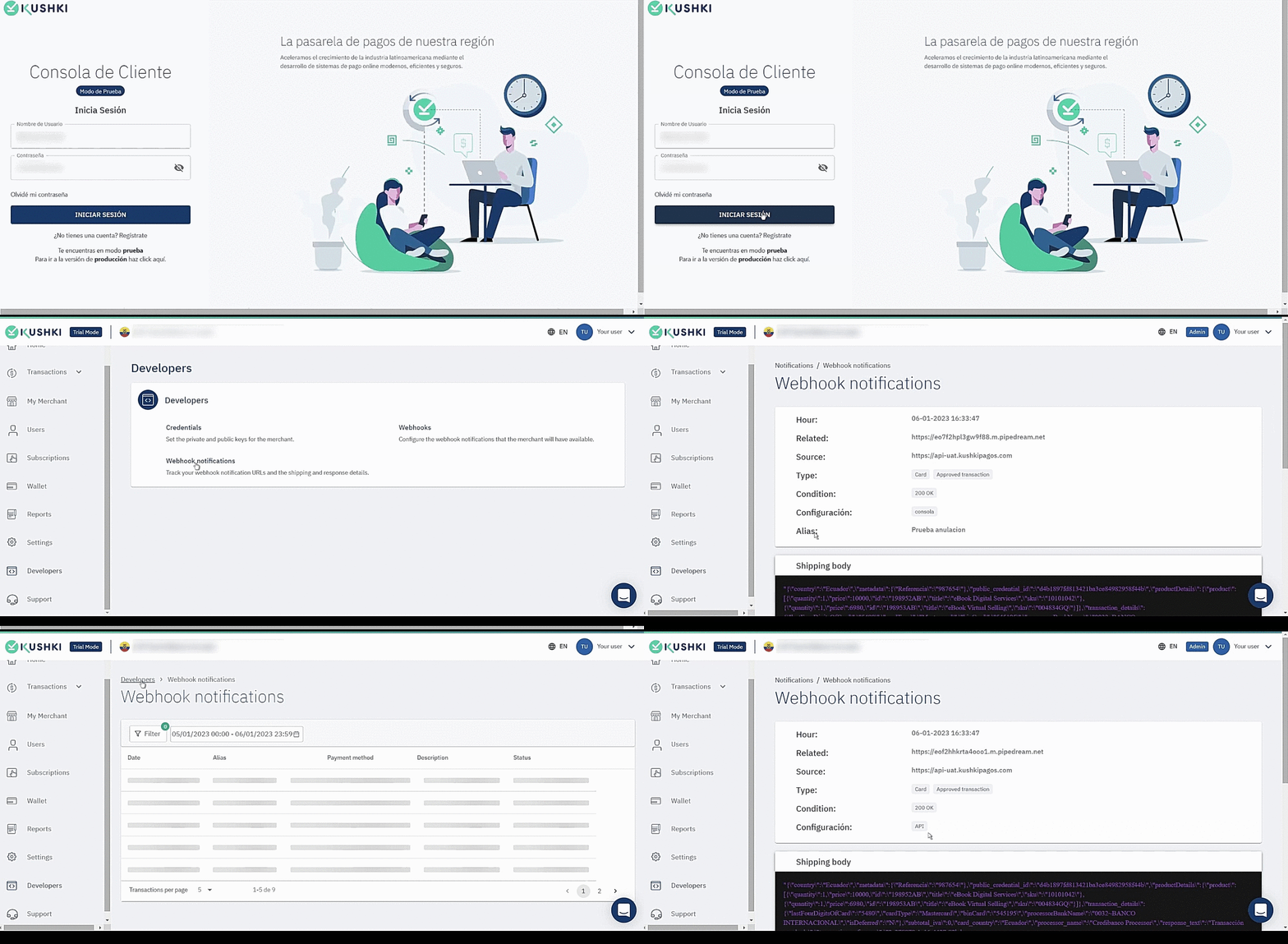
If you wish to consult the notifications received you must follow these steps:
1.
Log in to your administrative Console with your master user.
2.
In the left side menu, select the Developers module.
3.
Within the developers window, select Webhooks Notifications.
4.
When you log in you will be able to view all notifications received. Click on the notification you want to see the detail.
5.
Within the webhook detail, there is a field called Configuration which will indicate whether the notification was made via API or Console. If it is via console, the Alias field will appear with which it was configured.

The following GIF shows you how to consult the notifications received:
Webhooks notifications
Modificado en 2026-10-14 19:48:25
Anterior
Good Practices
Siguiente
One-time Payments Webhooks
Built with