
Accept a Cash Payment
Web
iOS
Android
This payment option is ideal for those customers who want to purchase the products or services available on your website, but do not have a card or a bank account. To do so, you need to capture your customer's basic details, to generate a reference or voucher, with which your user will be able to make the payment at an authorized location of the collection entity of their choice.The payment flow that you will integrate is as shown below: 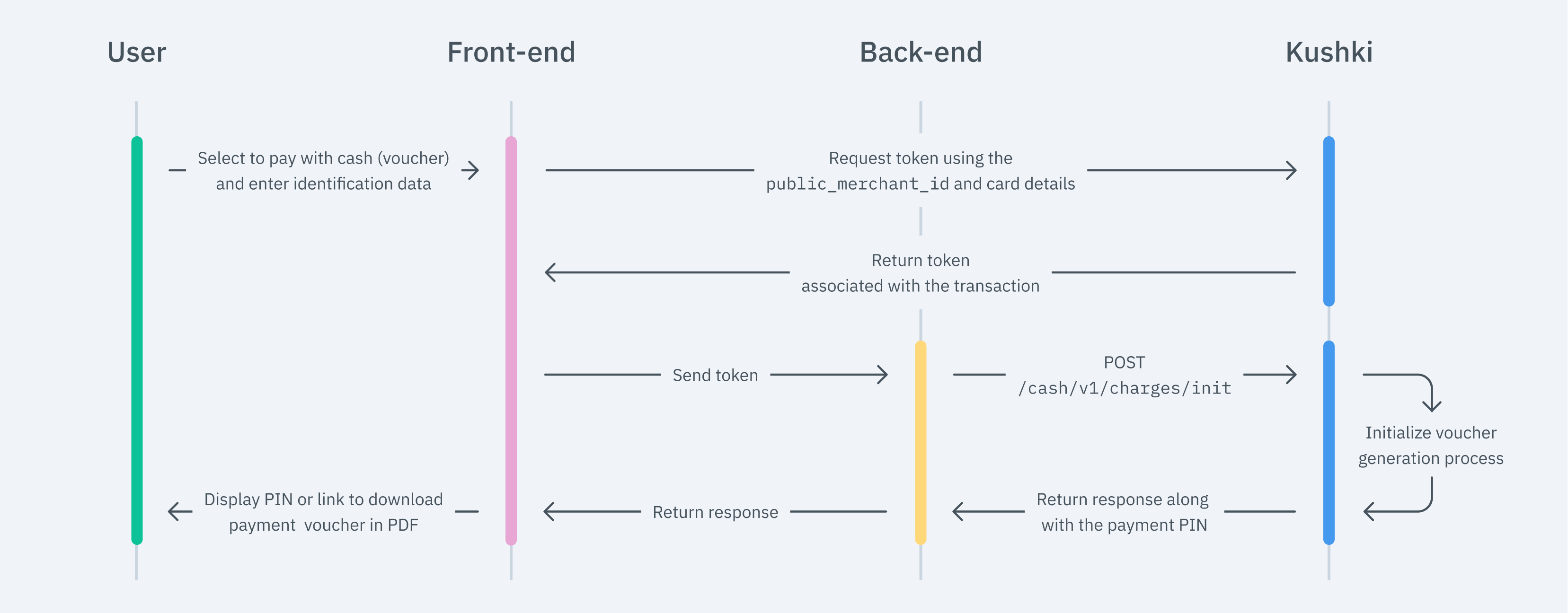
Due to our risk policies, the available payment methods and the integration type may vary once you complete the affiliation. We will tell you how to proceed if this process applies to your merchant. The front-end is responsible for collecting the user’s main details, generating a token for such information through Kushki’s servers, and sending that information to the back end to start the payment process. For this, you have two options: Kajita and Kushki.js. Kushki has payment forms ready to collect card information securely. You can use any of our versions: Cajita: our first version of the payment form. Not customizable. Kajita: is the second version, which allows you to add customizations from your Administration Console and even have several versions of Kajita, one for each payment method, for example. With Kushki you can create your Kajitas from the Administration Console. Click here to learn how to do this. Include the Kajita needs a space within your page. Enter the following code in your website's Remember to configure the action of the Then, add the following This will create a predesigned form on your website to accept payments. You can use Cajita to offer not only cash payments, but also payments with card or through wire transfers. Use Kushki.js if you need more control over the "look & feel" or appearance of your payment form. Use the following Install the package from npm. Then import it into your code using the following code. Set up
Add the following code to your application First, embed the form in your payment page adding the required fields. You can design it as you prefer. For example: And, for the moment the user submits the form, add the token request and take it to your back end. Check the full reference on our Kushki.js reference The back-end is responsible for receiving the token obtained from your front end and starting the payment process with Kushki. When the user submits the form, your front end sends a token to an endpoint that you specified previously. Using this token, you must make a call to our charges endpoint to start the charge. Check our API Reference for more information. According to the consumption response of the method to initiate the transaction, redirect the user to the URL of the PDF of the voucher so that your customer can download and print it and thus make the payment at the authorized location point of the collection entity of their choice. There are test identification numbers that you can use to simulate status to ensure that your integration is ready. Use them in the token request (front end): Approved Transaction: Any identification number Initialized transaction: Declined Transaction: Read the following guidelines for technical certification approval (required to obtain productive account credentials): The calculation of taxes and the total amount must be the correct amount. Messages displayed on the screen are in line with Kushki’s responses. All Kushki responses must be saved and recorded (required in case you need support). Kushki's logo must be visible for the customer. You can find our logo in several formats here. Make sure to send all the data required as specified in the [API Reference If you are using Kushki.js, make sure that: The payer name must be required. The payment button must be disabled after the first click. Kushki's logo must be visible for the customer. You can find our logo in several formats here. If you design your own voucher, also consider the following: The pin must be visible. The agreement number must be visible. (Only if the Init response contains it). The voucher expiry date must be visible. Cash points where the PIN can be used to make the payment must be visible. The total amount is visible. The barcode is displayed (in case it is included in the response of the charge endpoint ).
To keep in mind
1. Set up your Front-end
Kajita
Create and customize your Kajitas
Set up Kajita
kushki-checkout.js script in your payment page by adding it to the <head> of your HTML file. Always load kushki-checkout directly from cdn.kushkipagos.com. Do not include the script in a bundle or package or host a copy of it.Add Kajita to your Website
<body>, where you want the payment form to be displayed.action form according to the corresponding endpoint in your back end, to obtain the token.script tag. Make sure that the form has been uploaded.Kushki.js
Set up Kushki.js
Option 1 - CDN
script tag at the end of the <body> of your payment page.Option 2 - NPM
Set up Kushki object
Collect User Information and Send it to your Back End
2. Set up your Back-end
JavaScript
Python
PHP
3. Test your Integration
999999999910000000004. Prepare your Certification
Modificado en 2026-10-14 19:48:02