Process full or partial refunds and manage pre-authorizations directly from your SmartPOS terminal.
🚧 Early Release — Beta
This product is in early access. Parameters, response structures and behaviors may change without prior notice. Do not use this version in production without coordinating with the Kushki integrations team first.
Two advanced cashier flows that require prior configuration and, at some merchants, administrator credentials.
Refunds must be enabled in Settings → Refund Settings. If Require Supervisor Approval is on, have an administrator user's credentials ready before you start the flow.
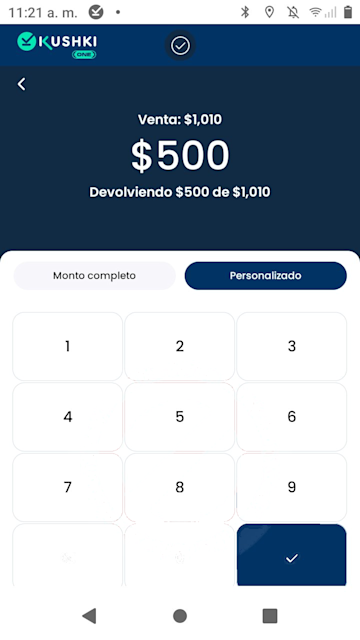
A refund can be full, for the entire original sale amount, or partial, for a smaller value. In both cases the app records the reason and generates a new Ticket # for the refund.
A refund can take days to appear
The app uses a single word, Refund, for two different operations that settle on very different timelines:
Before the cut-off time on the day of the sale, the operation is a void: the amount is never debited from the customer's account.
After the cut-off, the operation falls into the refund cycle and can take business days to appear on the customer's statement.
Country
Cut-off time (local)
Chile
23:59 on the transaction day
Colombia
23:59 on the transaction day
Mexico
23:59 on the transaction day
Peru
23:59 on the transaction day
If you process a refund close to closing time, tell the customer the money may take several days to show up. The terminal displays Approved in both cases.
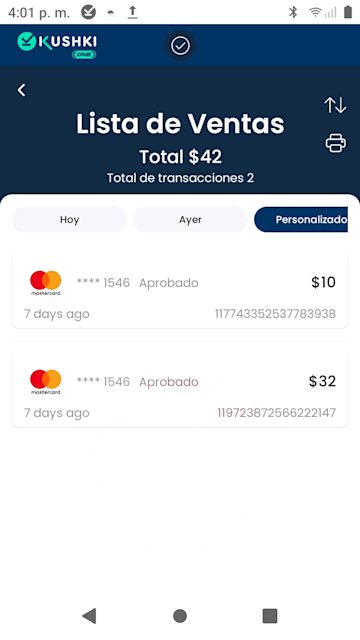
Go to Transactions → Sales List, use the filters to find the sale and tap the card to open its detail. Inside the detail, select Refund.
There is also a shortcut on Home
The Refund operation also appears in the operations menu on the Home tab. This guide documents the path from the Sales List, which lets you verify the original transaction before refunding it.
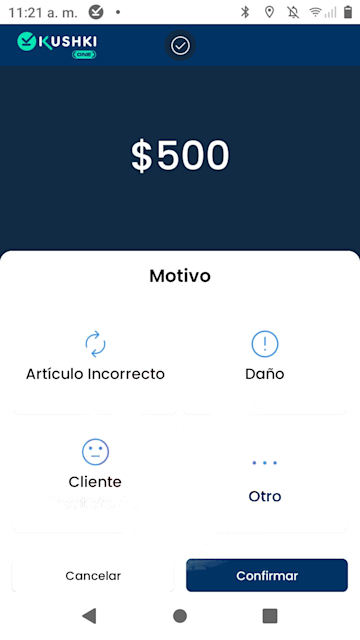
The app requires a justification before it processes the refund. The options are Wrong Item, Damaged, Customer Dissatisfied and Other.Select the reason and tap Confirm.
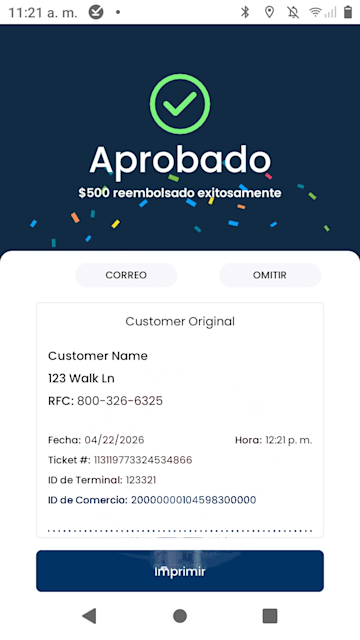
The terminal processes the refund with the card network. If approved, it shows the Approved screen with a "refunded successfully" message and a new receipt.
Action
Description
Print
Prints the refund receipt on the terminal
Email
Sends the receipt to the merchant's or the customer's email
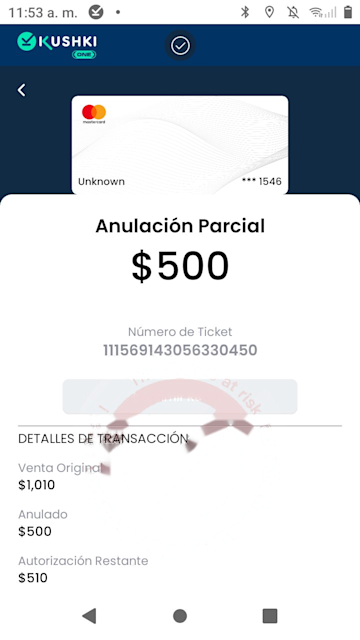
Once processed, the refund appears in the original transaction's detail with this breakdown:
Field
What it represents
Original Sale
Total amount of the transaction as originally approved
Voided
Amount returned to the customer
Remaining Authorization
Balance still authorized after the partial refund: Original Sale minus Voided
The detail screen says Voided, not Refund
The flow is called Refund but the transaction detail labels the field as Voided. They mean the same thing: the amount you returned to the customer.In the period's Sales Summary that amount appears as Refunds and is subtracted from the day's net total.
A pre-authorization reserves an amount on the customer's card without charging it right away. The actual charge happens later, in a separate step called capture. It is the standard flow at hotels, car rentals and restaurants that adjust the final amount before closing the check.
Requires prior enablement
Auth & Capture must be enabled for your merchant account at the Kushki level. If you do not see the option on the terminal, contact your account manager.
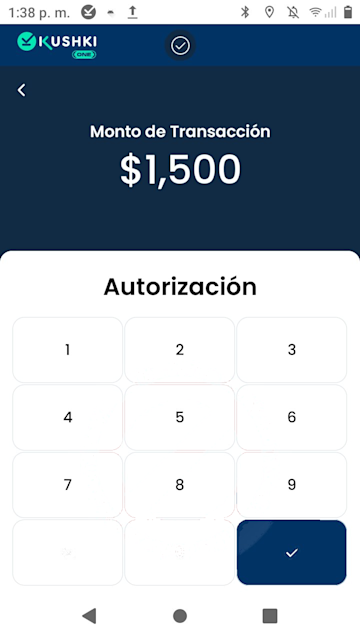
From the Home tab, tap Authorization in the operations menu. The keypad header shows Authorization instead of Sale. Enter the amount to pre-authorize and tap the confirmation button.
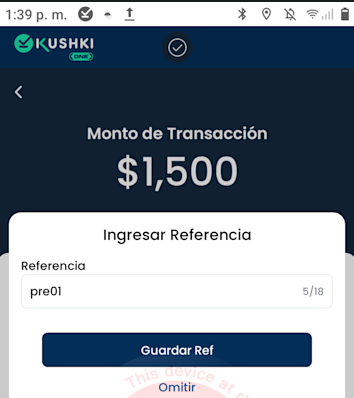
The reference, up to 18 characters, makes it easier to find the pre-authorization on the Capture Payment screen. Useful at merchants with many open pre-authorizations at once.
Tap Save Ref to attach it, or Skip to continue without one.
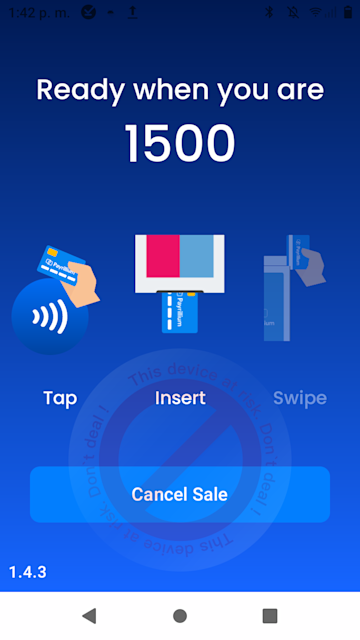
The terminal shows the card-waiting screen. The customer presents their card by contactless, chip or magnetic stripe. The process is identical to the regular sale flow.
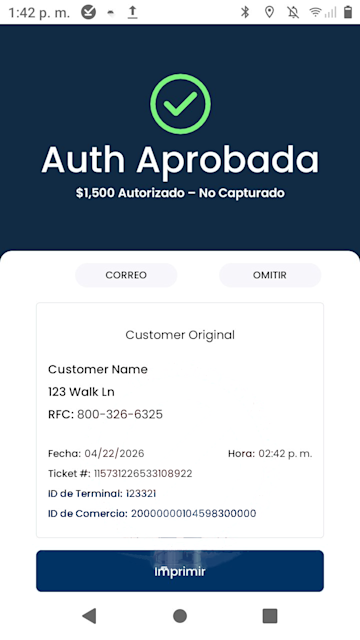
If the authorization succeeds, the app shows the Auth Approved screen with an "Authorized - Not Captured" message. The amount is reserved but not yet debited. A Ticket # and a receipt are generated.
The reservation has an expiry date
Validity depends on the card type:
Card type
Validity from authorization
Debit (Visa / Mastercard)
7 days
Credit (Visa / Mastercard)
28 days
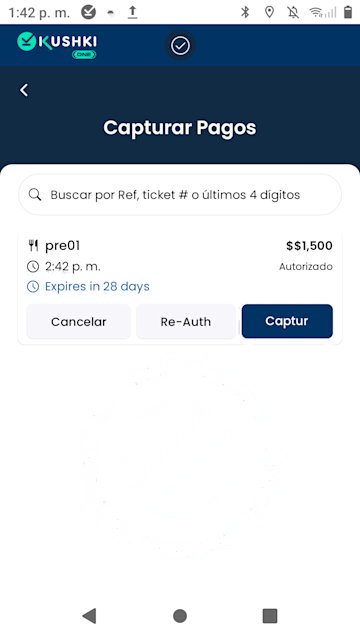
The terminal shows the remaining window on Capture Payment. If you do not capture before it expires, the reservation is released automatically and you will have to authorize again.
From the Home tab, tap Capture Payment in the operations menu. The screen lists every pending pre-authorization with its reference, amount and expiry date.Each pending pre-authorization has three actions:
Action
Description
Cancel
Cancels the pre-authorization and releases the reserved amount. Equivalent to a void
Re-Auth
Renews the pre-authorization for a new period if it is close to expiring, or adjusts the reserved amount
Capture
Confirms the actual charge. Opens the amount confirmation screen
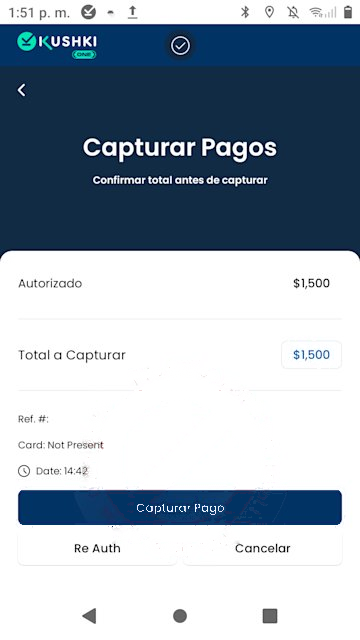
The app shows the Confirm total before capturing screen with the authorized amount and the total to capture. Tap Capture Payment to confirm.
You can capture up to 10% above the authorized amount
The maximum amount to capture can be up to 10% higher than the sum of the initial authorization plus every re-authorization that has not been canceled.Only one capture is allowed per authorization cycle. If you need to charge more than that limit, use Re-Auth to raise the reservation before capturing.
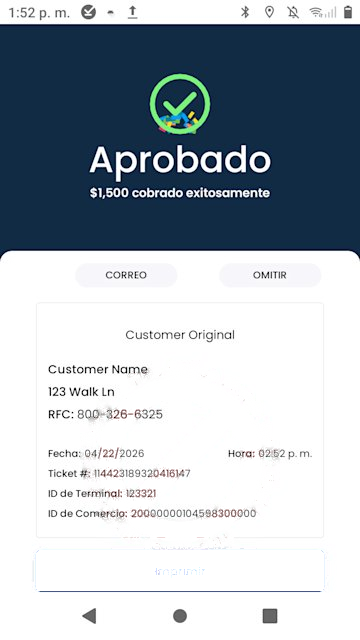
The app shows the Approved screen with a "charged successfully" message and generates the transaction's final receipt.
Which receipt is the definitive one
The capture receipt is the transaction's fiscal document. The Auth Approved receipt is only a record of the reservation: it does not evidence a charge.
Review your transactions
Learn how to filter the Sales List and generate the daily Summary from the terminal.
Terminal settings
Enable refunds, configure Auth & Capture and manage cashier users.