
1. Card
Kushki Docs
English
  • Español
  • English
  • Home
  • Quick Start
    • Frequently Asked Questions
    • Moving to Production
    • Policy for Important API Changes
    • Test Data
    • Error Codes
    • Latest Features
  • Payment Glossary
    • Payments Glossary
  • One-time card payments (Online)
    • Supported card brands
    • Functionalities by business model
    • Network Tokens
    • One-step Payments
      • How do Card Payments Work?
      • Accept a Card Payment
      • Direct charge (without token)
      • Accept One-Time Payments with OTP
      • OTP Authentication Error Codes
      • Error codes for single card payments
    • Two-steps Payments
      • How do one-time payments with authorization and capture work?
      • Receive payments with authorization and capture
    • Refunds
      • Returns, cancellations, and refunds
    • 3DS Authentication
      • Introduction to 3DS
      • 3DS API integration
      • 3DS integration with kushki.js library
      • 3DS API integration plus kushki.js library
      • 3DS Error Codes
    • Apple Pay Payments
      • Apple Pay Configuration
      • Apple Pay Sandbox testing
  • Recurring Card Payments (Online)
    • Functionalities by business model
    • External subscriptions to Kushki
    • Authenticate your subscriptions with 3DS
    • Accept one-click payments with 3DS
    • Error codes in recurring charges
    • Apple Pay for Subscriptions
    • Scheduled payments
      • How do Credit or Debit Card Payment Recurring Charges Work?
      • Create a recurring charge
      • Manage your Scheduled Charges
    • OneClick Payments
      • Accepting One-Click Payments
      • How does authorization and capture work in OneClick payments?
      • Receive OneClick payments with authorization and capture
  • Card-present payments
    • Accept card present payments
    • Test data
    • Webhooks for card present
    • Raw card-present API
      • Raw card-present API overview
      • Cryptographic key exchange
      • Sample script to encrypt information
      • Take Payments
      • Frequently Asked Questions
      • Error codes for card-present transactions
    • Transactions
      • Transactions
      • Cancel payments
    • Kushki One
      • First Steps
      • Autenticación y Cifrado de Requests
      • Accept payments with Kushki One
      • Amount Format
      • Async services and webhooks
      • Printing on SmartPOS terminal
      • Unified Error Catalog — Kushki ONE Connect
    • Kushki One Payment App
      • Overview
      • Process a payment
      • Split payment on the terminal
      • Refunds and PreAuth & Capture
      • Review Your Transactions
      • Terminal Setup
  • Wire Transfers
    • Shopping experiences and transaction details for bank transfer payments
    • Receive Wire Transfers
    • Check the Status of a Transaction
  • Cash Payments
    • Accept a Cash Payment
    • Authorized locations
    • Error Codes for declined cash transaction
  • Alternative payment methods (APM)
    • How do APM payments work?
    • Accept Yape payments
  • Money Disbursement
    • Wire Transfer
      • How does the disbursement through bank transfer work?
      • Payment disbursement to bank accounts
      • Error codes for transfer disbursements
    • Card
      • How does sending funds to cards work?
      • Send money to a card
      • Error Codes
  • Plugins
    • Shopify
      • Shopify
      • Plugin Operation
    • VTEX
      • VTEX Integration Guide
  • Payment Links
    • Smartlinks
  • Payment forms and buttons
    • Kajita
      • How Does it Work?
      • Payment Kajitas
    • Payment Button
      • Overview
      • Generate a payment button
  • Branch Offices Management
    • How to Onboard Submerchants via API
  • Notifications
    • Good Practices
    • Check your Webhooks
    • One-time Payments Webhooks
      • Webhook for One-Time Payments made with a card
      • Webhook for One-Time Payments by Wire Transfer
      • Webhook for One-Time Payments in Cash
    • Recurring Payments Webhooks
      • Webhook for Recurring Payments Made with Card
    • Payment Distribution Webhooks
      • Webhook for payment disbursement through wire transfer
      • Webhook for card disbursement
    • Payment button Webhooks
      • Webhooks with Payment Button
    • Smartlinks Webhooks
      • Webhooks with Smartlinks
    • Refunds Webhooks
      • Webhook for Voids and Refunds
      • Chargeback Webhooks
HomeMexico 🇲🇽Ecuador 🇪🇨Chile 🇨🇱Colombia 🇨🇴Peru 🇵🇪
Status
Soporte / Support
English
  • Español
  • English
  1. Card

Send money to a card

Sending funds to cards involves processing payments to a debit or credit card. This can be done in two ways:
Through a 100% API direct integration (only available for PCI-compliant merchants).
By performing prior card tokenization using the Hosted Fields library.
The flow you will integrate is as follows:
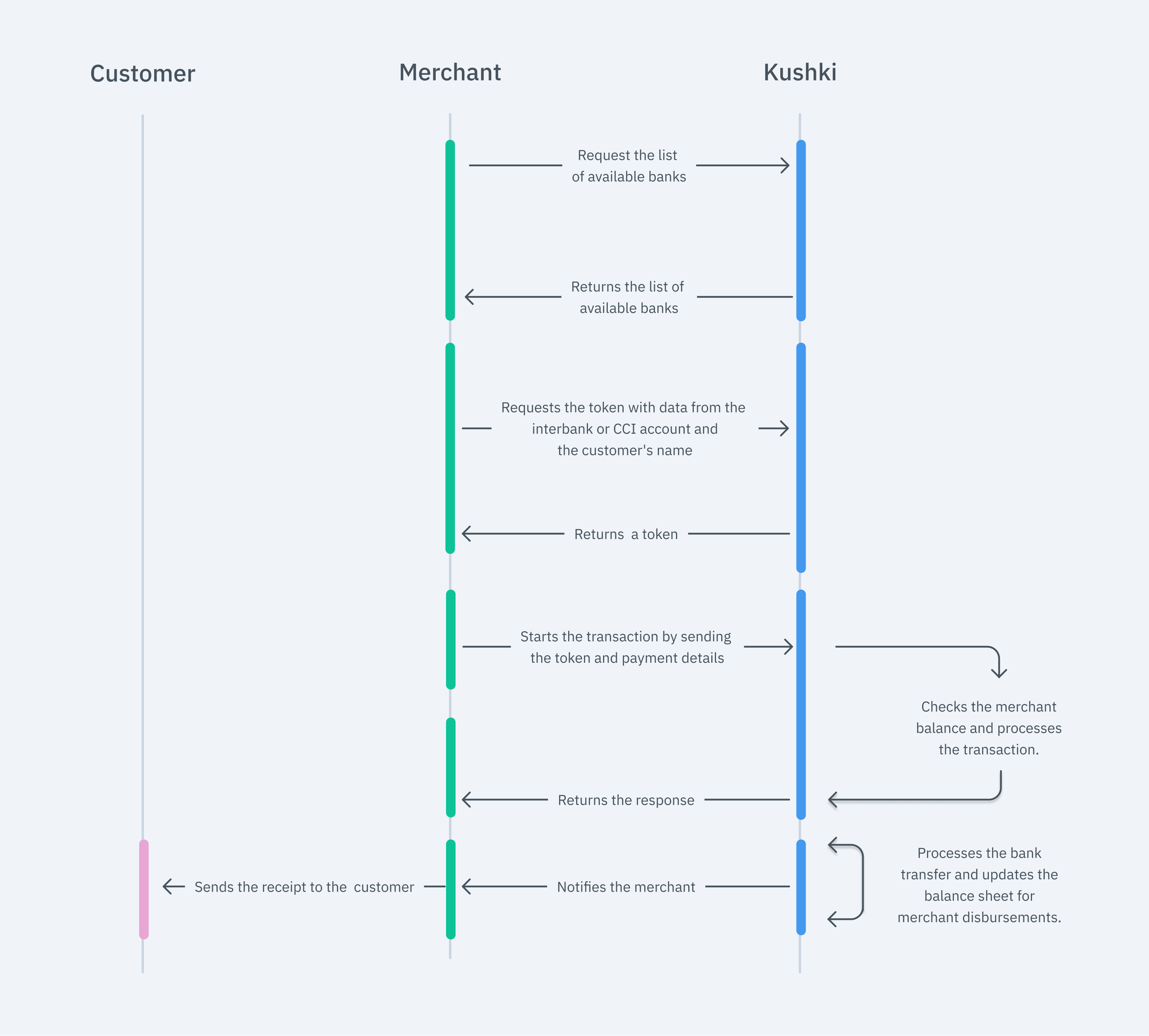
transfer out perú diagrama inglés flujo payment disbursement to bank accounts (4)
Product in beta version 🔐👨‍💻
We are working on our beta version. Stay tuned for its official release! You can also contact your account manager for more information.

Direct Integration (100% API)#

Important
This processing method requires your merchant to be PCI Compliance.

1. (Optional) Obtain a one-time or subscription payment token#

Before requesting the transfer of funds, you can tokenize the recipient's card. This can be done through the following services:
Get Card Payout Token: Generates a unique payment token for a transaction.
Get Subscription Token: Generates a subscriptionId, allowing funds to be sent multiple times to the subscribed card.
The following is an example of the token request:
{
  "card": {
    "name": "Juan Hernández",
    "number": "4111111111111111",
    "expiryMonth": "12",
    "expiryYear": "29"
  },
  "paymentType": "FD"
}
Note: If your merchant not PCI Compliance, you must use Kushki JS Hosted Fields to obtain a token from the front-end without handling sensitive data.

2. Request the Transfer of Funds to a Card#

To send funds to a card, you must provide the card and recipient details, the amount, and the clientTransactionId , a unique identifier on your side. Check here for the full structure in our API reference.

Examples#

JavaScript
Python
PHP
If the request is successful, you will receive the following response:
{
  "responseCode": "00",
  "responseText": "Approved and completed successfully",
  "ticketNumber": "XXXXXXX",
  "transactionReference": "XXXXXXXX",
  "otherDetails": {}
}
In case of an error, you will receive a response containing the code field and the details object, where you can check the reason for the rejection.
{
  "code": "E001",
  "details": {
    "Origin": "PushFundsService",
    "Message": "paymentType: must be a valid value."
  }
}
To send funds to tokenized (subscribed) cards, check here for the structure

3. Check the Transaction Status#

You can verify the status of a transaction in two ways:
1. Check via the API Get Transaction Status
You only need to send the transactionReference or clientTransactionId. The response will include the following information:
{
  "amount": 13,
  "processor": {
    "code": "00",
    "message": "Approved and completed successfully"
  },
  "ticketNumber": "951738256068368362",
  "transactionReference": "763274a1-b47b-493f-934f-047801cc04a0",
  "transactionStatus": "APPROVAL"
}
2. Webhook Configuration
You can set up a webhook to receive notifications for approved or declined transactions.
Check here for the full webhook structure.
You can also include the webhook object in the direct fund transfer request via API to receive transaction status notifications.

Integration via Kushki.js Hosted Fields#

This is an ideal integration for non-PCI compliance merchants.
With Hosted Fields, you can securely collect card and cardholder information through fields hosted on Kushki's infrastructure. It returns a payout token that allows you to continue with the payment flow from the back-end
With the implementation of this library, you can obtain two types of tokens:
One-time payment token:: for making a single payment to a card
Subscription token: can be reused for multiple payments to a credit or debit card. You will receive a suscriptionId instead of a token.

1. Import Kushki.js Hosted Fields into your application#

Option 1 - CDN#

Import the Kushki.js Hosted Fields library into your application via a <script> tag within the <body> tag. Once imported, you will be able to access the resources described later to create a card payout flow with Kushki..
You need to import both the kushki.min.js library (which contains the code necessary to store your merchant credentials) and the card.min.js library (which contains the functionality needed for the card payout flow).

Option 2 - NPM#

Install the Kushki.js Hosted Fields library as an npm package inside your application with the following code:
npm install --save @kushki/js-sdk

Option 3 - YARN#

yarn install @kushki/js-sdk

Create an instance of KushkiOptions#

To use the Kushki.js Hosted Fields library, you first need to create an instance of KushkiOptionswhich allows you to declare the merchant's public key and select the environment (test or production) using the init() method.
When your merchant account is ready to process real payments, make sure to replace the test key with the production key
Add the following code to your application:
Check the reference for more information about the KushkiOptions instance.

2. Initialize the Form on the Front-End#

Follow the steps below to render server-side fields on your site. This way, your users will be able to send money to cards.

Step 1. Define containers for the server-side fields.#

Before calling the initCardPayoutToken(), method, it is required to place the necessary elements to render each field server-side.

Step 2. Create an instance of CardPayoutOptions with the transaction information#

Render Server-Side Fields with the initCardPayoutToken Method#

After creating an instance of kushkiOptions, you need to call the initCardPayoutToken() function to initialize an instance of ICardPayouts
Check the reference for the hosted fields library for more information on form initialization.

Styles#

Follow the same methodology used in Estilos de Token de Tarjeta. he key difference is that these styles specifically apply to the fields required for this tokenization method. Also, note that the isSubscription field is a checkbox, so specific styles must be applied for this type of input. For more details, click here.

Events#

Use the same approach as in Eventos de Token de Tarjeta. However, these events apply to the specific fields required for this tokenization method. For more details, clic here.

3. Request a Card Payout Token#

To obtain a card payment token, call th requestCardPayoutToken method on the previously initialized ICardPayouts instance. This method will also validate whether the fields contain valid values; if not, it will throw an exception.
This method returns a CardPayoutTokenResponse, object, which you must send to your backend to proceed with the fund transfer.
Option 1. Subscription Token If theisSubscription field is checked, the response will be of type CardPayoutSubscriptionTokenResponse and will include a subscriptionId.
Option 2. One-Time Token: : Otherwise, it will return a CardPayoutUniqueTokenResponse with a one-time-use token.

4. Configure Your Backend#

The backend is responsible for receiving the token (or subscription ID) obtained from your front-end and initiating the payment process with Kushki.
When the user submits the card and cardholder details through the form you've specified, your front-end will return a token or a suscriptionId. With this token, you will need to call our Push Funds endpoints to process the payment to the card.

One-Time Payment Token#

If it is a one-time payment token, you should call the payouts/card/v1/pushFunds. service. Make sure you include the token in the body, along with the amount and other necessary information.
JavaScript
Python
PHP
You can find more information in the API Reference.

Subscription Token#

If it is a subscription token, you should call the service /payouts/card/subscriptions/pushFunds/{subscriptionId}. Make sure to include the subscriptionId as a path parameter and in the body, provide the amount and other information as shown in the following example.
JavaScript
Python
PHP
You can find more information in the API Reference.
Optional: Delete a Subscribed Card#
This step allows you to remove a previously subscribed card by sending the subscriptionId. Once deleted, no further fund transfers can be made to that card. More information here.

Test Your Integration#

There are test cards you can use in the UAT environment to ensure your integration is ready.

Visa#

Valid Card
Declines: 4242424242424242
Approves: 4957030420210454
Invalid Card: 4104920120500001

Mastercard#

Valid Card:5252525252525252
Invalid Card:5204750000000003

Simulate response scenarios using specific amounts#

During testing, you can simulate different error scenarios by sending specific values in the totalAmount field. This applies to both the Push Funds operation and Push Funds in subscriptions.
The following table shows the behavior by brand and amount:
BrandAmount (totalAmount)ResponseCodeMessageNote
VISA10DECLINE501Transaction declined. Please contact your card issuer.
MASTERCARD10DECLINE501Transaction declined. Please contact your card issuer.
VISA20DECLINE504The entered card has been reported.
MASTERCARD20DECLINE514The entered card number is not valid.
VISA30DECLINE541This card has been reported as lost.
MASTERCARD30DECLINE543This card has been reported as stolen.
VISA40ERRORE027A timeout occurred when sending the request to the card network.Timeout with declined transaction
MASTERCARD40ERRORE027A timeout occurred when sending the request to the card network.Timeout with declined transaction
VISA50ERRORE027A timeout occurred when sending the request to the card network.Timeout with approved transaction
MASTERCARD50ERRORE027A timeout occurred when sending the request to the card network.Timeout with approved transaction
These test amounts should only be used in sandbox environments to simulate specific payment engine responses. Any other amount will be treated as approved.
Modificado en 2026-09-25 15:35:42
Anterior
How does sending funds to cards work?
Siguiente
Error Codes
Built with