
1. Scheduled payments
Kushki Docs
English
  • Español
  • English
  • Home
  • Quick Start
    • Frequently Asked Questions
    • Moving to Production
    • Policy for Important API Changes
    • Test Data
    • Error Codes
    • Latest Features
  • Payment Glossary
    • Payments Glossary
  • One-time card payments (Online)
    • Supported card brands
    • Functionalities by business model
    • Network Tokens
    • One-step Payments
      • How do Card Payments Work?
      • Accept a Card Payment
      • Direct charge (without token)
      • Accept One-Time Payments with OTP
      • OTP Authentication Error Codes
      • Error codes for single card payments
    • Two-steps Payments
      • How do one-time payments with authorization and capture work?
      • Receive payments with authorization and capture
    • Refunds
      • Returns, cancellations, and refunds
    • 3DS Authentication
      • Introduction to 3DS
      • 3DS API integration
      • 3DS integration with kushki.js library
      • 3DS API integration plus kushki.js library
      • 3DS Error Codes
    • Apple Pay Payments
      • Apple Pay Configuration
      • Apple Pay Sandbox testing
  • Recurring Card Payments (Online)
    • Functionalities by business model
    • External subscriptions to Kushki
    • Authenticate your subscriptions with 3DS
    • Accept one-click payments with 3DS
    • Error codes in recurring charges
    • Apple Pay for Subscriptions
    • Scheduled payments
      • How do Credit or Debit Card Payment Recurring Charges Work?
      • Create a recurring charge
      • Manage your Scheduled Charges
    • OneClick Payments
      • Accepting One-Click Payments
      • How does authorization and capture work in OneClick payments?
      • Receive OneClick payments with authorization and capture
  • Card-present payments
    • Accept card present payments
    • Test data
    • Webhooks for card present
    • Raw card-present API
      • Raw card-present API overview
      • Cryptographic key exchange
      • Sample script to encrypt information
      • Take Payments
      • Frequently Asked Questions
      • Error codes for card-present transactions
    • Transactions
      • Transactions
      • Cancel payments
    • Kushki One
      • First Steps
      • Autenticación y Cifrado de Requests
      • Accept payments with Kushki One
      • Amount Format
      • Async services and webhooks
      • Printing on SmartPOS terminal
      • Unified Error Catalog — Kushki ONE Connect
    • Kushki One Payment App
      • Overview
      • Process a payment
      • Split payment on the terminal
      • Refunds and PreAuth & Capture
      • Review Your Transactions
      • Terminal Setup
  • Wire Transfers
    • Shopping experiences and transaction details for bank transfer payments
    • Receive Wire Transfers
    • Check the Status of a Transaction
  • Cash Payments
    • Accept a Cash Payment
    • Authorized locations
    • Error Codes for declined cash transaction
  • Alternative payment methods (APM)
    • How do APM payments work?
    • Accept Yape payments
  • Money Disbursement
    • Wire Transfer
      • How does the disbursement through bank transfer work?
      • Payment disbursement to bank accounts
      • Error codes for transfer disbursements
    • Card
      • How does sending funds to cards work?
      • Send money to a card
      • Error Codes
  • Plugins
    • Shopify
      • Shopify
      • Plugin Operation
    • VTEX
      • VTEX Integration Guide
  • Payment Links
    • Smartlinks
  • Payment forms and buttons
    • Kajita
      • How Does it Work?
      • Payment Kajitas
    • Payment Button
      • Overview
      • Generate a payment button
  • Branch Offices Management
    • How to Onboard Submerchants via API
  • Notifications
    • Good Practices
    • Check your Webhooks
    • One-time Payments Webhooks
      • Webhook for One-Time Payments made with a card
      • Webhook for One-Time Payments by Wire Transfer
      • Webhook for One-Time Payments in Cash
    • Recurring Payments Webhooks
      • Webhook for Recurring Payments Made with Card
    • Payment Distribution Webhooks
      • Webhook for payment disbursement through wire transfer
      • Webhook for card disbursement
    • Payment button Webhooks
      • Webhooks with Payment Button
    • Smartlinks Webhooks
      • Webhooks with Smartlinks
    • Refunds Webhooks
      • Webhook for Voids and Refunds
      • Chargeback Webhooks
HomeMexico 🇲🇽Ecuador 🇪🇨Chile 🇨🇱Colombia 🇨🇴Peru 🇵🇪
Status
Soporte / Support
English
  • Español
  • English
  1. Scheduled payments

Create a recurring charge

Register your customers' credit or debit card data to charge them with the frequency that you define for payments
Web
iOS
Android
This functionality is available for the following models:
☑ Acquirer

☑ Aggregator
Important Notice about Transactions with BBVA Peru
Starting January 1, 2025, BBVA Peru will only accept card transactions with dynamic CVV as part of its measures to enhance the security of online transactions.
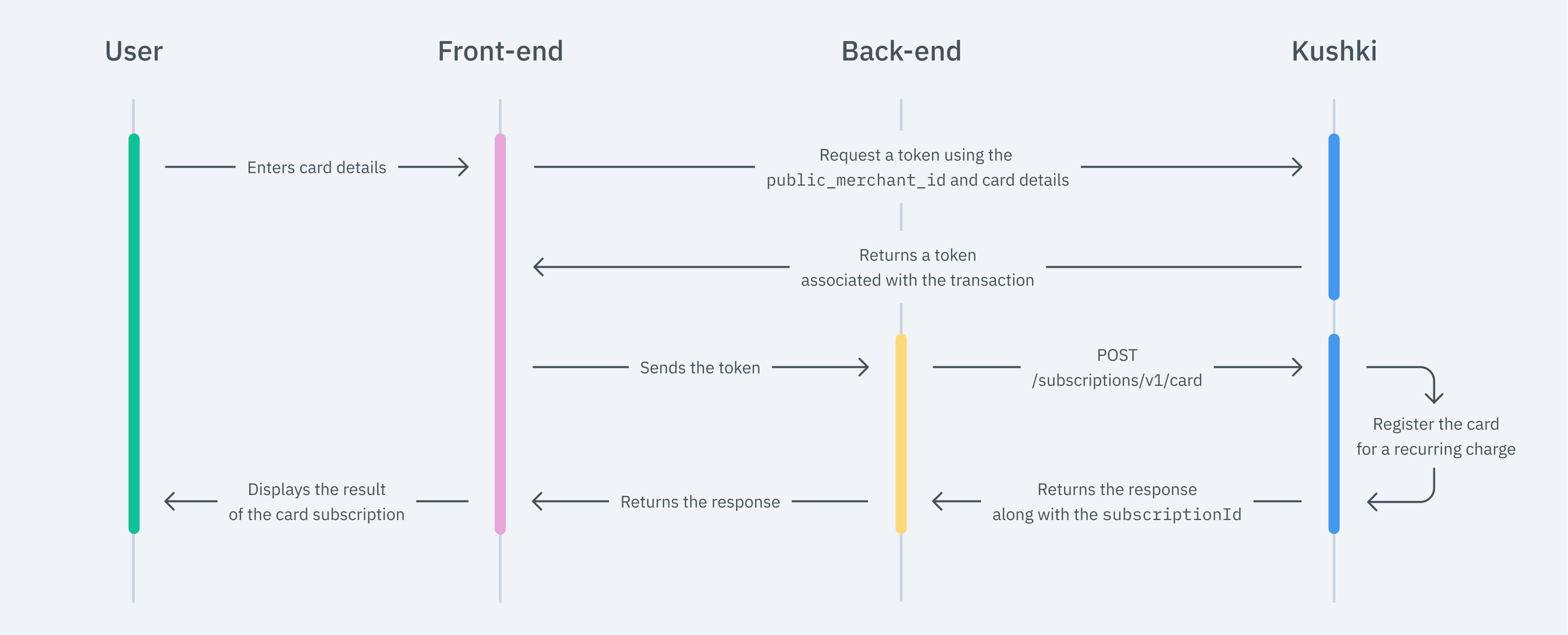
Receiving recurring payments with debit and credit cards on your website means capturing the card's information, generating a token, and creating a subscription in Kushki. This allows charges to be automatically made with the periodicity you prefer.
When you create a subscription, a small charge will be made to your customer's card to verify that it's active and has available balance. This charge is automatically reversed.
However, it's possible, upon request to the Kushki team, to skip these validation charges during card tokenization for recurring or on-demand charges.
This is an example of what you can integrate:
The payment flow that you will integrate is as shown below:
Card subscription flow

1. Set up your Front-end#

The front-end is responsible for collecting the user’s card details securely, generating a token for such information through Kushki’s servers, and sending that information to the back end to start the payment process.
You have three options to integrate: Kajita, Kushki.js and Kushki.js Hosted Fields.

Kajita#

Kushki has payment forms ready to collect card information securely. You can use any of our versions:
Cajita: the first version of the predefined payment form. Not customizable.
Kajita: the second version. It allows you to customize your payment forms from your Administration Console and even have several versions of Kajita, for example, one for each payment method.

Create and customize your Kajita#

With Kushki you can create your Kajitas from the Administration Console. Click here to learn how to do this.

Set up Kajita#

Include the kushki-checkout.js script in your payment page by adding it to the <head> of your HTML file. Always load kushki-checkout directly from cdn.kushkipagos.com. Do not include the script in a bundle or package or host a copy of it.

Add Kajita to your Website#

Kajita needs a space within your page. Enter the following code in your website's <body>, where you want the payment form to be displayed.
For Kajita (v.2):
For Cajita (v.1):
Remember to configure the action of the action form according to the corresponding endpoint in your back-end. This will allow you to obtain the token.
For the Kajita (v.2) you can obtain such script from your Administration Console as explained here.
Then, add the following script tag.
For v.1 (Cajita), add the following script, making sure the form has loaded:
This will create a predesigned form on your website to accept payments.

Kushki.js#

Use Kushki.js if you need more control over the "look & feel" or appearance of your payment form.
Using this method requires a stricter assessment by our agents.

Set up Kushki.js#

Option 1 - CDN#

Use the following script tag at the end of the <body> of your payment page.
Option 2 - npm#
Install the package from npm.
Then import it in your code using the following code.

Set up Kushki Object.#

Add the following code to your application

Collect User Information and Send it to your Back End#

First, embed the form in your payment page adding the required fields. You can design it in the way that best suits you.
For example:
And, for the moment the user submits the form, add the token request and take it to your back end.
For more details, check our complete Kushki.js reference

Kushki.js Hosted Fields#

With Hosted Fields, included in Kushki.js, you can securely collect customer payment information through fields stored on Kushki infrastructure. Returns a token which allows the payment flow to continue from the back-end.

Import Kushki.js Hosted Fields into your app#

Option 1 - CDN#
Import the Kushki.js Hosted Fields library into your application via a <script> tag inside the <body> tag. Once imported, you will be able to access the resources described below to create a payment flow with Kushki.
It is necessary to import the libraries kushki.min.js (which brings the necessary code to store your merchant's credentials) and card.min.js (the module that brings the necessary functionalities for the flow with card payments).
Option 2 - NPM#
Install the Kushki.js Hosted Fields library as an npm package inside your application with the following code:
Option 3 - YARN#
Install the Kushki.js Hosted Fields library as a yarn package inside your application with the following code:
Create an instance of KushkiOptions#
To use the Kushki.js Hosted Fields library, it is necessary to create an instance of KushkiOptions which allows you to set the public key of the work environment (test or production) through the init() method.
Note: When you are ready to accept real payments, you need to replace the test key with the production key.
Add the following code to your application:
Check the reference for more information about the KushkiOptions instance.

Initialize the form on the front-end#

Follow the steps below to render the hosted fields. This way, your clients will be able to enter the necessary data to carry out transactions.
Step 1. Define containers for hosted fields.#
Before calling the initCardToken() method, it is required to place the necessary elements to be able to render each hosted field.
Step 2. Create an instance of CardOptions#
Create an instance of CardOptions with the transaction information, such as the amount, currency, among other parameters.
Note: To create a subscription you need to send the isSubscription property with a value of true.
Step 3. Render hosted fields with the initCardToken() method#
After creating an instance of CardOptions, you need to call the initCardToken() function to initialize an instance of ICard.
Check the reference for more information on form initialization.

Request a token to continue the payment flow#

Request a card payment token that you can later use to charge a customer with the endpoint to create a recurring charge.
To obtain a card payment token, it is necessary to call the requestToken() method on the previously initialized card instance. This method performs 3DS and Sift Science validations automatically. Also, validate that all the fields are correct; otherwise it will throw an exception.
Once the token is obtained, send it to your back-end to continue the payment flow.
See the reference for more information about the token request.

2. Set up your Back End#

The back-end's responsibility is to receive the token obtained from your front-end and create the subscription with Kushki.
When the user submits the form, your front-end sends a token to an endpoint you've specified. With this token, you will need to make a call to our API endpoint to create the subscription.
JavaScript
Python
PHP
Check our API Reference for more information.
According to the response you obtained, __redirect the user to a success or fail screen __ to inform the customer if the subscription was created correctly or if an error occurred.
When you complete the enrollment, a small charge will be made to your customer's card to verify that it's active and has available balance. This charge is automatically reversed.

3. Test your Integration#

You can use some test cards in test mode to ensure that your integration is ready. Use them adding any CVV and a future expiration date.
Approved transaction: 5451951574925480
Transaction declined during token request (front end): 4574441215190335.

4. Prepare your Certification#

Read the following guidelines for technical certification approval (required to obtain productive account credentials):
Tax calculations must be correct.
Sensitive card data are not stored in your database (full card number, CVV, etc.).
Messages displayed on the screen are in line with Kushki's responses.
All Kushki responses must be saved (required in case you need support).
The first payment date (startDate) must be a future date.
The subscription is also canceled in Kushki when your customer decides to cancel his/her recurring charges.
Kushki's logo must be visible for the customer. You can find our logo in several formats here.
Make sure all the required data as specified in the API Reference are sent.
If you are using Kushki.js, also check the following:
The cardholder's name must be required.
The card number field must be required.
The card number field must only accept numbers.
The credit card field must allow a maximum of 16 digits (there may be less).
The CVV field must be required.
The CVV field must accept only numbers.
The CVV field must allow no more than 4 digits and no less than 3 digits.
The expiration date must be required.
The payment button must be disabled after the first click.
Kushki's logo must be visible for the customer. You can find our logo in several formats here.

Manage your customers' subscriptions
Edit data or cancel automatic charges.
Accept Webhooks
Manage correctly post-payment events.
Modificado en 2026-10-14 19:59:47
Anterior
How do Credit or Debit Card Payment Recurring Charges Work?
Siguiente
Manage your Scheduled Charges
Built with