Save your customers' card details to receive One-click Payments
Web
iOS
Android
This functionality is available for the following models:
☑ Acquirer
☑ Aggregator
Important Notice about Transactions with BBVA Peru
Starting January 1, 2025, BBVA Peru will only accept card transactions with dynamic CVV as part of its measures to enhance the security of online transactions.
Kushki allows you to securely store a customer's card details, without necessarily charging an initial fee, and then allow them to make One-Click Payments to speed up the checkout process.
If you are looking for automatic recurring payments check out our guides.
To keep in mind
Due to our risk policies, the available payment methods and the integration type may vary once you complete the affiliation. We will tell you how to proceed if this process applies to your merchant.
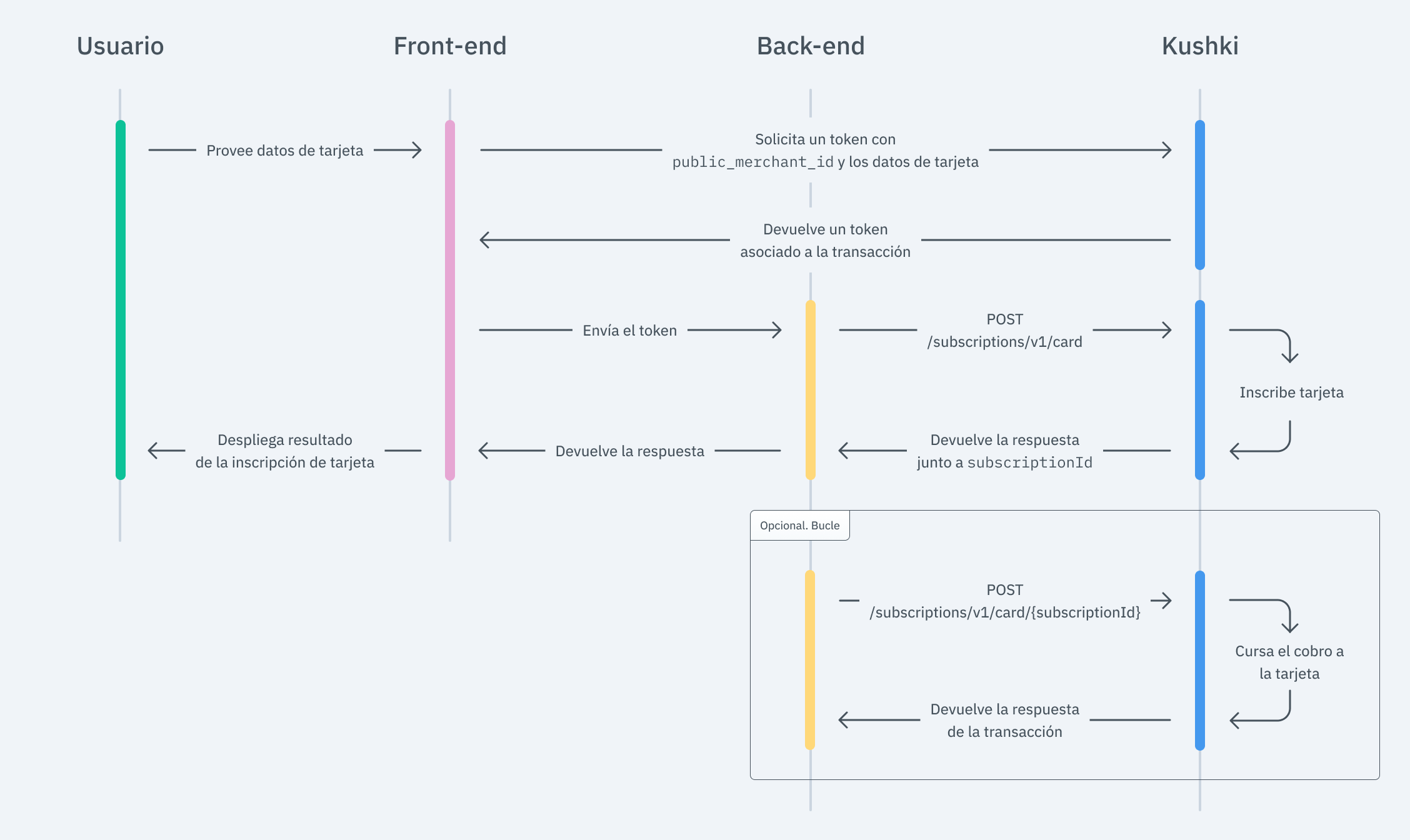
Storing debit and credit card details on your website means capturing the card details, generating a token and sending the information to Kushki for storage, where a subscription identifier will be created for the card. Then, with that identifier, you will be able to make One-Click Charges from your back-end as required.
When registering, a charge will be made to the customer's card for a small amount; this allows us to verify that the card is active and its account has a balance. This charge will be automatically reversed.
Basically, integrating One-Click Charges consists of 2 stages: Registration and chargeThe flow that you will integrate is shown below:
The front-end is responsible for collecting the user’s card details securely, generating a token for such information through Kushki’s servers, and then sending that information to the back end to start the card registration process so that you can charge later.
Collect User Information and Send it to your Back-end#
First, embed the form in your payment page adding the required fields. You can design it in the way that best suits you.For example:
Display the deferred options according to the BIN of your customer’s card (Optional)#
As soon as your customer's card number is entered, you should check the method of deferred request to verify if there are deferred payment options for the BIN of the card entered by the user.
In response to this call, you will receive the type type, the available months and the months of grace, as shown in the following example response. To execute the charge you should use only months.
The deferred options that are available to your customer will depend on the credit card BIN's.
According to the response, the payment form shows the information of deferred options that your customer has available. Make sure to capture their choices, and send them in turn along with the payment details in the deferred object when you start the payment process with Kushki.And, for the moment the user submits the form, add the token request and take it to your back-end.
We are working on our beta version. Stay tuned for its official release! You can also contact your account manager for more information.
With Hosted Fields, included in Kushki.js, you can securely collect customer payment information through fields stored on Kushki infrastructure. Returns a token which allows the payment flow to continue from the back-end.
Import the Kushki.js Hosted Fields library into your application via a <script> tag inside the <body> tag. Once imported, you will be able to access the resources described below to create a payment flow with Kushki.It is necessary to import the libraries kushki.min.js (which brings the necessary code to store your merchant's credentials) and card.min.js (the module that brings the necessary functionalities for the flow with card payments).
To use the Kushki.js Hosted Fields library, it is necessary to create an instance of KushkiOptions which allows you to set the public key of the work environment (test or production) through the init() method.
Note: When you are ready to accept real payments, you need to replace the test key with the production key.
Add the following code to your application:
Check the reference for more information about the KushkiOptions instance.
Request a card payment token that you can later use to make an One click payment.To obtain a card payment token, it is necessary to call the requestToken() method on the previously initialized card instance. This method performs 3DS and Sift Science validations automatically. Also, validate that all the fields are correct; otherwise it will throw an exception.
Note: If the deferred option is available for your merchant, the deferred object will be returned along with the token. The fields available within deferred vary depending on the country. Consult the reference for more information on deferred.
Once the token is obtained, send it to your back-end to continue the payment flow.See the reference for more information about the token request.
The back-end is responsible for receiving the token obtained from your front-end and starting the card registration process with Kushki.When the user submits the form, your front end sends a token to an endpoint that you specified previously. Using this token, you must make a call to our card registration endpoint to register the card.
Important
It is important that you define the periodicity variable periodicity as custom, because otherwise you will charge your customer on a recurring basis. For more information, see our recurring payment guides.
According to the response you obtained, redirect the user to a success or failure page to inform the customer whether the registration was approved or declined.
Once you have already registered your customer's card, in order to make a charge, it is necessary to perform these simple steps, using the subscriptionId.
We will take advantage of the fact that our Kushki.js library has been imported and set up previously to use a method that will be very helpful to verify the reliability of the charge.
Generate a charge token and send it to your back-end#
First, it is necessary to obtain the subscription ID of the card that will be charged.Then, request the charge token, and send it to your back-end.
To process a one-click charge and obtain the deviceToken, you have two options:
1.
Without CVV validation in a hosted field: You can obtain a token by calling the requestDeviceToken() method and sending the previously generated subscriptionId.
2.
With CVV validation: This method uses a hosted field to validate the CVV.
To process a one-click charge without CVV validation in a hosted field, you must call the requestDeviceToken() method and send the previously obtained subscription ID.
If you need to validate the CVV when performing a one-click payment, call the Secure DeviceToken method. This is the second method to obtain a deviceToken, but it uses a hosted field to validate the card's CVV.
To get a secure deviceToken, you must call the requestDeviceToken() method on the previously initialized card subscription instance. This method also validates whether the CVV field is valid; otherwise, it will throw an exception.
Check here for the full library reference and more information.
Once the charge token has been received, simply call our charge endpoint along with the subscriptionId as you deliver your service to your customer under the logic you define.
If you wish to receive a deferred payment in installments, make sure to send the deferred object with the months parameter, along with the collection information, as shown in the example below:
The deferred object should only be sent in cases where the card has the possibility of making deferred payments, in all other cases, such object should be omitted.
If your customer decides to cancel the service or once you stop providing it, in order to cancel the card inscription, simply call our inscription cancellation endpoint from your back-end.
In order to test the receipt of installment (deferred) payments, an additional setup by the Kushki team is required. Once such setup is made, you will be able to check the installment options enabled for your business from your Administration Console in the option My Business>Deferred Payments.
You can use some test cards in test mode to ensure that your integration is ready. Use them with any CVV and a future expiration date.
Approved transaction: 5451951574925480
Transaction declined during token request (front end): 4574441215190335
Transaction declined during charge request (back end): 4349003000047015
Read the following guidelines for technical certification approval (required to obtain productive account credentials):
Tax calculations must be correct.
Sensitive card details are not stored in your database (full card number, CVV, etc.).
Messages displayed on the screen are in line with Kushki’s responses.
All Kushki responses must be saved and recorded (required in case you need support).
Kushki's logo must be visible to the customer. You can find our logo in several formats here.
Make sure to send all the required data as specified in the API Reference.
If you are using Kushki.js, also check the following:
The cardholder's name must be required.
The card number field must be required.
The card number field must only accept numbers.
The credit card field must allow a maximum of 16 digits (there may be less).
The CVV field must be required.
The CVV field must accept only numbers.
The CVV field must allow no more than 4 digits and no less than 3 digits.
The CVV field must be of password type.
The expiration date must be required.
The expiration date must accept only future dates.
The payment button must be disabled after the first click.
Kushki's logo must be visible to the customer. You can find our logo in several formats here.
Make sure to send the contact details of your customer-payer (contactDetails), together with the billing details (orderDetails -> billingDetails) and shipping details (if your business model requires it: orderDetails -> shippingDetails), within the request to make the charge. The example of the Body of JSON for the charge can be found at API Reference.