1. Kushki One Payment App
Kushki Docs
English
  • Español
  • English
  • Home
  • Quick Start
    • Frequently Asked Questions
    • Moving to Production
    • Policy for Important API Changes
    • Test Data
    • Error Codes
    • Latest Features
  • Payment Glossary
    • Payments Glossary
  • One-time card payments (Online)
    • Supported card brands
    • Functionalities by business model
    • Network Tokens
    • One-step Payments
      • How do Card Payments Work?
      • Accept a Card Payment
      • Direct charge (without token)
      • Accept One-Time Payments with OTP
      • OTP Authentication Error Codes
      • Error codes for single card payments
    • Two-steps Payments
      • How do one-time payments with authorization and capture work?
      • Receive payments with authorization and capture
    • Refunds
      • Returns, cancellations, and refunds
    • 3DS Authentication
      • Introduction to 3DS
      • 3DS API integration
      • 3DS integration with kushki.js library
      • 3DS API integration plus kushki.js library
      • 3DS Error Codes
    • Apple Pay Payments
      • Apple Pay Configuration
      • Apple Pay Sandbox testing
  • Recurring Card Payments (Online)
    • Functionalities by business model
    • External subscriptions to Kushki
    • Authenticate your subscriptions with 3DS
    • Accept one-click payments with 3DS
    • Error codes in recurring charges
    • Scheduled payments
      • How do Credit or Debit Card Payment Recurring Charges Work?
      • Schedule a recurring charge
      • Manage your Scheduled Charges
    • OneClick Payments
      • Accepting One-Click Payments
      • How does authorization and capture work in OneClick payments?
      • Receive OneClick payments with authorization and capture
  • Card-present payments
    • Accept card present payments
    • Test data
    • Webhooks for card present
    • Raw card-present API
      • Raw card-present API overview
      • Cryptographic key exchange
      • Sample script to encrypt information
      • Take Payments
      • Frequently Asked Questions
      • Error codes for card-present transactions
    • Kushki One
      • First Steps
      • Autenticación y Cifrado de Requests
      • Accept payments with Kushki One
      • Amount Format
      • Async services and webhooks
      • Printing on SmartPOS terminal
      • Unified Error Catalog — Kushki ONE Connect
    • Kushki One Payment App
      • Overview
      • Process a payment
      • Split payment on the terminal
      • Refunds and PreAuth & Capture
      • Review Your Transactions
      • Terminal Setup
    • Transactions
      • Transactions
      • Cancel payments
  • Wire Transfers
    • Banks and transaction details for bank transfer payments
    • Receive Wire Transfers
    • Check the Status of a Transaction
    • Error Codes for Transfers
  • Cash Payments
    • How do Cash Payments Work?
    • Accept a Cash Payment
    • Authorized locations
    • Error Codes for declined cash transaction
  • Alternative payment methods (APM)
    • How do APM payments work?
    • Accept Bre-B payments
  • Money Disbursement
    • Payment Distribution
    • Recharge your balance for dispersions
    • Wire Transfer
      • How Does a Payment Distribution by Wire Transfer Work?
      • Payment Distribution to Bank Accounts
      • Disburse with Bre-B
      • Error codes for transfer dispersions
    • Cash
      • How does payment distribution in cash work?
      • Distribute Payments in Cash
      • Manage your Payment Distribution Transactions
  • Plugins
    • Shopify
      • Shopify
      • Plugin Operation
    • VTEX
      • VTEX Integration Guide
  • Payment Links
    • Smartlinks
  • Payment forms and buttons
    • Kajita
      • How Does it Work?
      • Payment Kajitas
    • Payment Button
      • Overview
      • Generate a payment button
  • Branch Offices Management
    • How to Onboard Submerchants via API
  • Notifications
    • Good Practices
    • Check your Webhooks
    • One-time Payments Webhooks
      • Webhook for One-Time Payments made with a card
      • Webhook for One-Time Payments by Wire Transfer
      • Webhook for One-Time Payments in Cash
    • Recurring Payments Webhooks
      • Webhook for Recurring Payments Made with Card
    • Payment Distribution Webhooks
      • Webhook for payment disbursement through wire transfer
      • Webhook for Payment Distribution in Cash
    • Payment button Webhooks
      • Webhooks with Payment Button
    • Smartlinks Webhooks
      • Webhooks with Smartlinks
    • Refunds Webhooks
      • Webhook for Voids and Refunds
      • Chargeback Webhooks
HomeMexico 🇲🇽Ecuador 🇪🇨Chile 🇨🇱Colombia 🇨🇴
Peru 🇵🇪
HomeMexico 🇲🇽Ecuador 🇪🇨Chile 🇨🇱Colombia 🇨🇴
Peru 🇵🇪
Status
Soporte / Support
English
  • Español
  • English
  1. Kushki One Payment App

Split payment on the terminal

Divide a sale amount into several consecutive payments from the terminal, in equal or custom parts, each with its own card
🚧 Early Release — Beta
This product is in early access. Parameters, response structures and behaviors may change without prior notice. Do not use this version in production without coordinating with the Kushki integrations team first.
Split payment lets you divide a sale amount into several consecutive payments, so different people can cover one check with different cards. It is the standard flow at restaurants when several diners split the bill.
Each payment in the series is processed as an independent transaction: it has its own card, its own tip, its own Ticket # and its own receipt.
The Spanish interface labels this Pago Dividido
If your terminal runs in Spanish, the operation and its screens appear as Pago Dividido.
This is not e-commerce Split Payment
Split payment on the terminal divides one sale amount across several consecutive payments at the same merchant.
E-commerce Split Payment is a different thing: it distributes a single charge across several destination accounts. The two are unrelated and share no configuration.

Before you start#

Check this first
Split payment enabled for your merchant account. If you do not see the operation on the home screen, contact your account manager.
The terminal powered on, connected to the network and with a session open.
The total amount of the check at hand.

Step 1 — Start the operation#

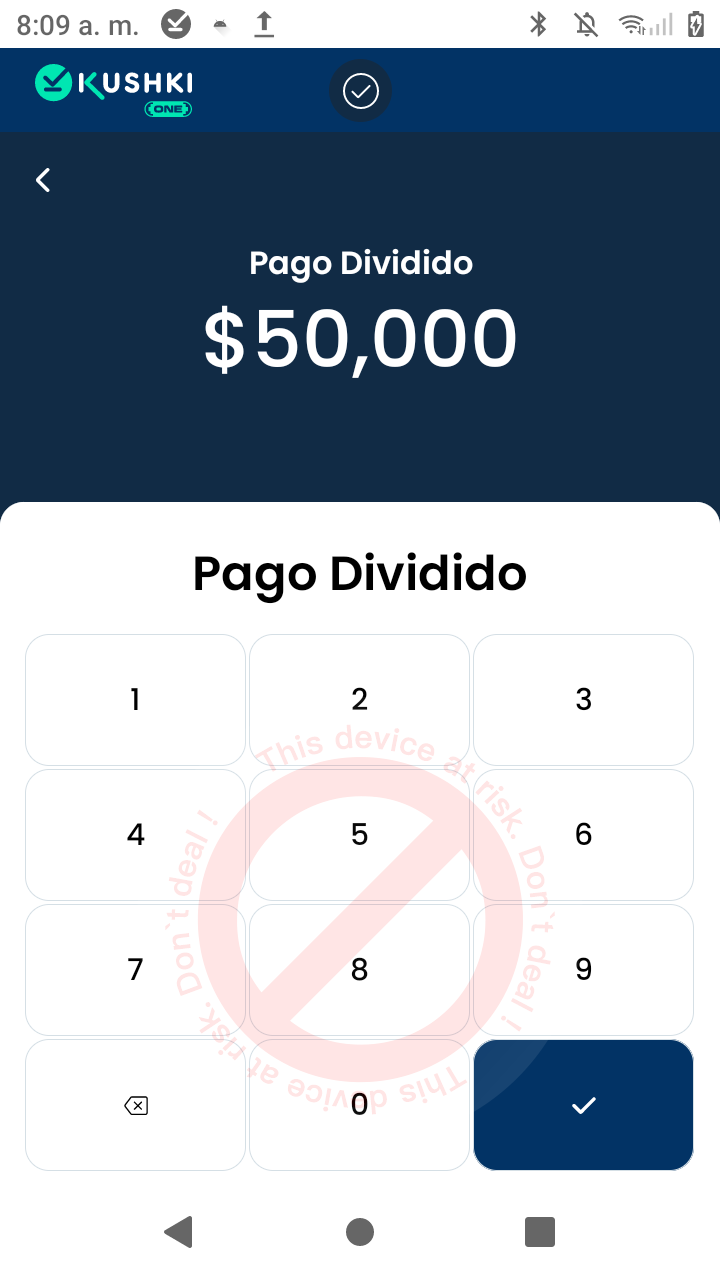
From the Home tab, tap Split Payment in the operations menu.
Pago dividido inicio

Step 2 — Enter the total amount#

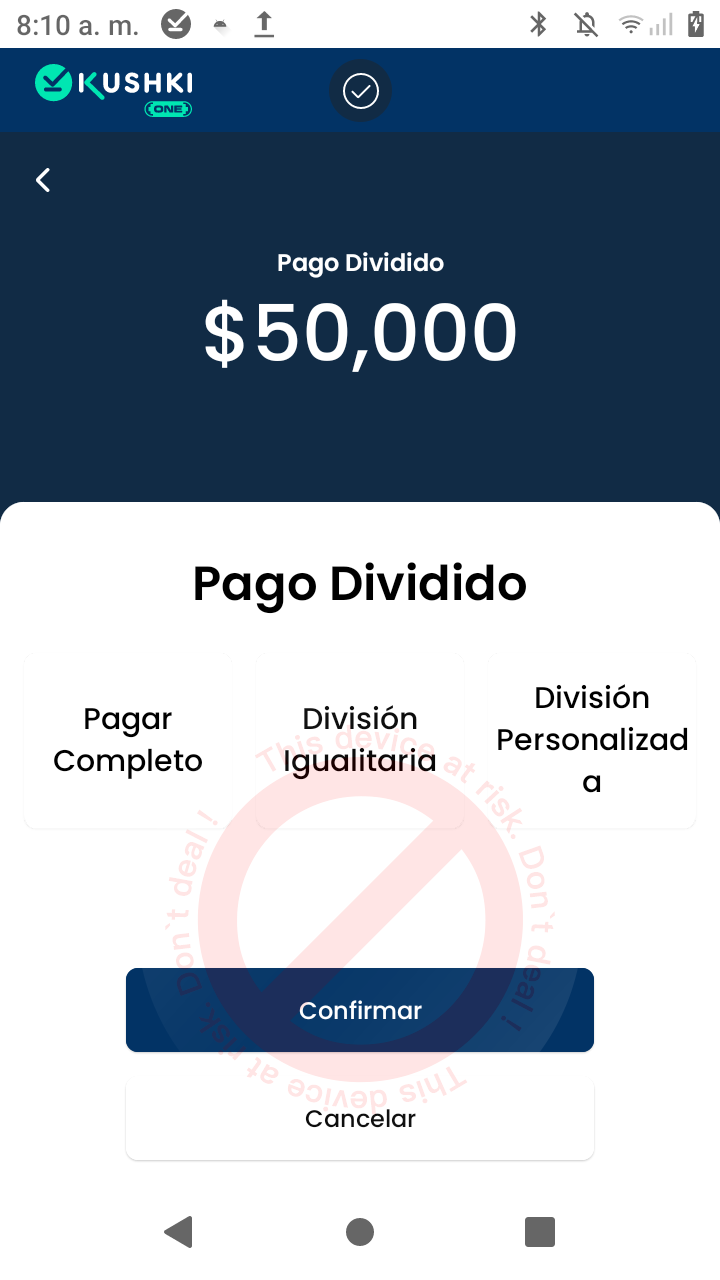
The terminal shows the numeric keypad with a Split Payment header. Enter the full amount of the check, not the amount of an individual payment, and tap the confirmation button.
Ingresar monto pago dividido

Step 3 — Choose the division type#

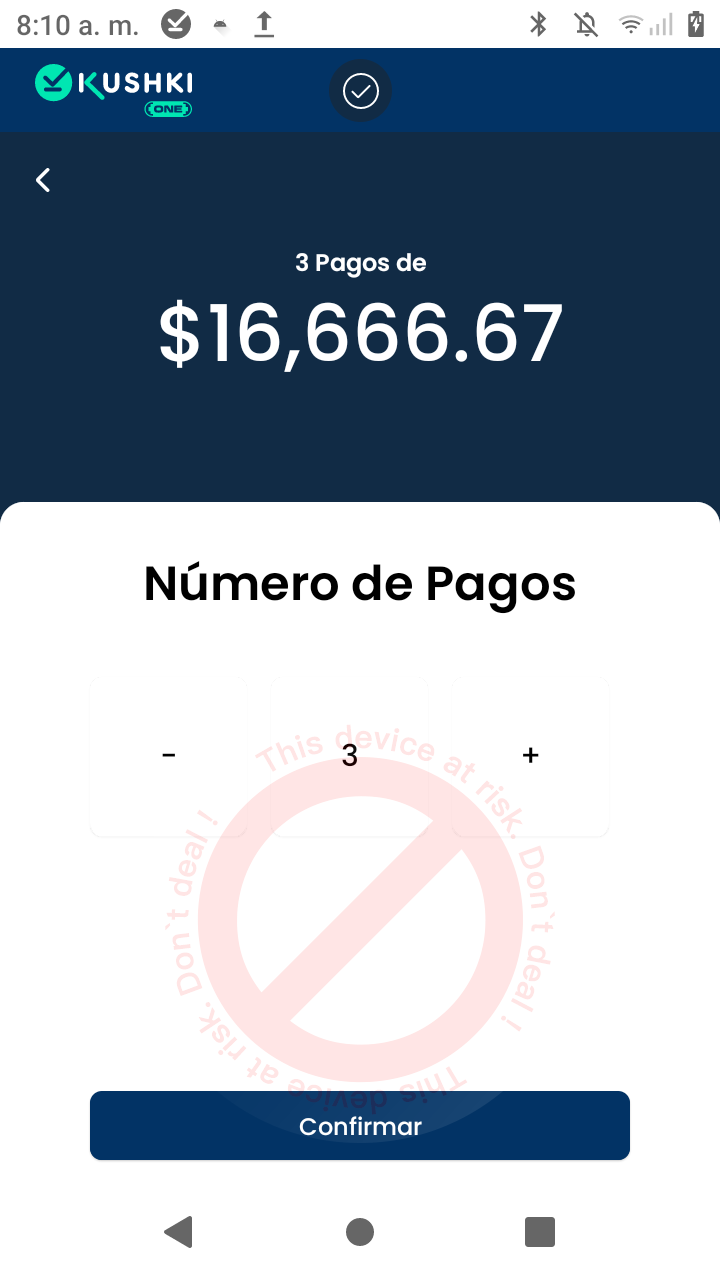
With the amount already entered, the app shows three options. Select one and tap Confirm.
Tipo de division
OptionWhat it does
Pay in FullCharges the whole amount in a single payment. Equivalent to a regular sale
Equal SplitDivides the total across the number of payments you choose
Custom SplitNot available in this version

Step 4 — Set the number of payments#

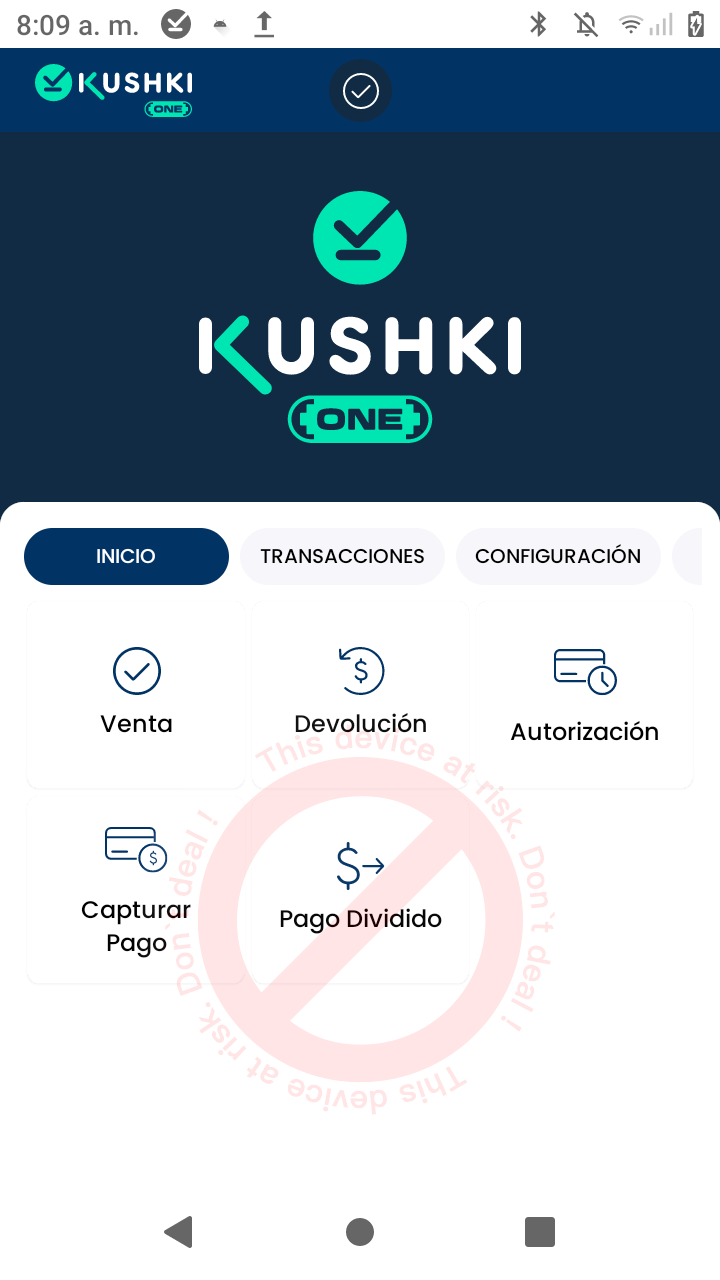
When you choose Equal Split, the app shows the Number of Payments screen. As you raise the number, the app recalculates the value of each payment: Use the − and + buttons to set how many payments the check is divided into.
The header updates in real time and shows how much each payment comes to. With a single payment, the amount is the full check:
numero de pagos
Tap Confirm to continue.
The division is automatic
The app calculates each payment by dividing the total by the number you chose. There is no intermediate step for adjusting individual amounts: once you confirm, the terminal starts charging the first payment in the series.

Step 5 — Charge each payment#

Each payment follows the same cycle as a standard sale: tip → installments → card. See Process a payment for the detail of every screen.
The difference is that the cycle repeats once per payment, and the header shows which one you are on — for example 1 of 3 payments — so the cashier does not lose track.
Each payment carries its own tip and its own installments
Whoever covers the first payment can leave a tip and split it into installments; the next one may do neither. The installment options depend on each card's issuer, so they can differ between payments on the same check.
If the transaction is approved, the app generates the receipt for that payment and moves automatically to the next one in the series.

Step 6 — Repeat until the total is covered#

The Step 5 cycle repeats for every pending payment. The header counter advances — 2 of 3, 3 of 3 — until the full check amount is covered.

What gets recorded#

ItemScope
Ticket #One per payment in the series. There is no single Ticket # for the whole check
ReceiptOne per payment, with its amount and its tip
Sales ListEach payment appears as an independent transaction
TipRecorded per payment, as a separate field
Each payment is voided separately
Because every payment is an independent transaction, a refund applies only to that payment, not to the whole check. To reverse a fully split check you have to process a refund for each payment, using its own Ticket #.

If a payment is declined#

The decline affects only that payment. Payments already approved in the series remain valid and are not reversed automatically.
1.
Ask the customer for a different entry method or another card.
2.
If the customer cannot pay their share, work out with the rest of the table how to cover the outstanding balance.
3.
If you decide to abandon the operation, remember that payments already charged require an individual refund.
Process a payment
Review the standard sale flow, which shares the tip, installment and card presentation steps.
Refunds and Auth & Capture
Learn how to refund an individual payment from a split check.
Modificado en 2026-10-05 17:12:31
Anterior
Process a payment
Siguiente
Refunds and PreAuth & Capture
Built with