
Schedule a recurring charge
Web
iOS
Android
To keep in mind
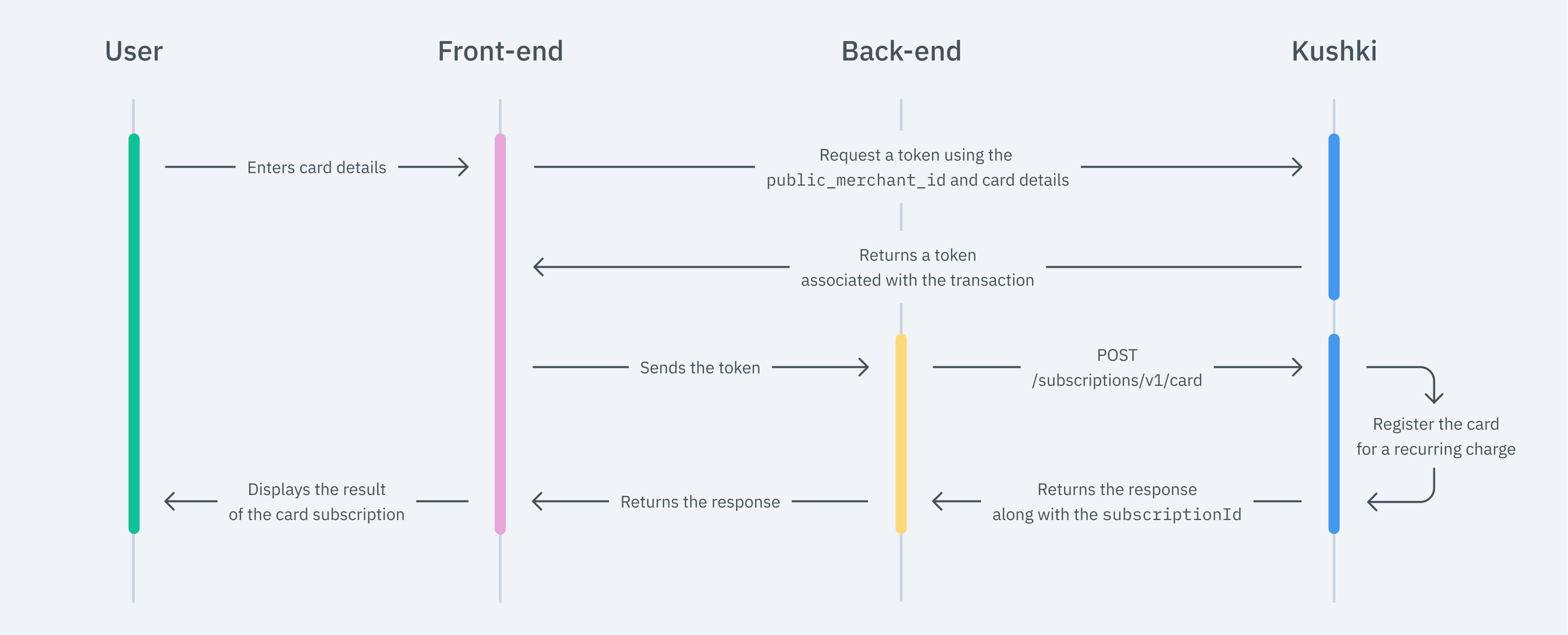
1. Set up your Front-end
Kajita
Create and customize your Kajita
Set up Kajita
kushki-checkout.js script in your payment page by adding it to the <head> of your HTML file. Always load kushki-checkout directly from cdn.kushkipagos.com. Do not include the script in a bundle or package or host a copy of it.Add Kajita to your Website
<body>, where you want the payment form to be displayed.action form according to the corresponding endpoint in your back-end. This will allow you to obtain the token.script tag.Kushki.js
Set up Kushki.js
Option 1 - CDN
script tag at the end of the <body> of your payment page.Option 2 - npm
Set up Kushki Object.
Collect User Information and Send it to your Back End
Kushki.js Hosted Fields
Import Kushki.js Hosted Fields into your app
Option 1 - CDN
<script> tag inside the <body> tag. Once imported, you will be able to access the resources described below to create a payment flow with Kushki.kushki.min.js (which brings the necessary code to store your merchant's credentials) and card.min.js (the module that brings the necessary functionalities for the flow with card payments).Option 2 - NPM
Option 3 - YARN
Create an instance of KushkiOptions
KushkiOptions which allows you to set the public key of the work environment (test or production) through the init() method.Initialize the form on the front-end
Step 1. Define containers for hosted fields.
initCardToken() method, it is required to place the necessary elements to be able to render each hosted field.Step 2. Create an instance of CardOptions
CardOptions with the transaction information, such as the amount, currency, among other parameters.isSubscription property with a value of true.Step 3. Render hosted fields with the initCardToken() method
CardOptions, you need to call the initCardToken() function to initialize an instance of ICard.Request a token to continue the payment flow
requestToken() method on the previously initialized card instance. This method performs 3DS and Sift Science validations automatically. Also, validate that all the fields are correct; otherwise it will throw an exception.2. Set up your Back End
JavaScript
Python
PHP
Perform an Anti-Fraud Validation (Optional)
How Does an Anti-Fraud Validation Work?
Submit card details
__Make sure to set the
ignoreWarnings parameter to false, include the document type and number, first name, first last name and second last name in the contactDetails object. If you decide to skip this validation, set the ignoreWarnings parameter to true value. __Receiving the Validation Result
rules object, and there are three possible responses:| Response | Parameters Received | What to do? |
|---|---|---|
| Transaction approved | {"code": "000","message":"TransUnion Approval"} {"code": "000","message":"ExperianSignature Approval"} | No further action will be necessary, the transaction will be sent to create the subscription and, according to the response, it redirects the user to a success or failure page to inform the customer if the subscription was created successfully or not. |
| Rejected transaction: (Validation not possible) | {" code ":" 006 "," message ":" TransUnion Unavailable "} {" code ":" 006 "," message ":" ExperianSignature Unavailable "} | Check that the documentNumber and documentType parameters have been sent in the contactDetails object and retry. |
| Rejected transaction | {"code": "322","message": "TransUnion Declined"} {"code": "322","message": "Card number does not correspond to the given identification"} | If the transaction has been declined by the validation system, you will have two options: 1)Ignore the alert and create the subscription: In this case, you must go back to the previous step, making sure to send the ignoreWarnings parameter to true and the same token already generated 2) Abide by the alert and reject the transaction. |
ignoreWarnings with a value of true and get a negative response from the validation service (code 322), the transaction will be declined.For more information, see our article [Error codes] (/co/getting-started/error-codes#c%C3%B3digos-de-error-received-during-validaci%C3%B3n-antifraud).
3. Test your Integration
54519515749254804574441215190335.contactDetails object.5642569816497595.80004393.CC5642569816497595.8000000.CCdocumentNumber or documentType in the contactDetails object.4. Prepare your Certification
Modificado en 2026-10-14 19:55:08