Now that you have the plugin installed and configured, it's time to see how to operate with it and review order statuses, process with various payment methods, request returns, or cancel authorizations.
In Shopify, we can have different statuses for an order. Below are the possible statuses of the order with the plugin:
Paid: the payment has been made correctly.
Expired: time has expired and is no longer possible to process the payment (applies to cash and transfer).
Authorized: the payment has been made by means of authorization. In this case, the amount is authorized to be captured later.
AuthorizedExpiring: the time expired, and it is no longer possible to capture the payment.
Partially refunded: a refund has been made, but it was only performed for an amount less than the total order paid, and the store's stock with the returned products has been updated.
Refunded: a full refund has been made, and the store's stock of all returned products has been updated.
Pending payment: it is waiting for the payment to be made for a card (Only if it enters the retry policy), cash, or transfer. It automatically goes to Paid status when the payment is executed.
Void: an authorization has been made, and the purchase order has been canceled.
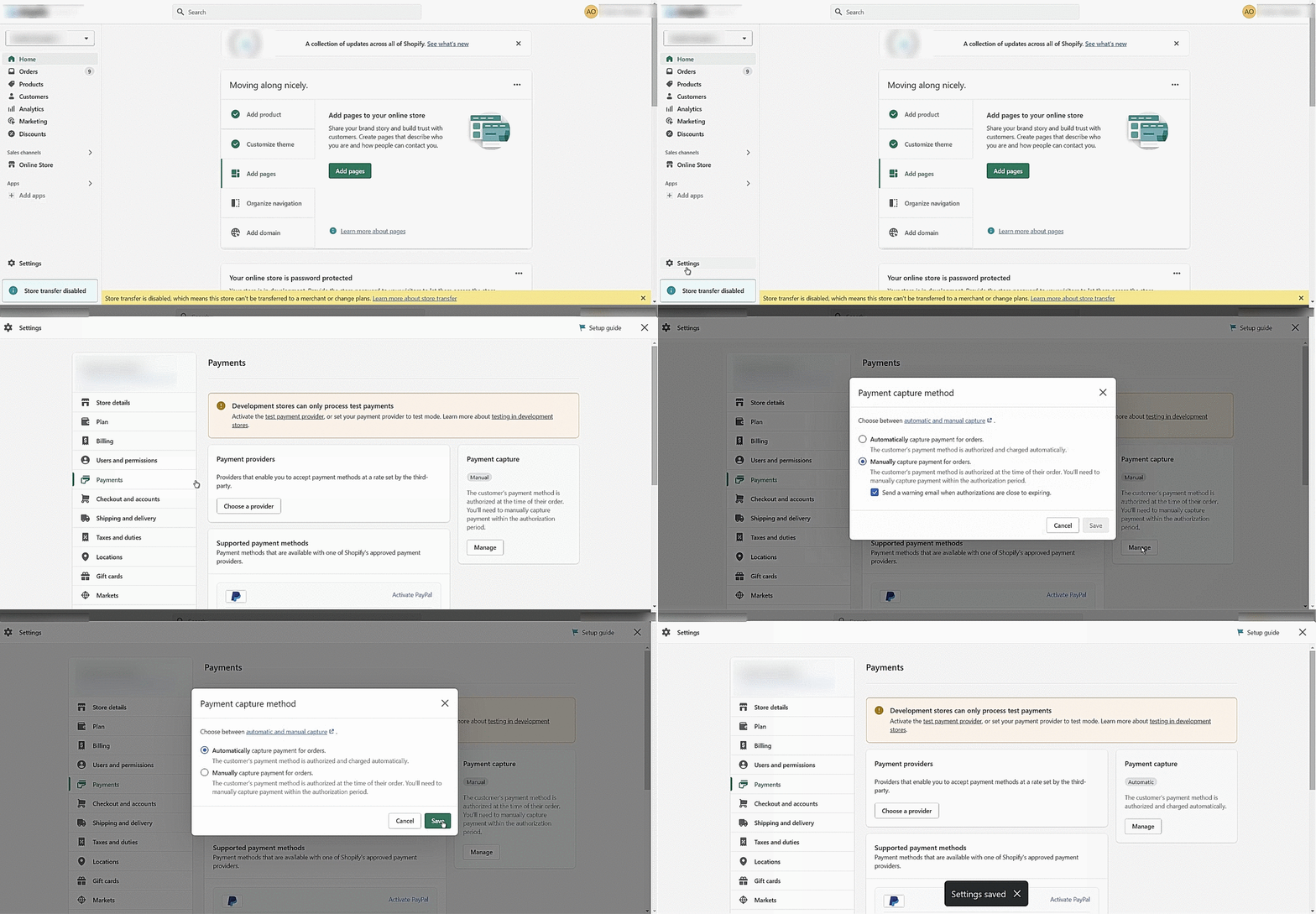
To process one-time payments with credit and debit cards, transfers, and cash, it is necessary to configure the payment capture method within the Shopify console, the payment capture method as follows: Settings > Payments > Payment Capture, click the Manage button, where a window will be displayed in which we must select Manually capture payment for orders. Finally, click on the Save button, and it will automatically display the following message: Configuration saved.
📝 Please keep in mind that:
1.
For card, cash, and transfer payments, the merchant must have configured at least one processor for each of these payment methods. This process will work according to the settings established by the merchant or processor.
2.
For cash payments, you cannot set the expiration date. It is set by default to 7 days.
Refunds can only be requested from Shopify, not through the Kushki Console.
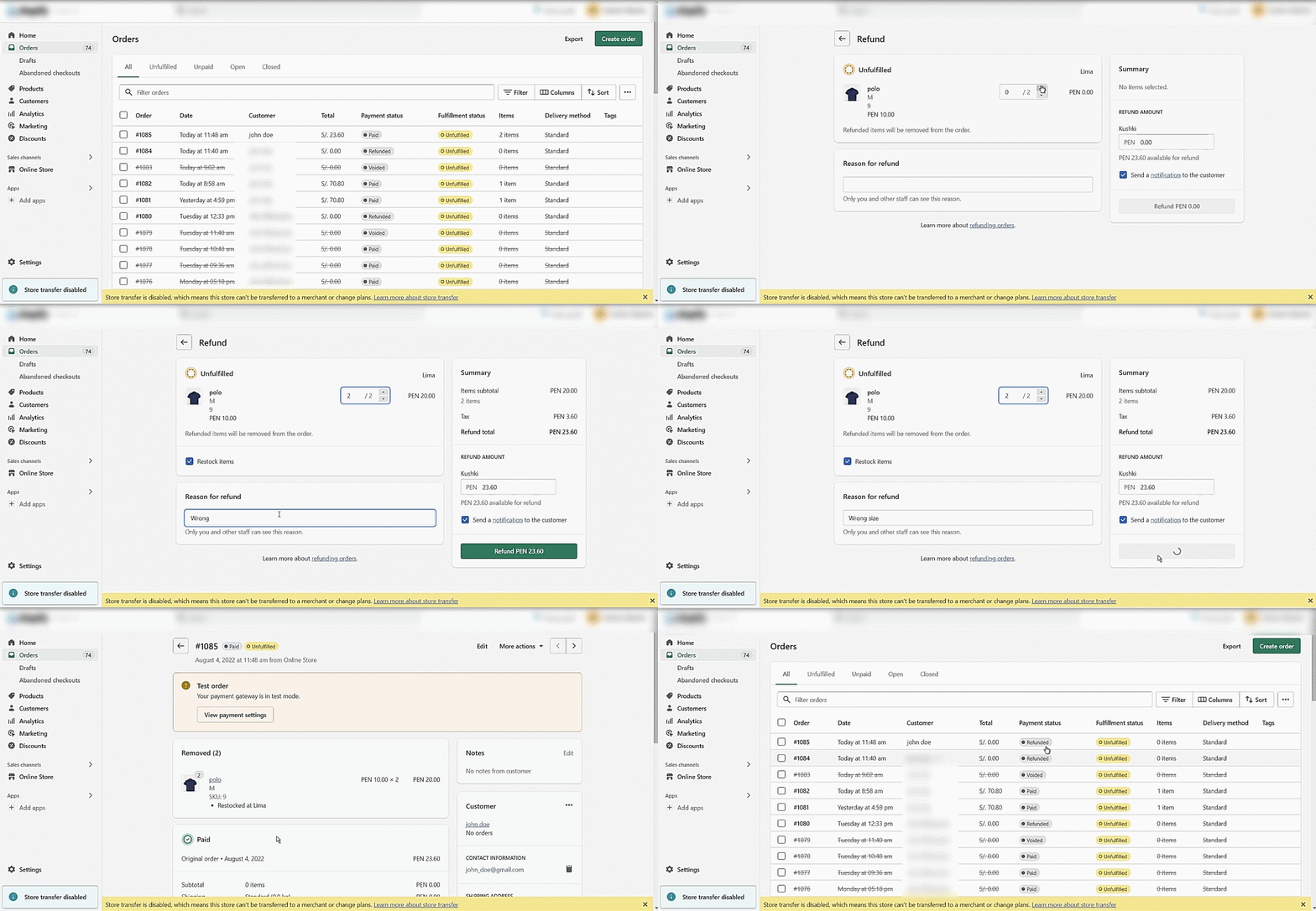
Follow these instructions to request a refund of transactions in Paid status made with a credit or debit card. Shopify allows you to make partial or full refunds.Follow these instructions to request a return:
1.
Sign in to Shopify with your merchant credentials.
2.
Click on the Orders option in the left side menu.
3.
Click on the order to make the refund and enter its details.
4.
Click on Refund at the top right of the screen.
5.
Specify the number of items to be refunded. For full refunds, select all items.For partial refunds, select the indicated items.
If you wish, you can place the Reason for refund below the order. Otherwise, it can be omitted.
6.
Once you enter the values, click on the Refund button located on the lower right side of the window. The page will refresh, and you will see the message Refund in process.
Regardless of the time, all returns will be processed as refunds.