1. Colombia 🇨🇴
Kushki Docs
English
  • Español
  • English
  • Home
  • Quick Start
    • Frequently Asked Questions
    • Moving to Production
    • Policy for Important API Changes
    • Test Data
    • Error Codes
    • Latest Features
  • Payment Glossary
    • Payments Glossary
  • One-time card payments (Online)
    • Supported card brands
    • Functionalities by business model
    • Network Tokens
    • One-step Payments
      • How do Card Payments Work?
      • Accept a Card Payment
      • Direct charge (without token)
      • Accept One-Time Payments with OTP
      • OTP Authentication Error Codes
      • Error codes for single card payments
    • Two-steps Payments
      • How do one-time payments with authorization and capture work?
      • Receive payments with authorization and capture
    • Refunds
      • Returns, cancellations, and refunds
    • 3DS Authentication
      • Introduction to 3DS
      • 3DS API integration
      • 3DS integration with kushki.js library
      • 3DS API integration plus kushki.js library
      • 3DS Error Codes
    • Apple Pay Payments
      • Apple Pay Configuration
      • Apple Pay Sandbox testing
  • Recurring Card Payments (Online)
    • Functionalities by business model
    • External subscriptions to Kushki
    • Authenticate your subscriptions with 3DS
    • Accept one-click payments with 3DS
    • Error codes in recurring charges
    • Scheduled payments
      • How do Credit or Debit Card Payment Recurring Charges Work?
      • Schedule a recurring charge
      • Manage your Scheduled Charges
    • OneClick Payments
      • Accepting One-Click Payments
      • How does authorization and capture work in OneClick payments?
      • Receive OneClick payments with authorization and capture
  • Card-present payments
    • Accept card present payments
    • Test data
    • Webhooks for card present
    • Raw card-present API
      • Raw card-present API overview
      • Cryptographic key exchange
      • Sample script to encrypt information
      • Take Payments
      • Frequently Asked Questions
      • Error codes for card-present transactions
    • Kushki One
      • First Steps
      • Autenticación y Cifrado de Requests
      • Accept payments with Kushki One
      • Amount Format
      • Async services and webhooks
      • Printing on SmartPOS terminal
      • Unified Error Catalog — Kushki ONE Connect
    • Kushki One Payment App
      • Overview
      • Process a payment
      • Split payment on the terminal
      • Refunds and PreAuth & Capture
      • Review Your Transactions
      • Terminal Setup
    • Transactions
      • Transactions
      • Cancel payments
  • Wire Transfers
    • Banks and transaction details for bank transfer payments
    • Receive Wire Transfers
    • Check the Status of a Transaction
    • Error Codes for Transfers
  • Cash Payments
    • How do Cash Payments Work?
    • Accept a Cash Payment
    • Authorized locations
    • Error Codes for declined cash transaction
  • Alternative payment methods (APM)
    • How do APM payments work?
    • Accept Bre-B payments
  • Money Disbursement
    • Payment Distribution
    • Recharge your balance for dispersions
    • Wire Transfer
      • How Does a Payment Distribution by Wire Transfer Work?
      • Payment Distribution to Bank Accounts
      • Disburse with Bre-B
      • Error codes for transfer dispersions
    • Cash
      • How does payment distribution in cash work?
      • Distribute Payments in Cash
      • Manage your Payment Distribution Transactions
  • Plugins
    • Shopify
      • Shopify
      • Plugin Operation
    • VTEX
      • VTEX Integration Guide
  • Payment Links
    • Smartlinks
  • Payment forms and buttons
    • Kajita
      • How Does it Work?
      • Payment Kajitas
    • Payment Button
      • Overview
      • Generate a payment button
  • Branch Offices Management
    • How to Onboard Submerchants via API
  • Notifications
    • Good Practices
    • Check your Webhooks
    • One-time Payments Webhooks
      • Webhook for One-Time Payments made with a card
      • Webhook for One-Time Payments by Wire Transfer
      • Webhook for One-Time Payments in Cash
    • Recurring Payments Webhooks
      • Webhook for Recurring Payments Made with Card
    • Payment Distribution Webhooks
      • Webhook for payment disbursement through wire transfer
      • Webhook for Payment Distribution in Cash
    • Payment button Webhooks
      • Webhooks with Payment Button
    • Smartlinks Webhooks
      • Webhooks with Smartlinks
    • Refunds Webhooks
      • Webhook for Voids and Refunds
      • Chargeback Webhooks
HomeMexico 🇲🇽Ecuador 🇪🇨Chile 🇨🇱Colombia 🇨🇴
Peru 🇵🇪
HomeMexico 🇲🇽Ecuador 🇪🇨Chile 🇨🇱Colombia 🇨🇴
Peru 🇵🇪
Status
Soporte / Support
English
  • Español
  • English
  1. Colombia 🇨🇴

Wire Transfers

How do Payments by Wire Transfers Work?#

We explain how a payment by wire transfer works in Kushki
If your users do not have a credit card or wish to use the available balance in their bank accounts to make an online purchase, wire transfer is the ideal payment option. With Kushki your users can make payments with wire transfers through PSE, quickly and easily.
Want to accept Bre-B payments?
Bre-B payments are integrated from the Alternative payment methods (APM) section. See How do APM payments work?.

Payment process with PSE#

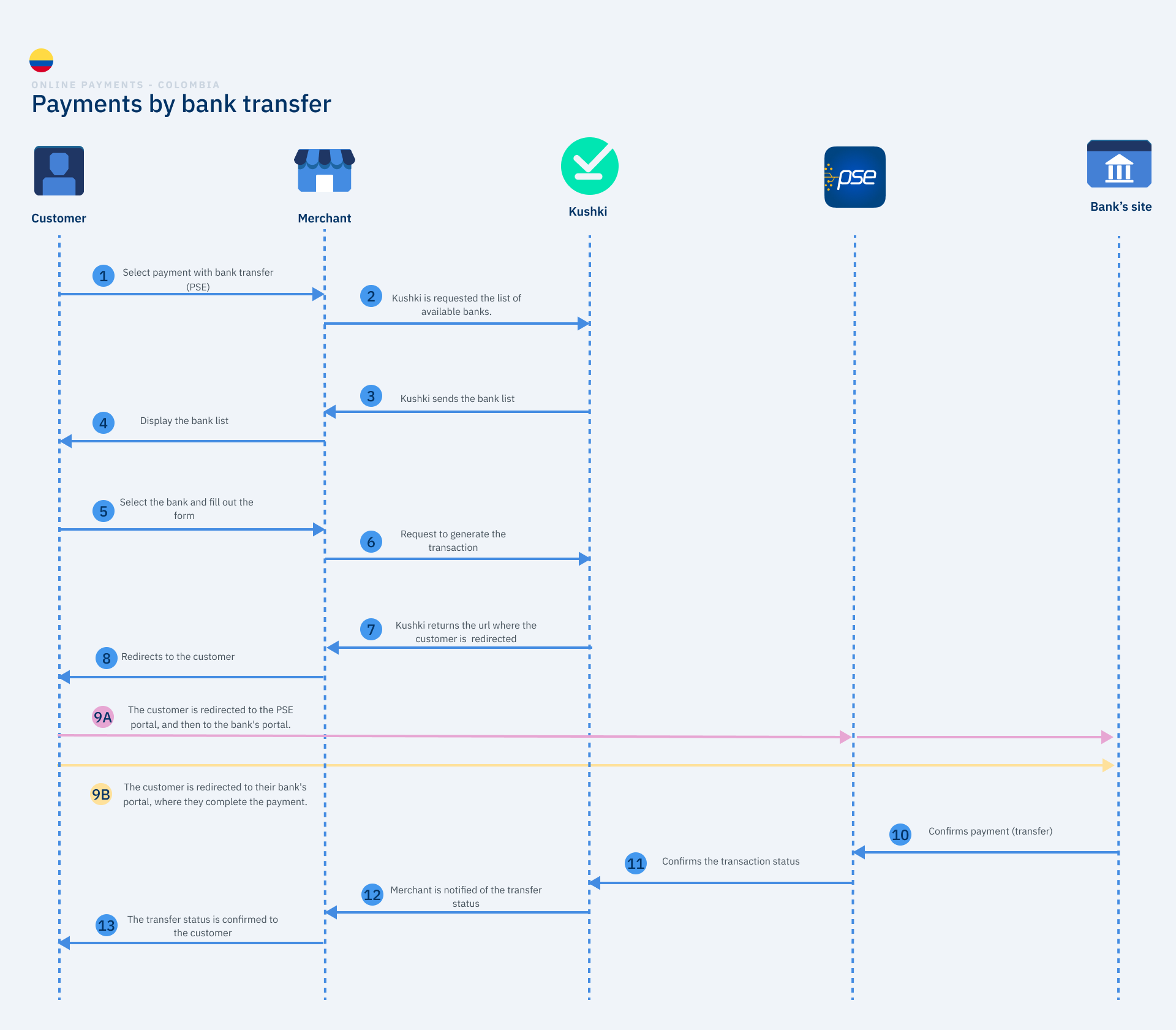
The payment process with wire transfers consists of allowing your customer to use the balance available in their bank account to pay for a purchase on your site or app. To do this, you must redirect your customer to the website of the bank selected in the payment form, in order to authorize the debit of the amount of the transaction from your account.
Transfer in Colombia unificado (PSE 1.0 y 2.0 Avanza)
Step 9 has two options, depending on the version of PSE being used. Option 9A applies only to PSE (version 1.0), while option 9B applies only to PSE Avanza (version 2.0).

1. Payment method selection#

Within your app or website, the user must select transfer as the payment method.

2. Request the list of available banks#

You must ask Kushki for the list of available banks so that your users can see them in the payment form.
Important
It is important that you request to Kushki the supported banks, so that your users can visualize through the form the list of available banks. The list will be sent to you automatically updated.

3. Sending the list#

Once you request the list of banks from Kushki, the updated list will be sent to you automatically.

4. Display of the list#

Now that you have the list of banks, you must display it to your customers so that they can select their bank.

Selecting the bank#

After showing your customers the list of available banks that Kushki returns to you, the payer must choose the bank, fill in the payment form data and select the option Pay.

Creation of the transaction#

Once all the customer data has been filled in and sent, you must generate a transaction initialization request to Kushki.
Only for PSE Avanza
In case Kushki has detected that not all the information required to generate the transaction is present, a form will be shown to the customer to fill in all the data only once, thus being registered in the databases. Once you have filled in the data, on the data processing authorization page, you must confirm if you want your data to be processed and this way you can send it to your banking portal to continue with the process.

7. Return URL#

Kushki confirms the creation of the transaction and returns the redirection URL to where the customer should continue.

8. Client redirection#

The client will be redirected. The redirection URL will depend on the version of PSE being used.

9A. PSE (version 1.0). Redirect to PSE, then to the bank for authorization#

With the URL, you must redirect your user to the PSE portal. There, your user must fill in the indicated fields and click on the option Go to bank.
When the user enters the site of their bank, authenticates, verifies the transaction data (description of the operation, amount and account to be debited), and accepts that the amount of the transaction will be debited from their bank account balance.

9B. PSE Avanza (version 2.0). Redirection to the bank for authorization#

With this transfer method you can improve the payment experience of your customers, since, once the bank is selected, they will be directed directly to their bank portal to complete the transaction, thus facilitating the payment process.
When the user enters your bank's website, authenticates, verifies the transaction data (description of the transaction, amount and account to be debited) and accepts that the amount of the transaction will be debited from their bank account balance.

10. Confirmation of the transfer#

When the customer completes the transfer, the bank confirms the result of the transaction to PSE, which in turn notifies Kushki. In this way, we will confirm the final status of the transaction, so that you can notify your customers.

Explore this section#

Banks and transaction details for bank transfer paymentsBanks available for transfersRead article →
Receive Wire TransfersLet customers pay from their bank accountRead article →
Check the Status of a TransactionCheck the status of a transferRead article →
Error Codes for TransfersErrors in PSE Avanza paymentsRead article →
Accept Bre-B paymentsTransfer payments with Bre-BRead article →
Modificado en 2026-10-16 22:03:47
Anterior
Cancel payments
Siguiente
Banks and transaction details for bank transfer payments
Built with