
Receive Wire Transfers
Web
iOS
Android
Allow your customers to use the available balance in their bank account to purchase your products or services from your website via PSE or PSE Avanza. To do so, you must enable the list of banks available in Colombia, obtain the basic data of your paying customers and redirect them to the website of their virtual bank branch to authorize the debit to their bank account.Bre-B payments are integrated from the Alternative payment methods (APM) section. See How do APM payments work?. The payment flow for PSE (Version 1.0) that you will integrate is as follows: 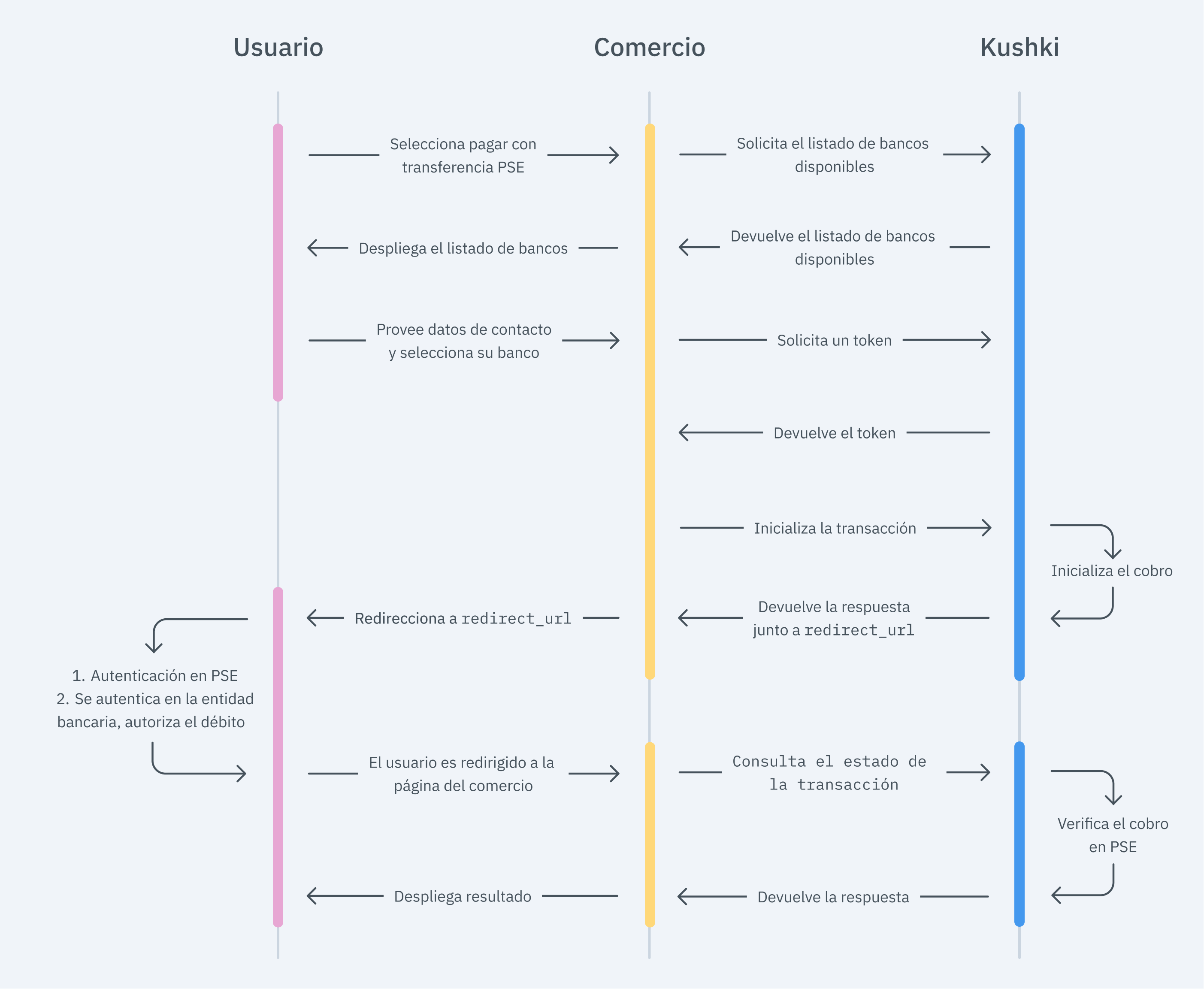
The payment flow for PSE Avanza (Version 2.0) that you will integrate is as follows: 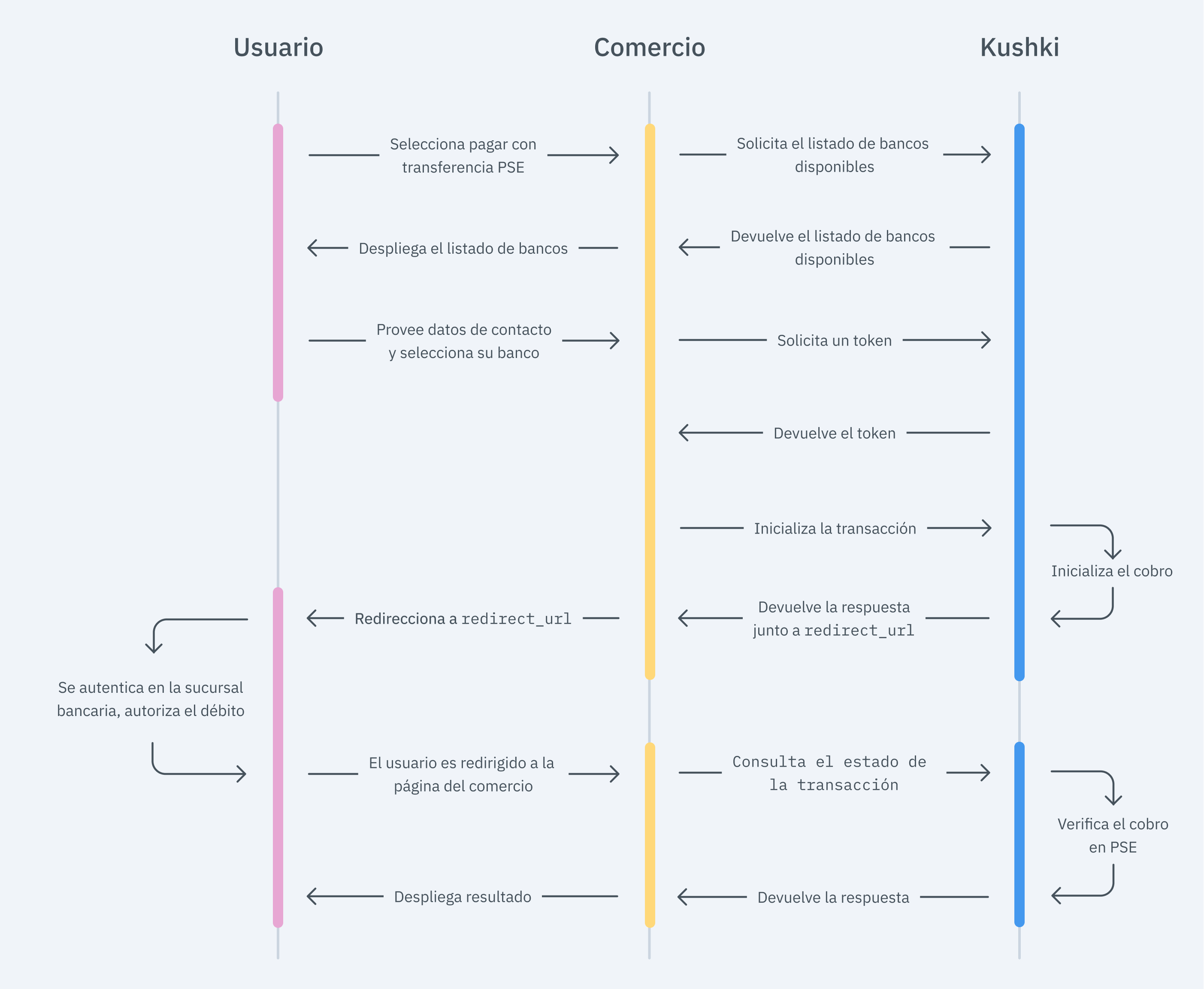
With this version we improve the user experience allowing your customers to purchase in fewer steps. Due to our risk policies, the available payment methods and the integration type may vary once you complete the affiliation. We will tell you how to proceed if this process applies to your merchant. The front end is responsible for collecting the user's main data, generating a token for such information through Kushki's servers, and sending that information to the back end to start the payment process. You have two options to integrate: Kajita and Kushki.js. Kushki has payment forms ready to collect payment information securely. You can use any of our versions: Cajita: the first version of the predefined payment form. Not customizable. Kajita: the second version. It allows you to customize your payment forms from your Administration Console and even have several versions of Kajita, for example, one for each payment method. With Kushki you can create your Kajitas from the Administration Console. Click here to learn how to do this. Include the Kajita needs a space within your page. Enter the following code in your website's For Kajita (v.2): For Cajita (v.1): Remember to configure the action of the Then, add the For Kajita (v.2) you can obtain such script from your Administration Console, as explained in Create and customize your Kajitas. For v.1 (Cajita), add the following script, making sure the form has loaded: This will create a predesigned form on your website to accept payments. Use Kushki.js if you need more control over the "look & feel" or appearance of your payment form. Use the following Install the package from npm. Then import it into your code using the following code. Set up the
Add the following code to your application Before generating the token, you need to load the complete list of available banks, so that the paying customer can select the entity to make the transfer: First, embed the form in your payment page adding the required fields. You can design it as you prefer. For example: If you want your customers to be notified of their transactions, make sure to capture your customer's email address in the payment form. In addition to this, remember to enable the notification option from your administration console. And, for the moment the user submits the form, add the token request and take it to your back-end. Check the full reference in our Kushki.js reference In case you have not detected in the token all the necessary information to generate the transaction with PSE Avanza, your customers will be shown a form, which will be sent only once to register their data. The back end is responsible for receiving the token obtained from your front end and starting the payment process with Kushki. When the user submits the form, your front end sends a token to an endpoint that you specified previously. Using this token, you must make a call to our charge endpoint to start the charge process. The transaction init requires the If you are using PSE version 1.0, you do not need to send the For PSE (Version 1.0) According to the consumption response of the method to initiate the transaction, redirect the user to PSE using the For PSE Avanza (Version 2.0) According to the consumption response of the method to initiate the transaction, redirect the user to the URL that Kushki returns, so that your customer can authenticate in the virtual portal of their bank entity and authorize the transaction amount to be debited from the balance of their bank account. For redirection, try to not use containers such as Once the payment is completed in the PSE portal (Version 1.0) or in the bank's website (Version 2.0), the customer will be returned with a Along with the return URL, we will send the transaction token in the path, with which you can check the status of the transaction using this endpoint. In addition, you will obtain the necessary information for your customer's payment voucher. For example, for where According to the response that you receive from the transaction status, show the user a success or failure screen to inform the customer whether the payment was made correctly or if there was an error. The final result of this test data depends on your merchant's configuration: it requires the test environment (sandbox) to be active for your merchant and the assigned processor to support simulating certain statuses. If you don't get the expected result, contact your Kushki account manager or support. There are test identification numbers that you can use to ensure that your integration is ready. Use them to simulate any status: Approved transaction: Pending transaction: Transaction not authorized ( Failed transaction ( Read the following guidelines for technical certification approval (required to obtain productive account credentials): The calculation of taxes and the total amount must be the correct amount. Messages displayed on the screen are in line with Kushki's responses. All Kushki responses must be saved and recorded (required in case you need support). The customer must recognize the payment method being used, therefore you must include the PSE logo. You can show the payment method, such as: Debit from checking/savings account PSE bank debit Avoid using the following texts: Wire transfer Debit to account For redirection, do not use containers such as Frame, Panel, IFrame, etc. Avoid functions such as pop-ups that are blocked by browsers, and redirect in the same tab or window. In the payment voucher, add the following information: Name of your company (Name or corporate name) NIT of your company (TIN) Payment description Transaction date Transaction status Traceability code (CUS). You can get it in the response of the init method. Transaction number Bank name Amount Display the transaction status as shown below: Include within the payment receipt, a link (button) to access a query module showing the following basic data: CUS, amount, transaction date, current status. Companies that do not require authentication with username and password to make payments will not have to build the query module. Include an option to download and print the receipt. If the transaction is PENDING, a new transaction must NOT be allowed until the final status of the transaction is approved or rejected. The transaction cannot be PENDING:PENDIENTE for more than 21 minutes. All statuses must include the text with a phone number and an email address of your company, where your customers can check the transaction status. In the event of successful receipt of the Webhook notification, respond to the request with a The "Pay" button is disabled after the first click. Kushki's logo must be visible for the customer. You can find our logo in several formats here. Make sure to send all the variables required, specified in the API reference.
Want to accept Bre-B payments?
Important
1. Set up your Front-end
Kajita
Create and customize your Kajitas
Set up Kajita
kushki-checkout.js script in your payment page by adding it to the <head> of your HTML file. Always load kushki-checkout directly from cdn.kushkipagos.com. Do not include the script in a bundle or package or host a copy of it.Add Kajita to your website
<body>, where you want the payment form to be displayed.action form according to the corresponding endpoint in your back end, to obtain the token.script tag.Kushki.js
Set up Kushki.js
Option 1 - CDN
script tag at the end of the <body> of your payment page.Option 2 - NPM
Set up the Kushki object
Request the list of banks
Collect user information and send it to your back-end
Send notifications to your customers
PSE Avanza
2. Set up your Back-end
API Reference for Colombia
Always authenticate from your server
Private-Merchant-Id header. Never expose your Private Key in front-end code: this call must always be made from your back end.JavaScript
Python
PHP
contactDetails object.redirectUrl parameter, so that your customer can authenticate and authorize the transaction amount to be debited from the balance of their bank account.Frame, Panel, or IFrame. Also, avoid using functions such as pop-up windows, as they can be blocked by the browser. Redirect the user within the same tab or window.Display the result of the transaction
GET call to the callbackUrl you specified when requesting the token.callbackUrl = 'http://www.example.com' the customer will return to:GET https://www.example.com/?token=26735cbb653a421ba7138eb515e0ab1dtoken is equal to 26735cbb653a421ba7138eb515e0ab1d3. Test your Integration
123456789999999990'NOT_AUTHORIZED'): 100000002'FAILED'): Any identification number4. Prepare your Certification
ProcessorState OK:APROBADA The status must not be displayed in English. In addition, avoid the use of synonyms, such as: successful, authorized, accepted, paid or affirmative.ProcessorState PENDING:PENDIENTE The status must not be displayed in English. In addition, avoid the use of synonyms, such as: pending confirmation, unresolved or incomplete.ProcessorState NOT_AUTHORIZED:RECHAZADA The status must not be displayed in English. In addition, avoid the use of synonyms, such as: declined, canceled, rejected.ProcessorState FAILED:FALLIDA The status must not be displayed in English. In addition, avoid the use of synonyms, such as: fail or error.statusCode 200, and inform your customer.Modificado en 2026-10-16 22:07:25