1. Branch Offices Management
Kushki Docs
English
  • Español
  • English
  • Home
  • Quick Start
    • Frequently Asked Questions
    • Moving to Production
    • Policy for Important API Changes
    • Test Data
    • Error Codes
    • Latest Features
  • Payment Glossary
    • Payments Glossary
  • One-time card payments (Online)
    • Supported card brands
    • Functionalities by business model
    • How do third party commissions work?
    • Integration guide Third Party Commissions
    • Network Tokens
    • One-step Payments
      • How do Card Payments Work?
      • Accept a Card Payment
      • Direct charge (without token)
      • Accept One-Time Payments with OTP
      • OTP Authentication Error Codes
      • Error codes for single card payments
    • Two-steps Payments
      • How do single payments with authorization and capture work?
      • Receive payments with authorization and capture
    • Refunds
      • Returns, cancellations, and refunds
    • 3DS Authentication
      • Introduction to 3DS
      • 3DS API integration
      • 3DS integration with kushki.js library
      • 3DS API integration plus kushki.js library
      • 3DS Error Codes
    • Apple Pay Payments
      • Apple Pay Configuration
      • Apple Pay Sandbox testing
  • Recurring Card Payments (Online)
    • Functionalities by business model
    • External subscriptions to Kushki
    • Authenticate your subscriptions with 3DS
    • Accept one-click payments with 3DS
    • Error codes in recurring charges
    • Apple Pay for Subscriptions
    • Scheduled payments
      • How do Credit or Debit Card Payment Recurring Charges Work?
      • Create a recurring charge
      • Manage your Scheduled Charges
    • OneClick Payments
      • Accepting One-Click Payments
      • How do OneClick payments with authorization and capture work?
      • Receive one-click payments with authorization and capture
  • Card-present payments
    • Card present payments
    • Accept card present payments
    • Test data
    • Webhooks for card present
    • Cloud Terminal API
      • Cloud terminal API overview
      • Take payments
      • Cancel a payment request
      • Check the status of a payment request
      • How to print a customized ticket?
    • App-to-app
      • App-to-app overview
      • Take payments
    • Terminal SDK
      • Terminal SDK Introduction
      • Take payments
    • Raw card-present API
      • Raw card-present API overview
      • Cryptographic key exchange
      • Sample script to encrypt information
      • Take Payments
      • Frequently Asked Questions
      • Error codes for card-present transactions
    • Transactions
      • Transactions
      • Cancel payments
    • Kushki One
      • First Steps
      • Autenticación y Cifrado de Requests
      • Accept payments with Kushki One
      • Amount Format
      • Async services and webhooks
      • Printing on SmartPOS terminal
      • Unified Error Catalog — Kushki ONE Connect
    • Kushki One Payment App
      • Overview
      • Process a payment
      • Split payment on the terminal
      • Refunds and PreAuth & Capture
      • Review Your Transactions
      • Terminal Setup
  • Wire Transfers
    • How do Payments by Wire Transfers Work?
    • Banks and transaction details for bank transfer payments
    • Receive Wire Transfers
    • Check the Status of a Transaction
  • Money Disbursement
    • Wire Transfer
      • How Does a Payment Distribution by Wire Transfer Work?
      • Payment Distribution to Bank Accounts
      • Error codes for transfer dispersions
  • Payment Links
    • Smartlinks
  • Plugins
    • Shopify
      • Shopify
      • Plugin Operation
    • VTEX
      • VTEX Integration Guide
  • Payment forms and buttons
    • Kajita
      • How Does it Work?
      • Payment Kajitas
    • Payment Button
      • Overview
      • Generate a payment button
  • Branch Offices Management
    • How to Onboard Submerchants via API
  • Notifications
    • Webhooks
    • Good Practices
    • Check your Webhooks
    • One-time Payments Webhooks
      • Webhook for One-Time Payments made with a card
      • Webhook for One-Time Payments by Wire Transfer
      • Webhook for One-Time Payments in Cash
    • Recurring Payments Webhooks
      • Webhook for Recurring Payments Made with Card
    • Payment Distribution Webhooks
      • Webhook for payment disbursement through wire transfer
    • Payment button Webhooks
      • Webhooks with Payment Button
    • Smartlinks Webhooks
      • Webhooks with Smartlinks
    • Refunds Webhooks
      • Webhook for Voids and Refunds
      • Chargeback Webhooks
HomeMexico 🇲🇽
Ecuador 🇪🇨Chile 🇨🇱Colombia 🇨🇴Peru 🇵🇪
HomeMexico 🇲🇽
Ecuador 🇪🇨Chile 🇨🇱Colombia 🇨🇴Peru 🇵🇪
Status
Soporte / Support
English
  • Español
  • English
  1. Branch Offices Management

How to Onboard Submerchants via API

Validate, query , and enable submerchants using Onboarding API endpoints.
Kushki provides a structured onboarding flow for Payment Service Providers (PSPs) to create submerchants while complying with operational and regulatory requirements. We explain how to validate submerchants (in batch or individually), interpret webhook notifications, check their status, and obtain credentials to operate in production.
For this process, there are three key endpoints

General Onboarding Flow#

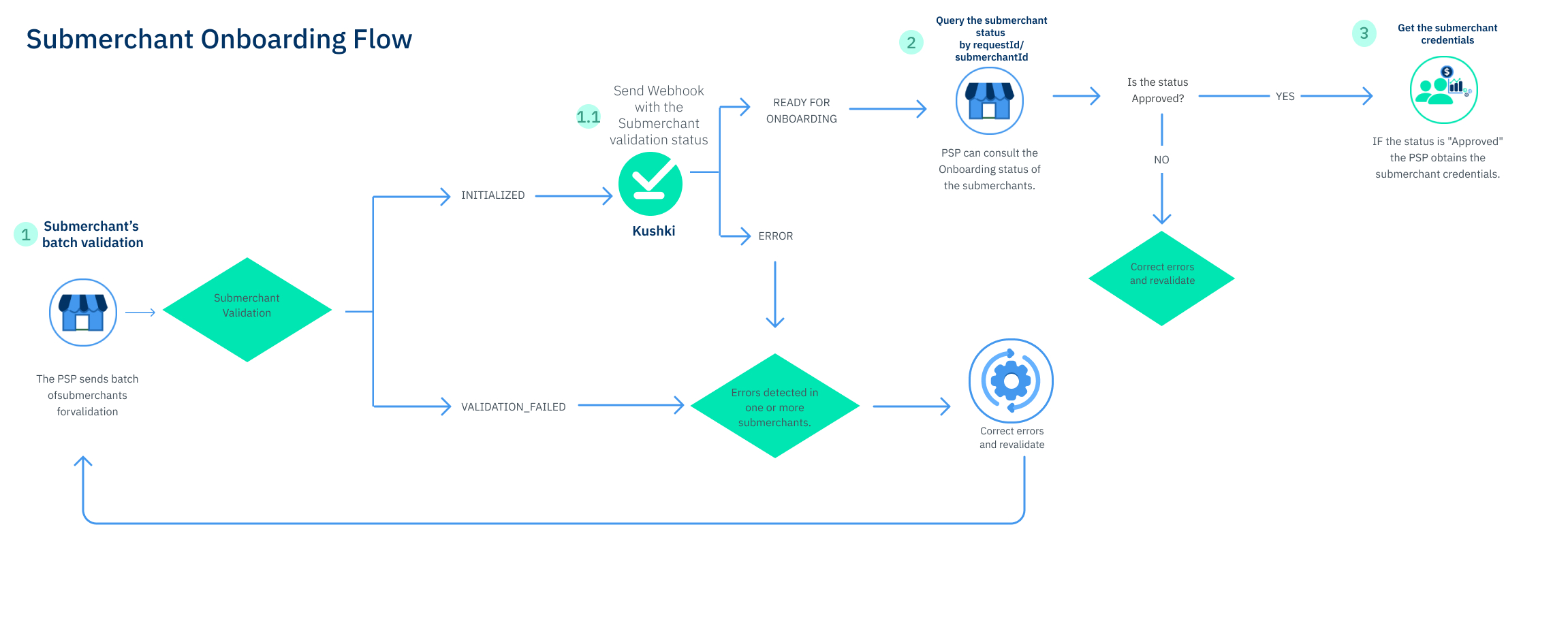
en_onboarding appian

1. Submerchant Validation in Batch#

This first endpoint or service allows you to submit one or more submerchants to validate their information before starting the onboarding process. In this initial step, submerchants are not created yet; we only verify that the data is well-structured and valid to proceed.
Important
Only submerchants that pass this validation can continue with the process. If any have errors, you must correct them and resubmit the request.
What to include?
The required data includes: country, legal representatives here

Possible Responses#

INITIALIZED: Kushki received your request and is processing it.
VALIDATION_FAILED: One or more submerchants have errors and cannot continue.
Additionally, the response will also include:
submerchantId: Unique identifier assigned to the submerchant.
submerchantName: Name of the submerchant sent in the request.
status: Indicates the result of the individual submerchant validation. You may receive these responses:
1.
VALID: The submerchant was successfully validated and can continue with the process.
2.
INVALID: The submerchant contains errors in the data submitted and requires correction before continuing.
Once submitted for validation, you can check if the submerchant is ready for onboarding via a webhook notification.
Important
Once a submerchant has been approved and is ready for onboarding, each request generates a unique identifier called requestId, which you can later use in the second endpoint to query the creation process status.

1.1 Webhook Notification: Submerchant Status#

Once the request is processed, Kushki will send a webhook notification with the status of each submerchant. This message can arrive individually or in a batch.
Webhooks are optional and apply specifically to this second validation phase to notify the merchant about the process status.
Notifications can be individual (one for each record) or in batch (when a block of records is completed).
The configuration of webhooks is not done in Kushki but is part of the operational conditions established during the PSP's affiliation with Kushki.
Statuses you will receive via webhook
READY_FOR_ONBOARDING: The submerchant passed validation and is ready to start the onboarding process.
ERROR: The creation failed due to validation or processing errors. You must correct and resend the request.
Example of a successful webhook notification
[
  {
    "requestId": "d7eb557c-8385-4282-b196-6fb1ccec6a06",
    "submerchantId": "e5c40357-7bed-4e43-bd6c-4815e9341eaf",
    "status": "READY_FOR_ONBOARDING",
    "message": "Success"
  }
]
Example of a webhook notification with errors
[
  {
    "requestId": "d7eb557c-8385-4282-b196-6fb1ccec6a06",
    "submerchantId": "804e0d11-f298-4015-8662-1c31af577164",
    "status": "ERROR",
    "message": "Submerchant Onboarding Request has failed",
    "errorDetails": {
      "fields": {
        "operationCountry": "Operation Country not registered",
        "legalRepresentative": {
          "firstName": "Value is required",
          "dateBirth": "Date of Birth was invalid"
        }
      }
    }
  }
]
Consult the webhook documentation here

2. Get submerchant by requestId/submerchantId#

Once the submerchant is approved, you can use this service. It allows you to query the onboarding status of a submerchant, either by a batch request or a specific submerchant.
How to use this endpoint?
To query a batch request: send the requestId.
To query a specific submerchant: send the submerchantId.

Possible Statuses#

With this endpoint, you can query the different statuses of a submerchant during the process.
1. To determine if the submerchant entered onboarding or not::
READY_FOR_ONBOARDING: The submerchant passed validation and is ready to start the onboarding process.
ERROR: The creation failed due to validation or processing issues. You must correct and resend the request.
Important
Only submerchants with the READY_FOR_ONBOARDING status will continue the process and may show subsequent status updates.
2. To check the onboarding status (only for approved submerchants):
StatusDescription
REJECTEDThe submerchant was not approved. The process has ended.
PSP_PENDING_INFORMATIONThe submerchant has pending tasks in the PSP portal that must be completed to continue. Important: This status will include the pendingDocuments array in the response to detail which specific documents are pending submission or review
KUSHKI_KYC: ONGOINGKushki is reviewing the information. If additional information is required, the status will change to PSP_PENDING_INFORMATION.
KUSHKI_ACCOUNT_CREATION: ONGOINGThe submerchant's account is being created in Kushki's systems.
APPROVED_WITH_CONDITIONSApproved, but requires completing post-production tasks listed in the portal.
APPROVEDFully approved and ready to operate.

2.1 Submerchant Document Upload#

This endpoint allows PSPs to complete the pending PSP_PENDING_INFORMATION tasks related to Know Your Customer (KYC), enabling document upload via API.

Required Documents (MX):#

The required documents to advance in the Mexico flow are:
Constancia de Situación Fiscal (Certificate of Tax Status).
Acta constitutiva (Articles of Incorporation).
Legal Representative ID.
Proof of Address.

Responses#

If the submission was successful, the system returns a simple success confirmation, indicating that the document has been accepted for processing.
Response ValueDescription
trueThe document passed initial validation and has been sent for processing.
falseThe document or request failed to comply with the required format or operational context (e.g., incorrect country, invalid file size).

Result Webhook (Optional):#

The final result of the document processing (e.g., Approved or Rejected) will be communicated via the webhookUrl provided in the upload request.
To obtain continuous and on-demand visibility of the most current status, query the main status endpoint (Get submerchant by requestId/submerchantId), which includes the pendingDocuments status indicating which documents are pending upload when the submerchant is in the PSP_PENDING_INFORMATION status.

Possible Webhook Statuses#

StatusDescription
ApprovedThe document was validated and accepted
Under ReviewThe document is currently under review.
RejectedThe document was rejected (must be corrected and uploaded again).
Example of Document Webhook Notification response
{
  "submerchantId": "520d8a1c-c849-494e-a479-4aa2a5342a80",
  "documents": [
    {
      "document": "Certificate of Tax Status (CSF)",
      "status": "Approved"
    },
    {
      "document": "Proof of Address",
      "status": "Under Review"
    }
  ]
}

3. Get subermchantsIds#

This service allows PSPs to obtain all submerchantIds in bulk. It works as a preparatory step for obtaining credentials.
Important
This endpoint will only return approved submerchants associated with the authenticated PSP.
What is required?
The PSP's API Key, generated from the Appian portal, is required
Access is limited to submerchants associated with the authenticated PSP.
Expected Response
The response will include an array with all the submerchantIds corresponding to the PSP.
Example response:
{
    "idPsp": "122",
    "submerchatIds": [
        "20000000101933870000",
        "20000000106045330000",
        "20000000102324298000",
        "20000000100416365000",
        "20000000106241217000",
        "20000000100908143000",
        "20000000108017426000",
    ]
}
This endpoint is optional but recommended if the PSP needs to operate in bulk with submerchants, as it speeds up access to information prior to obtaining credentials.

4. Obtain Submerchant Credentials#

This service allows PSPs to obtain the public and private credentials for one or more submerchants that have been successfully created in Kushki.
Important
Only submerchants with the APPROVED status can obtain credentials.

Authentication#

This service uses the PSP's API Key, generated through the Appian portal
It is designed for PSPs managing multiple submerchants within their ecosystem, providing secure access to the credentials for each authorized submerchant.

Important Considerations#

It is possible to include multiple merchantIds in the same request to obtain credentials for several submerchants simultaneously.
The response will provide, for each valid submerchant:
publicCredential and privateCredential: keys needed to execute transactional operations such as charges, subscriptions, among others.
Credentials will only be delivered for submerchants correctly associated with the authenticated PSP.
If an error occurs while processing any of the requested IDs, the corresponding submerchantId will be included along with a message detailing the reason:
The submerchant does not belong to the authenticated PSP: The ID is valid but is linked to another PSP.
Submerchant not found: The ID does not exist or the onboarding process has not concluded yet.
Modificado en 2026-09-24 15:24:28
Anterior
Branch Offices Management
Siguiente
Notifications
Built with