
Authenticate your subscriptions with 3DS
Do you have your own 3DS authentication engine?
Important
Important
3DS validation availability with subscriptions
By affiliation models
Acquiring
Credit card and debit card
| VISA | MasterCard | CARNET |
|---|---|---|
| Supported ✅ | Supported ✅ | Not supported ❌ |
By integration methods
| Supported ✅ | Not supported ❌ |
|---|---|
| Integration with Smartlink (scheduled payments) | Integration through API |
| Integration with Kajita | Integration with Shopify |
| Android integration (SDK) | |
| iOS integration (SDK) | |
| Integration with payment button | |
| Kushki.js integration | |
| Kushki.js Hosted Fields integration |
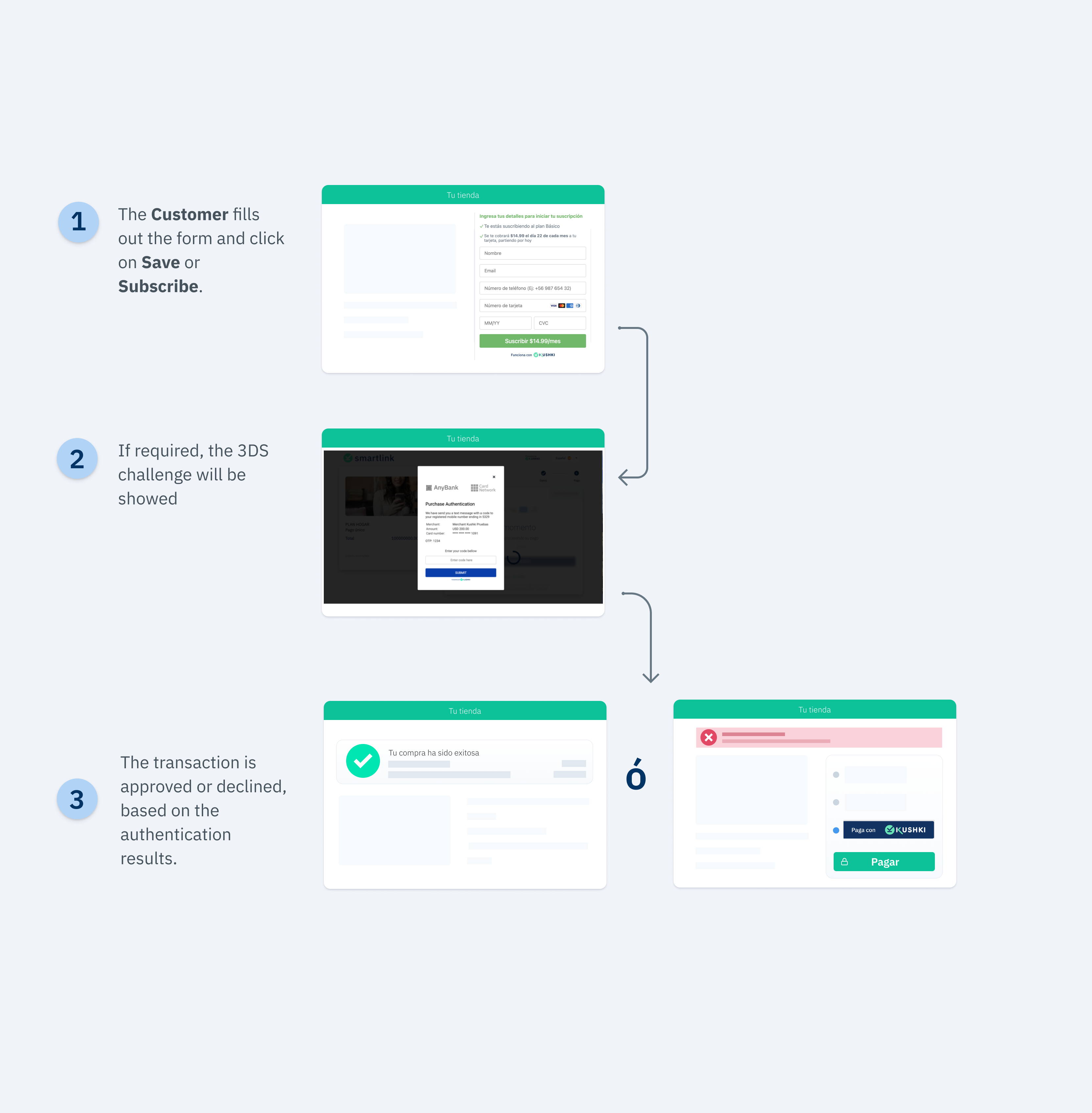
How does the 3DS authentication work?
3DS Supported Brands
Do you want to receive payments with 3DS?
1. Configure your front-end
Kushki.js
requestSubscriptionToken() method will be as shown below:| Parameter | Type | Description |
|---|---|---|
authRequired | Boolean | This field indicates whether a 3DS challenge is required or not. |
acsURL | URL | Refers to the URL of the challenge page that the user must pass (Access Control System). |
specificationVersion | String | Refers to the applicable 3DS version. |
authenticationTransactionId | String | Transaction ID verified from brands. |
paReq | String | Stands for the Payer Authentication Request. It is a base64 encoded field containing your merchant and cardholder information that is sent to the issuer for authentication. Note: In case of testing in UAT environment, sandbox must be sent. |
Do you get the token from your back-end?
method in your integration, you should follow steps below:
1.
2.
jwt.3.
by sending the
jwt obtained in step 2.4.
secureService, secureId and the security object (specified in the table above).5.
requestValidate3DS method to do the 3DS validation, as explained below.security object to Kushki by using the requestValidate3DS method:authRequired variable is equal to true, the 3DS validation modal will be presented and your customer will then receive the value to enter by email or text message.authRequired variable is equal to false, the 3DS validation modal will not be presented.callback function will be:{
isValid: true
}callback function will be something like:{
"message":"error-message",
"code":"error-code"
}322 code and any of the other subcodes specified in the Error codes guide.Kushki.js Hosted Fields
requestToken() method to request a token, if a 3DS rule exists and the condition is met, the requestToken() method will display the modal so that the client can enter the 3DS validation data.isSubscription property with the value of true to generate a subscription. If the initCardToken() method was configured as a subscription, you will need to call the create a recurring charge endpoint from your backend, rather than making a one-time payment with the token.| CODE | MESSAGE | EXAMPLE | DESCRIPTION |
|---|---|---|---|
| E004 | Error en solicitud de JWT | { code: "E004", message: "Error en solicitud de JWT" } | If the merchant has a 3DS rule enabled and there was an error requesting the JWT, code E004 will be returned. Please try again; If the error persists, contact Kushki support. |
| E005 | Campos 3DS inválidos | { code: "E005", message: "Campos 3DS inválidos" } | If the merchant has a 3DS rule enabled and there was an error in 3DS authentication, the code E005 will be returned. Please try again making sure you enter the data correctly for 3DS validation. |
| E006 | Error en solicitud de validación de token | { code: "E006", message: "Error en solicitud de validación de token" } | If the merchant has a 3DS rule enabled and there was an error in the 3DS validation session, code E006 will be returned. Please try again making sure you enter the data correctly for 3DS validation; If the error persists, contact Kushki support. |
2. Configure your back-end
3. Test your integration
1234 as the validation code.445652808038986044565292672342004456529165328302445652486977025544565233400699564456540000000063445654337171331444565419820686154456541249811088Important
4. Prepare your certification
Modificado en 2026-10-14 19:43:24