
3DS API integration plus kushki.js library
Important
Available transactions
| Available ✅ | Not available ⛔️ |
|---|---|
| 3DS authentication for one-time card charges | |
| 3DS authentication for preauthorizations |
Step 1. Get a Json Web Token (JWT)
requestSecureInit() method from Kushki.js or Kushki.js Hosted Fields to obtain a Json Web Token (JWT), which will be necessary when generating a token.Kushki.js
Import Kushki.js
Option 1 - CDN
script tag at the end of the <body> of your payment page.Option 2 - NPM
Set up Kushki object
Collect the user information and send it to your back-end
Consumes the requestSecureInit() method
requestSecureInit() method sending the card number, to get the jwt.{
"jwt": "eyJhbGciOiJIUzI1NiIsInR5cCI6IkpXVCJ9.eyJleHAiOjE2NTQ2NTY4ODYsImlhdCI6MTY1NDY0OTY4NiwiaXNzIjoiNWVhMzJmZDJmZjQ2NDU2OTY3YjUyNDliIiwianRpIjoiMDFhZTQyYWUtYzMyZS00YWRjLWFmOWQtZWVhMmFlNjRkMDkxIiwiT3JnVW5pdElkIjoiNWVhMzJmZDJhZDA3ZDIxYTM2OTc4OGFlIiwiUmVmZXJlbmNlSWQiOiI3ZjY1NzM5NS0yMDIwLTQ1ZjEtOTY4Mi05MzJiNTU5YWYzMWIifQ.JUkk70Kg4KlUYW7eIvsW8LoDhxJeG8P00VrJH9oQipc"
}{
"mensaje" : "mensaje de error" ,
"código" : "código de error" ,
"error" : "mensaje de error"
}Kushki.js Hosted Fields
Import Kushki.js Hosted Fields into your app
Option 1 - CDN
<script> tag inside the <body> tag. Once imported, you will be able to access the resources described below to create a payment flow with Kushki.kushki.min.js library (which comes with the necessary code to store your merchant's credentials) and the antifraud.min.js library (which provides the necessary tools to perform security authentications).Option 2 - NPM
Option 3 - YARN
Create an instance of KushkiOptions
KushkiOptions which allows you to set the public key of the work environment (test or production) through the init() method.Initialize the 3D Secure authentication service
requestSecureInit() method by sending the card number to get a JWT.jwt will be returned:{
"jwt": "eyJhbGciOiJIUzI1NiIsInR5cCI6IkpXVCJ9.eyJleHAiOjE2NTQ2NTY4ODYsImlhdCI6MTY1NDY0OTY4NiwiaXNzIjoiNWVhMzJmZDJmZjQ2NDU2OTY3YjUyNDliIiwianRpIjoiMDFhZTQyYWUtYzMyZS00YWRjLWFmOWQtZWVhMmFlNjRkMDkxIiwiT3JnVW5pdElkIjoiNWVhMzJmZDJhZDA3ZDIxYTM2OTc4OGFlIiwiUmVmZXJlbmNlSWQiOiI3ZjY1NzM5NS0yMDIwLTQ1ZjEtOTY4Mi05MzJiNTU5YWYzMWIifQ.JUkk70Kg4KlUYW7eIvsW8LoDhxJeG8P00VrJH9oQipc"
}| CODE | MESSAGE | EXAMPLE | DESCRIPTION |
|---|---|---|---|
| E004 | JWT request error | { code: "E004", message: "Error en solicitud de JWT" } | If the merchant has a rule for 3DS enabled and there was an error requesting the JWT. Please try again; if the error persists, contact Kushki support. |
| E018 | Invalid card length | { code: "E018", message: "Longitud de tarjeta inválida" } | Please verify that the card length is correct. |
| E019 | Merchant does not have active 3DS service | { code: "E019", message: "Comercio no tiene activo 3DS" } | The merchant does not have the 3DS service active. To activate it, check out the guide fraud detection tools. |
Step 2. Request a card token
{
  "card": {
    "name": "John Doe",
    "number": "4000000000000002",
    "expiryMonth": "01",
    "expiryYear": "28",
    "cvv": "123"
  },
  "totalAmount": 59,
  "currency": "MXN",
  "jwt": "eyJhbGciOiJIUzI1NiIsInR5cCI6IkpXVCJ9.eyJleHAiOjE2NTQ2NTg0ODgsImlhdCI6MTY1NDY1MTI4OCwiaXNzIjoiNWVhMzJmZDJmZjQ2NDU2OTY3YjUyNDliIiwianRpIjoiZjc4NzQzNTctMmY2Zi00OTExLTg3MDctZDBmN2RlYTZlNTk4IiwiT3JnVW5pdElkIjoiNWVhMzJmZDJhZDA3ZDIxYTM2OTc4OGFlIiwiUmVmZXJlbmNlSWQiOiIyZDdhOTA2OS04MjhjLTQxNDItYWYwNC1hMjZjNWI4YzQ3MjMifQ.5nmFrf3sOAxKNIcJTzc5i2GNY5ALABpu42YsrHIibio"
}authRequired property within the security object will be returned as true (security.authRequired).| Parameter | Type | Description |
|---|---|---|
authRequired | Booleana | This field indicates whether or not a 3DS challenge is required. |
acsURL | URL | Refers to the URL of the challenge page that the user must pass (Access Control System). |
specificationVersion | String | Refers to the applicable 3DS version. |
authenticationTransactionId | String | Verified transaction ID from brands |
paReq | String | Stands for Payer Authentication Request. It is a base64 encoded field containing your merchant and cardholder information that is sent to the issuer for authentication Note: in case you are testing in a UAT environment, you must send sandbox. |
Examples
Response object with 3D Secure authentication required
{
  "token": "g9m2XG100000uut73n085881SMOP3bP1",
  "secureService": "3dsecure",
  "secureId": "61efd064-b9df-4c0c-81fb-5b39a5d0cf9f",
  "security": {
    "acsURL": "https://merchantacsstag.cardinalcommerce.com/MerchantACSWeb/pareq.jsp?vaa=b&gold=AAAAAAAAAAAAAAAAAAAAAAAAAAAAAAAAAAAAAAAAAAAAAAAAAAAAAAAAAAAAAAAAAAAAAAAAAAAAAAAAAAAAAAAAAAAAAAAAAAAAAAAAAAAAAAAAAAAAAAAAAAAAAAAAAAAAAAAAAAAAAAAAAAAAAAAAAAAAAAAAAAAAAAAAAAAAAAAAAAAAAAAAAAAAAAAAAAAAAAAAAAAAAAAAAAAAAAAAAAAAAAAAAAAAAAAAAAAAAAAAAAAAAAAAAAAAAAAAAAAAAAAAAAAAAAAAAAAAAAAAAAAAAAAAAAAAAAAAAAAAAAAAAAAAAAAAAAAAAAAAAAAAAAAAAAAAAAAAAAAAAAAAAAAAAAAAAAAAAAAAAAAAAAAAAAAAAAAAAAAAAAAAAAAAAAAAAAAAAAAAAAAAAAAAAAAAAAAAAAAAAAAAAAAAAAAAAAAAAAAAAAAAAAAAAAAAAAAAAAAAAAAAAAAAAAAAAAAAAAAAAAAAAAAAAAAAAAAAAAAAAAAAAAAAAAAAAAAAAAAAAAAAAAAAAAAAAAAAAAAAAAAAAAAAAAAAAAAAAAAAAAAAAAAAAAAAAAAAAAAAAAAAAAAAAAAAAAAAAAAAAAAAAAAAAAAAAAAAAAAAAAAAAAAAAAAAAAAAAAAAAAAAAAAAAAAAAAAAAAAAAAAAAAAAAAAAAAAAAAAAAAAAAAAAAAAAAAAAAAAAAAAAAAAAAAAAAAAAAAAAAAAAAAAAAAAAAAAAAAAAAAAAAAAAAAAAAAAAAAAAAAAAAAAAAAAAAAAAAAAAAAAAAAAAAAAAAAAAAAAAAAAAAAAAAAAAAAAAAAAAAAAAAAAAAAAAAAAAAAAAAAAAAAAAAAAAAAAAAAAAAAAAAAAAAAAAAAAAAAAAAAAAAAAAAAAAAAAAAAAAAAAAAAAAAAAAAAAAAAAAAAAAAAAAAAAAAAAAAAAAAAAAAAAAAAAAAAAAAAAAAAAAAAAAAAAAAAAAAAAAAAAAAAAAAAAAAAAAAAAAAAAAAAAAAAAAAAAAAAAAAAAAAAAAAAAAAAAAAAAAAAAAAAAAAAAAAAAAAAAAAAAAAAAAAAAAAAAAAAAAAAAAAAAAAAAAAAAAAAAAAAAAAAAAAAAAAAAAAAAAAAAAAAAAAAAAAAAAAAAAAAAAAAAAAAAAAAAAAAAAAAAAAAAAAAAAAAAAAAAAAAAAAAAAAAAAAAAAAAAAAAAAAAAAAAAAAAAAAAAAAAAAAAAAAAAAAAAAAAAAAAAAAAAAAAAAAAAAAAAAAAAAAAAAAAAAAAAAAAAAAAAAAAAAAAAAAAAAAAAAAAAAAAAAAAAAAAAAAAAAAAAAAAAAAAAAAAAAAAAAAAAAAAAAAAAAAAAAAAAAAAAAAAAAAAAAAAAAAAAAAAAAAAAAAAAAAAAAAAAAAAAAAAAAAAAAAAAAAAAAAAAAAAAAAAAAAAAAAAAAAAAAAAAAAAAAAAAAAAAAAAAAAAAAAAAAAAAAAAAAAAAAAAAAAAAAAAAAAAAA",
    "authenticationTransactionId": "uvvZn0ND0ukTOJIfhfi0",
    "authRequired": true,
    "paReq": "eNpVUstuwjAQvPsrItRTD7HjhAjQYokWqQVUSksqKm5RYkiU5oFjE/j72iFAK/mws7Nr78wagkRwPl3zSAnO4I3XdbjnVhqPe+p43BZkOSUqC97ns12yS0mPwWryyQ8MjlzUaVkwxyY2BXyFSF8hoiQsJIMwOjzNlszzh9TxAXcQQc7FbMr6nksdAviCEBRhztlivXh8ScpaWitRxiqSpRXwWqYF4JZHEJWqkOLMfOIBvgIESvywRMpqhHHTNHam6iRLq3Bf1nZU5oANjwDfh1spE9Va8ymNWfy9pZvca4Lso4k38isg1XybJ3kYTMaATQWCOJScUUIp8cnAIu5IH1cP0eYRhLkZhj30hzbRsjqIoDIPTS6oPzTU34wWpITgRXRmA09zN4SAn6qy4LpG23uLtYb75M+vxuRIGjd9z3UpNS63uG1PtTXUJ07bn7Y+YdODux3ibt06+vcNfgHbNq5L",
    "specificationVersion": "2.2.0"
  }
}
Response object with 3D Secure authentication not required
{
  "token": "URkTD3100000aSfrJk085881gtsxGts6",
  "secureService": "3dsecure",
  "secureId": "9903cc36-6e9c-42b0-bb76-34c9c4dbaff5",
  "security": {
    "acsURL": "",
    "authenticationTransactionId": "",
    "authRequired": false,
    "paReq": "",
    "specificationVersion": "2.2.0"
  }
}
Response object without 3D Secure
{
  "token": "3c1518cf6f844e248880aad6187cf8d7"
}Step 3. Authenticate through 3D Secure.
security.authRequired property obtained in the previous step comes with the value of true, it will be necessary to perform authentication through 3D Secure. To perform 3D Secure authentication, you must call the requestValidate3DS method in Kushki.js or Kushki.js Hosted Fields, sending the response object from the previous step.Kushki.js
authRequired property is equal to true, the 3DS validation modal will be displayed and your client will then receive the value to be entered via email or text message.authRequired property is equal to false, the modal will not be presented for 3DS validation.{
"code":"3DS000",
"message":"ok"
}{
"message":"error-message",
"code":"error-code",
"error": "error-message"
}Kushki.js Hosted Fields
We are working on our beta version. Stay tuned for its official release! You can also contact your account manager for more information.
requestValidate3DS() method receives as a parameter the object obtained in the response from the previous step.import { init, IKushki } from "@kushki/js-sdk";
import { CardTokenResponse, requestValidate3DS, TokenResponse } from "@kushki/js-sdk/Antifraud";
const on3DSValidation = async () => {
try {
const kushkiInstance = await init({
inTest: true,
publicCredentialId: merchantId
});
const cardTokenResponse: CardTokenResponse = {
secureId: "secure_id",
secureService: "secure_service",
security: {
acsURL: "https://kushki.com",
authenticationTransactionId: "transaction_id",
authRequired: true,
paReq: "jwt",
specificationVersion: "2.0.1"
},
token: "token"
};
const response: TokenResponse = await requestValidate3DS(kushkiInstance, cardTokenResponse);
console.log(response);
} catch (error: any) {
console.log(error)
}
};| PROPERTY | TYPE | REQUIRED | DESCRIPTION |
|---|---|---|---|
| kushkiInstance | IKushki | YES | Object with public merchant id and work environment |
| secureInitRequest | SecureInitRequest | YES | You must define this object in order to request the initialization of 3DS. |
{
  "token": "3c1518cf6f844e248880aad6187cf8d7"
}| CODE | MESSAGE | EXAMPLE | DESCRIPTION |
|---|---|---|---|
| E005 | Campos 3DS inválidos (Invalid 3DS fields) | { code: "E005", message: "Campos 3DS inválidos" } | If the merchant has a 3DS rule enabled and there was an error in the 3DS authentication, error code E005 will be returned. Please try again making sure to enter the data correctly for the 3DS validation. |
| E006 | Error en solicitud de validación de token (Token validation request error) | { code: "E006", message: "Error en solicitud de validación de token" } | If the merchant has a 3DS rule enabled and there was an error in the 3DS authentication, error code E005 will be returned. Please try again making sure to enter the data correctly for the 3DS validation. |
Step 4. Make a one-time payment or a recurring charge
{
  "token": "f5c64f7ac8ea42d5a58dcdc74de973dc",
  "amount": {
    "subtotalIva": 0,
    "subtotalIva0": 16.98,
    "ice": 0,
    "iva": 0,
    "currency": "MXN"
  },
  "metadata": {
    "Referencia": "987654"
  },
  "contactDetails": {
    "documentType": "CC",
    "documentNumber": "1234567890",
    "email": "user@example.com",
    "firstName": "John",
    "lastName": "Doe",
    "phoneNumber": "+593912345678"
  },
  "orderDetails": {
    "siteDomain": "example.com",
    "shippingDetails": {
      "name": "John Doe",
      "phone": "+593912345678",
      "address1": "Eloy Alfaro 139 y Catalina Aldaz",
      "address2": "centro 123",
      "city": "Quito",
      "region": "Pichincha",
      "country": "Ecuador"
    },
    "billingDetails": {
      "name": "John Doe",
      "phone": "+593912345678",
      "address1": "Eloy Alfaro 139 y Catalina Aldaz",
      "address2": "centro 123",
      "city": "Quito",
      "region": "Pichincha",
      "country": "Ecuador"
    }
  },
  "productDetails": {
    "product": [
      {
        "id": "198952AB",
        "title": "eBook Digital Services",
        "price": 10000,
        "sku": "10101042",
        "quantity": 1
      },
      {
        "id": "198953AB",
        "title": "eBook Virtual Selling",
        "price": 6980,
        "sku": "004834GQ",
        "quantity": 1
      }
    ]
  },
  "fullResponse": "v2"
}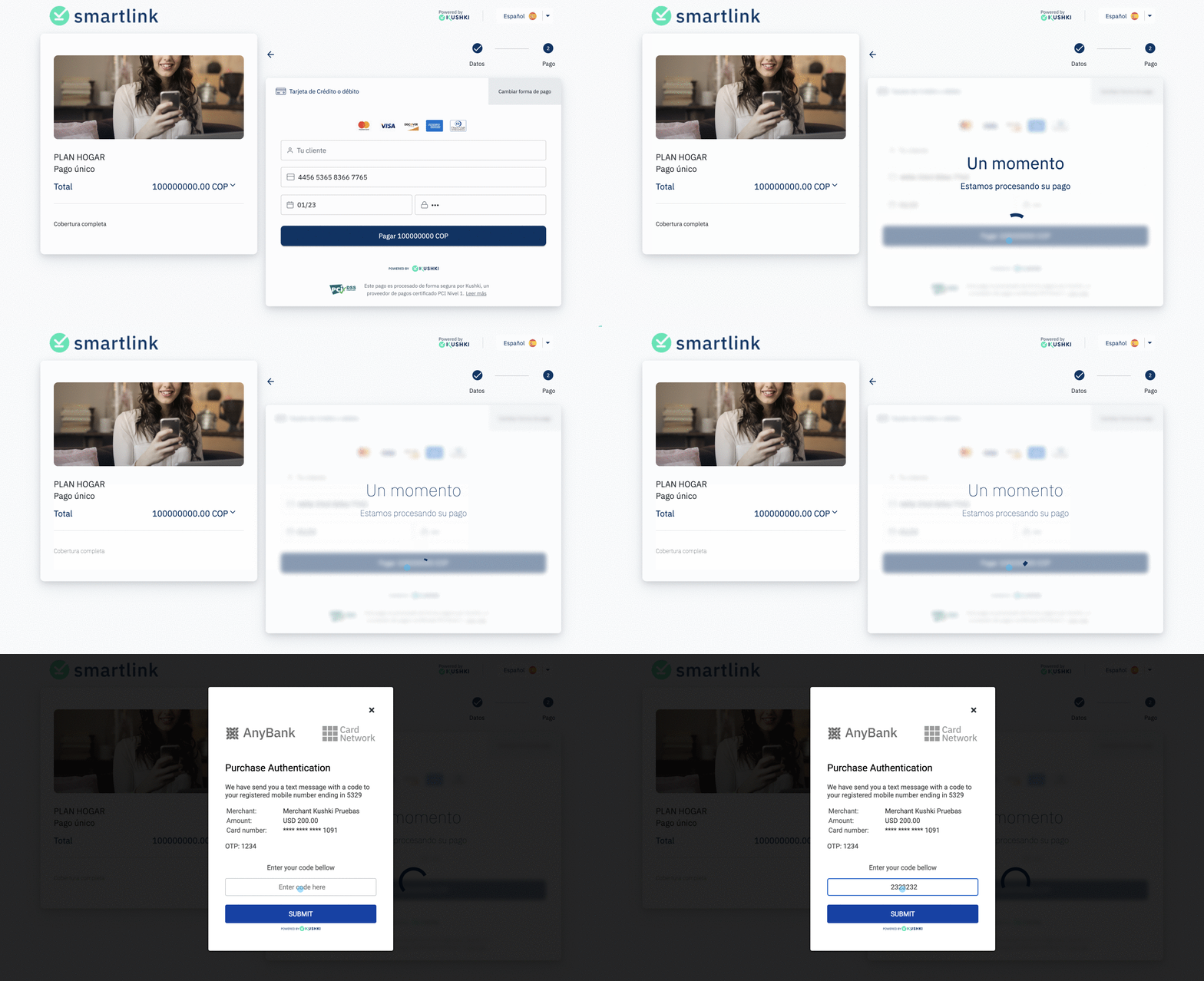
Test your integration
1234 as OTP code and future expiration date.445652808038986044565292672342004456529165328302445652486977025544565233400699564456540000000063445654337171331444565419820686154456541249811088Modificado en 2026-10-20 14:57:14