1. Raw card-present API
Kushki Docs
English
  • Español
  • English
  • Home
  • Quick Start
    • Frequently Asked Questions
    • Moving to Production
    • Policy for Important API Changes
    • Test Data
    • Error Codes
    • Latest Features
  • Payment Glossary
    • Payments Glossary
  • One-time card payments (Online)
    • Supported card brands
    • Functionalities by business model
    • How do third party commissions work?
    • Integration guide Third Party Commissions
    • Network Tokens
    • One-step Payments
      • How do Card Payments Work?
      • Accept a Card Payment
      • Direct charge (without token)
      • Accept One-Time Payments with OTP
      • OTP Authentication Error Codes
      • Error codes for single card payments
    • Two-steps Payments
      • How do single payments with authorization and capture work?
      • Receive payments with authorization and capture
    • Refunds
      • Returns, cancellations, and refunds
    • 3DS Authentication
      • Introduction to 3DS
      • 3DS API integration
      • 3DS integration with kushki.js library
      • 3DS API integration plus kushki.js library
      • 3DS Error Codes
    • Apple Pay Payments
      • Apple Pay Configuration
      • Apple Pay Sandbox testing
  • Recurring Card Payments (Online)
    • Functionalities by business model
    • External subscriptions to Kushki
    • Authenticate your subscriptions with 3DS
    • Accept one-click payments with 3DS
    • Error codes in recurring charges
    • Apple Pay for Subscriptions
    • Scheduled payments
      • How do Credit or Debit Card Payment Recurring Charges Work?
      • Create a recurring charge
      • Manage your Scheduled Charges
    • OneClick Payments
      • Accepting One-Click Payments
      • How do OneClick payments with authorization and capture work?
      • Receive one-click payments with authorization and capture
  • Card-present payments
    • Card present payments
    • Accept card present payments
    • Test data
    • Webhooks for card present
    • Cloud Terminal API
      • Cloud terminal API overview
      • Take payments
      • Cancel a payment request
      • Check the status of a payment request
      • How to print a customized ticket?
    • App-to-app
      • App-to-app overview
      • Take payments
    • Terminal SDK
      • Terminal SDK Introduction
      • Take payments
    • Raw card-present API
      • Raw card-present API overview
      • Cryptographic key exchange
      • Sample script to encrypt information
      • Take Payments
      • Frequently Asked Questions
      • Error codes for card-present transactions
    • Transactions
      • Transactions
      • Cancel payments
    • Kushki One
      • First Steps
      • Autenticación y Cifrado de Requests
      • Accept payments with Kushki One
      • Amount Format
      • Async services and webhooks
      • Printing on SmartPOS terminal
      • Unified Error Catalog — Kushki ONE Connect
    • Kushki One Payment App
      • Overview
      • Process a payment
      • Split payment on the terminal
      • Refunds and PreAuth & Capture
      • Review Your Transactions
      • Terminal Setup
  • Wire Transfers
    • How do Payments by Wire Transfers Work?
    • Banks and transaction details for bank transfer payments
    • Receive Wire Transfers
    • Check the Status of a Transaction
  • Money Disbursement
    • Wire Transfer
      • How Does a Payment Distribution by Wire Transfer Work?
      • Payment Distribution to Bank Accounts
      • Error codes for transfer dispersions
  • Payment Links
    • Smartlinks
  • Plugins
    • Shopify
      • Shopify
      • Plugin Operation
    • VTEX
      • VTEX Integration Guide
  • Payment forms and buttons
    • Kajita
      • How Does it Work?
      • Payment Kajitas
    • Payment Button
      • Overview
      • Generate a payment button
  • Branch Offices Management
    • How to Onboard Submerchants via API
  • Notifications
    • Webhooks
    • Good Practices
    • Check your Webhooks
    • One-time Payments Webhooks
      • Webhook for One-Time Payments made with a card
      • Webhook for One-Time Payments by Wire Transfer
      • Webhook for One-Time Payments in Cash
    • Recurring Payments Webhooks
      • Webhook for Recurring Payments Made with Card
    • Payment Distribution Webhooks
      • Webhook for payment disbursement through wire transfer
    • Payment button Webhooks
      • Webhooks with Payment Button
    • Smartlinks Webhooks
      • Webhooks with Smartlinks
    • Refunds Webhooks
      • Webhook for Voids and Refunds
      • Chargeback Webhooks
HomeMexico 🇲🇽
Ecuador 🇪🇨Chile 🇨🇱Colombia 🇨🇴Peru 🇵🇪
HomeMexico 🇲🇽
Ecuador 🇪🇨Chile 🇨🇱Colombia 🇨🇴Peru 🇵🇪
Status
Soporte / Support
English
  • Español
  • English
  1. Raw card-present API

Sample script to encrypt information

Importante
This process is only available in the test environment. To move to production you must have an HSM and follow the instructions in the Key exchange article.
If you are in the testing phase and do not yet have an HSM (Hardware Security Module), you can request Kushki to provide you the test keys so that, through a library, you can encrypt transaction data and make requests in Postman to the Kushki API, thereby accelerating the implementation of your solution.
Below are the steps to follow to encrypt the data of the card read with a POS terminal, using the encryption keys through the Cardtools tool.
Keep in mind that the cardtools tool is not compatible with Mac M-chips.

Requirements#

To perform the encryption using the script and to obtain the data to be included in the request, you need the following elements:
BDK (in TR-31 format) provided by Kushki’s Information Security team..
BDK (in TR-31 format) of PIN, also provided by Kushki’s Information Security team. This is used only for online PIN transactions.
A pair of credentials for transaction processing, including your private key and your public key.
Key Serial Number (KSN) of your terminal, you can get a KSN sample and just modify the counter each time you perform a new transaction.
Install Python.
Install the Cardtool tool.

1. Variable Preparation#

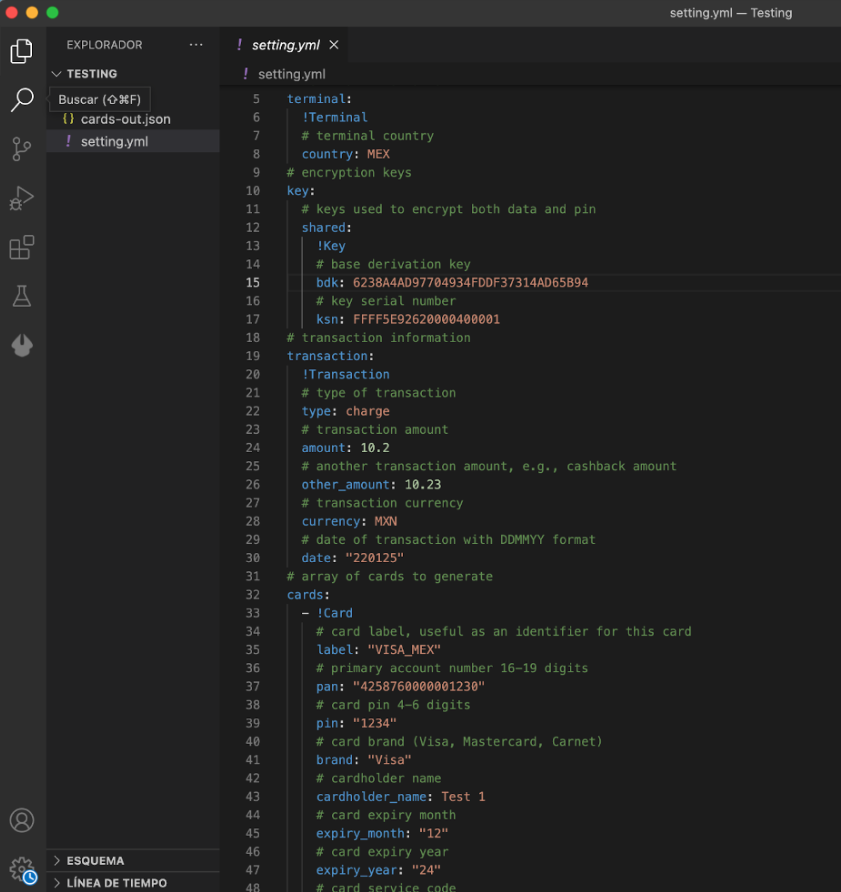
To perform the execution you must place the following data in the configuration files of your script setting.yml and cards-out.json
preparacion variables
Execute the following commands:
python3 -m venv .env
source .env/bin/activate
!pip3 install cardtool

2. Obtain the Plaintext Key#

To perform the encryption of the PIN and card data, it is necessary to first obtain the Plaintext key from the key provided by security in TR-31 format.
To do this, execute the following command:
cardtool decrypt-key -kbpk <your_key_block_protection_key> -kcv <key_check_value> YOUR_KEY_BLOCK
The result will be similar to the following:
Plaintext Key: ABCD1234AB01CD23F126FBAB02621ADA
This value will be used for the next command, where we will execute the encryption of the data and PIN.

3. Script execution to obtain encrypted data#

Now that you have configured the settings.yaml file and installed the necessary dependency, let’s execute the following command:
cardtool gen-card -cfg setting.yml -fmt json cards-out.json
When executing the command, we will obtain the cards-out.json file as output, this file will contain the necessary information to include in the body of your example request:
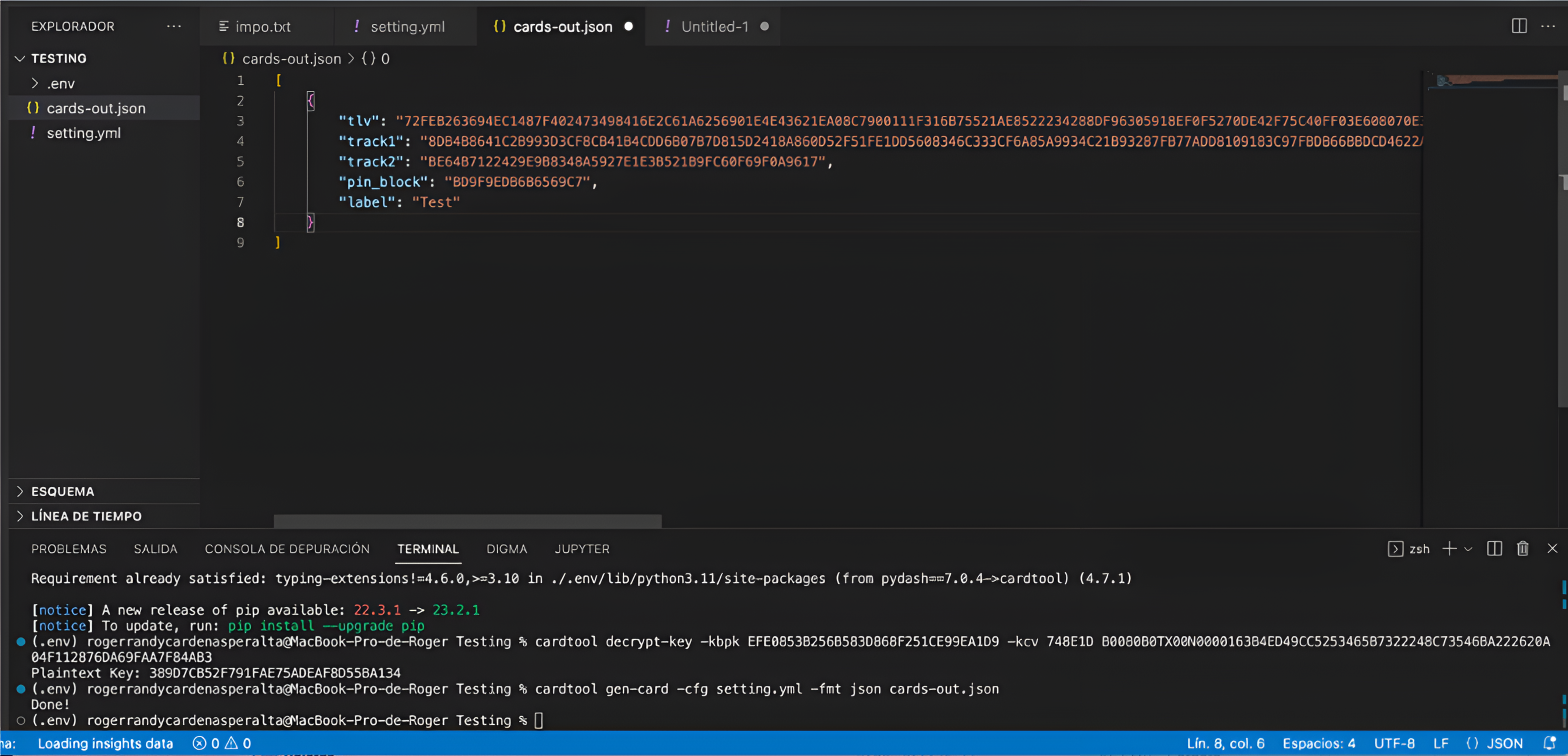
resultado comando

4. Transaction Payload#

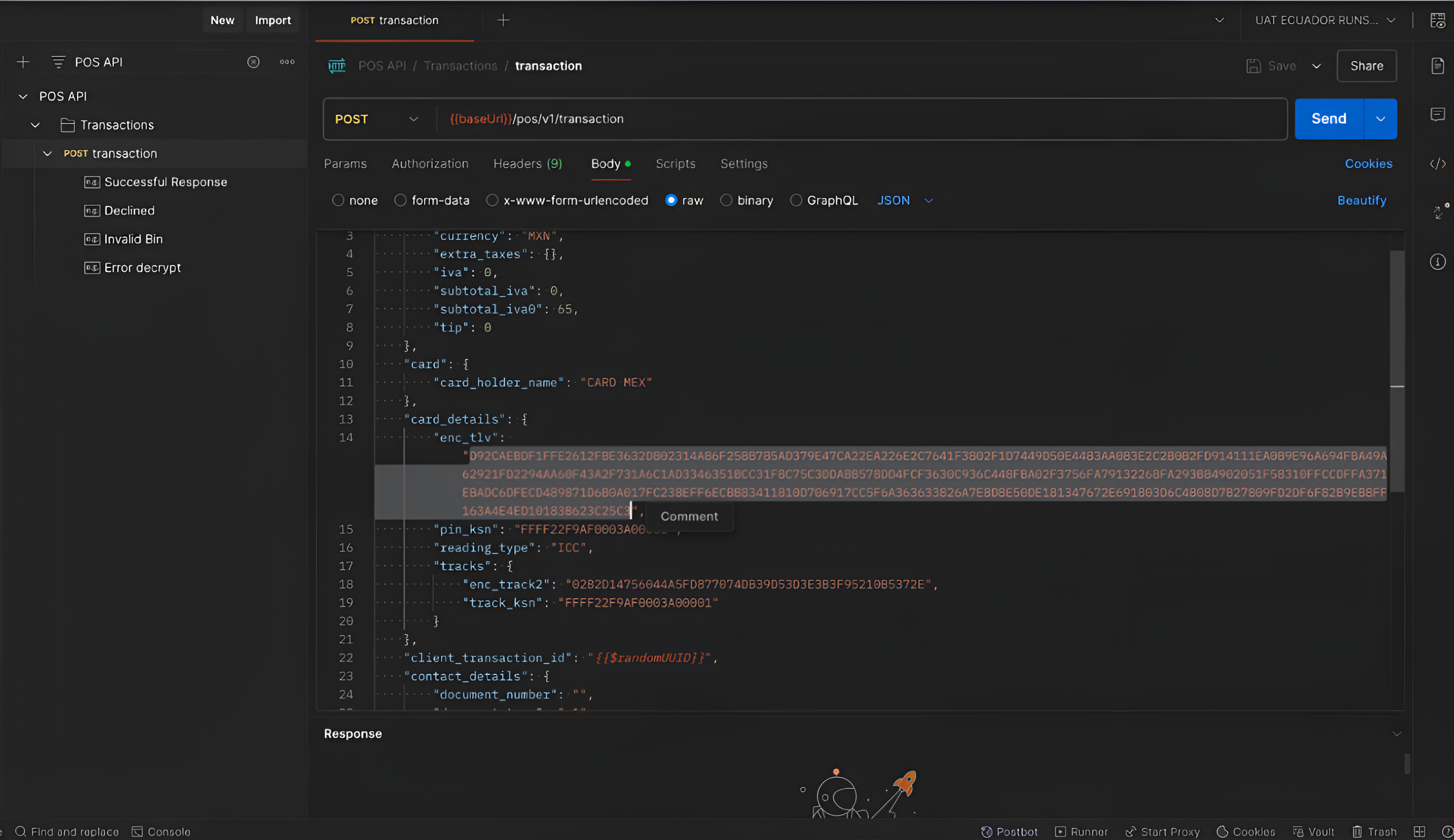
To execute the payload test of a transaction we recommend using Postman, where we already have a collection that you can find in this link. This collection can assist with testing and validation during the implementation.
Once you have the encrypted card and PIN information, simply include it in the body of the request and send it.
postman
Modificado en 2026-09-24 15:17:48
Anterior
Cryptographic key exchange
Siguiente
Take Payments
Built with