1. Notifications
Kushki Docs
English
  • Español
  • English
  • Home
  • Quick Start
    • Frequently Asked Questions
    • Moving to Production
    • Policy for Important API Changes
    • Test Data
    • Error Codes
    • Latest Features
  • Payment Glossary
    • Payments Glossary
  • One-time card payments (Online)
    • Supported card brands
    • Functionalities by business model
    • How do third party commissions work?
    • Integration guide Third Party Commissions
    • Network Tokens
    • One-step Payments
      • How do Card Payments Work?
      • Accept a Card Payment
      • Direct charge (without token)
      • Accept One-Time Payments with OTP
      • OTP Authentication Error Codes
      • Error codes for single card payments
    • Two-steps Payments
      • How do single payments with authorization and capture work?
      • Receive payments with authorization and capture
    • Refunds
      • Returns, cancellations, and refunds
    • 3DS Authentication
      • Introduction to 3DS
      • 3DS API integration
      • 3DS integration with kushki.js library
      • 3DS API integration plus kushki.js library
      • 3DS Error Codes
    • Apple Pay Payments
      • Apple Pay Configuration
      • Apple Pay Sandbox testing
  • Recurring Card Payments (Online)
    • Functionalities by business model
    • External subscriptions to Kushki
    • Authenticate your subscriptions with 3DS
    • Accept one-click payments with 3DS
    • Error codes in recurring charges
    • Apple Pay for Subscriptions
    • Scheduled payments
      • How do Credit or Debit Card Payment Recurring Charges Work?
      • Create a recurring charge
      • Manage your Scheduled Charges
    • OneClick Payments
      • Accepting One-Click Payments
      • How do OneClick payments with authorization and capture work?
      • Receive one-click payments with authorization and capture
  • Card-present payments
    • Card present payments
    • Accept card present payments
    • Test data
    • Webhooks for card present
    • Cloud Terminal API
      • Cloud terminal API overview
      • Take payments
      • Cancel a payment request
      • Check the status of a payment request
      • How to print a customized ticket?
    • App-to-app
      • App-to-app overview
      • Take payments
    • Terminal SDK
      • Terminal SDK Introduction
      • Take payments
    • Raw card-present API
      • Raw card-present API overview
      • Cryptographic key exchange
      • Sample script to encrypt information
      • Take Payments
      • Frequently Asked Questions
      • Error codes for card-present transactions
    • Transactions
      • Transactions
      • Cancel payments
    • Kushki One
      • First Steps
      • Autenticación y Cifrado de Requests
      • Accept payments with Kushki One
      • Amount Format
      • Async services and webhooks
      • Printing on SmartPOS terminal
      • Unified Error Catalog — Kushki ONE Connect
    • Kushki One Payment App
      • Overview
      • Process a payment
      • Split payment on the terminal
      • Refunds and PreAuth & Capture
      • Review Your Transactions
      • Terminal Setup
  • Wire Transfers
    • How do Payments by Wire Transfers Work?
    • Banks and transaction details for bank transfer payments
    • Receive Wire Transfers
    • Check the Status of a Transaction
  • Money Disbursement
    • Wire Transfer
      • How Does a Payment Distribution by Wire Transfer Work?
      • Payment Distribution to Bank Accounts
      • Error codes for transfer dispersions
  • Payment Links
    • Smartlinks
  • Plugins
    • Shopify
      • Shopify
      • Plugin Operation
    • VTEX
      • VTEX Integration Guide
  • Payment forms and buttons
    • Kajita
      • How Does it Work?
      • Payment Kajitas
    • Payment Button
      • Overview
      • Generate a payment button
  • Branch Offices Management
    • How to Onboard Submerchants via API
  • Notifications
    • Webhooks
    • Good Practices
    • Check your Webhooks
    • One-time Payments Webhooks
      • Webhook for One-Time Payments made with a card
      • Webhook for One-Time Payments by Wire Transfer
      • Webhook for One-Time Payments in Cash
    • Recurring Payments Webhooks
      • Webhook for Recurring Payments Made with Card
    • Payment Distribution Webhooks
      • Webhook for payment disbursement through wire transfer
    • Payment button Webhooks
      • Webhooks with Payment Button
    • Smartlinks Webhooks
      • Webhooks with Smartlinks
    • Refunds Webhooks
      • Webhook for Voids and Refunds
      • Chargeback Webhooks
HomeMexico 🇲🇽
Ecuador 🇪🇨Chile 🇨🇱Colombia 🇨🇴Peru 🇵🇪
HomeMexico 🇲🇽
Ecuador 🇪🇨Chile 🇨🇱Colombia 🇨🇴Peru 🇵🇪
Status
Soporte / Support
English
  • Español
  • English
  1. Notifications

Webhooks

Receive callbacks notifying events in your account
Webhooks are callbacks that notify events in your account. A webhook will make an HTTP request to your application (usually by the POST method), whose body will contain an object describing the associated event. They are incredibly useful and a simple way to implement reactions to events.
For example: When a recurring charge of a subscription is generated, a Webhook allows you to receive a notification so that you can take an action, such as sending a thank-you email to the user.
Webhooks are also useful in two situations:
When a generated event is not a direct result of a call to the API. For example, the payment for a subscription.
When services or features need the response to a call, but they do not perform it directly. For example, an accounting service that needs to update accounting records when a transaction is generated.
These are some cases where Webhooks are used:
When updating a customer's membership in your database after the successful payment of a subscription.
When sending an email to a customer after the payment of his/her subscription fails.
When recording an accounting entry after a transaction is made.

Consume a Webhook#

The first step to consume a Webhook is creating an endpoint to receive them. This is not different from creating any other page on your website. Simply create a new path with the desired URL.
Webhook data are sent in JSON format in the body of the POST call. All the event details are included and can be used directly (after parsing the JSON).

How to configure a webhook?#

To set up a webhook you have two options:
1.
Fill out the request form: in this, you must submit the details of your merchant ID, webhook URL and the notifications you wish to receive. This way you will receive notifications of your transactions.
2.
Via API: to send and receive webhook notifications via API you must add the webhook object for the following endpoints:
Card: Make a charge or deferred charge, Void a transaction y Refund a transaction.
Transfer in: Init
Transaction
.
Transfer out: Init
Transaction
.
Cash in: Init Transaction.
Cash out: Init Transaction.
JSON
{
  "webhooks": [
    {
      "events": [
        "approvedTransaction",
        "declinedTransaction"
      ],
      "headers": [
        {
          "label": "json",
          "value": "12"
        }
      ],
      "urls": [
        "https://eof2hhkrta4ooo1.m.pipedream.net"
      ]
    }
  ]
}
In case you have a Webhook created by console and you decide to send the webhook request via API, both webhooks will be notified. This means that they will not be mutually exclusive.
The notifications will be seen in the Webhooks Notifications dashboard and will have a new field called Configuration that will differentiate the source of the notification.

Security#

Encryption#

You may use an HTTP or an HTTPS URL for webhooks. In most cases, an HTTP is enough, but HTTPS may be useful if you're dealing with sensitive data or if you want to protect your system against replay attacks, for example.

Authentication#

In principle, anyone could send a request to your endpoint, so it's important to check that these webhooks are originated by Kushki. Therefore, to verify their authenticity, valid Webhooks will contain the following headings:
X-Kushki-Key: Merchant ID.
X-Kushki-Signature: It is the HMAC SHA256 signature of the body of the request, plus the timestamp, using your Webhook signature ID.
X-Kushki-SimpleSignature: Corresponds to the HMAC SHA256 signature of the X-Kushki-Id, using your webhook signature ID.
X-Kushki-Id: Date in timestamp format (UNIX Time).
What is the IP used to send notifications from Kushki?
Notifications are sent from the following static IP of Kushki, you can also check this as an additional validation.
UAT: 54.208.105.247
Production: 34.230.185.20
You should use these headings to compare the signature generated from your side by using your Merchant's Webhooks signature ID, that you can find in the console. You can use both X-Kushki-Signature and X-Kushki-SimpleSignature for the check.

How to get the Webhook Signature?#

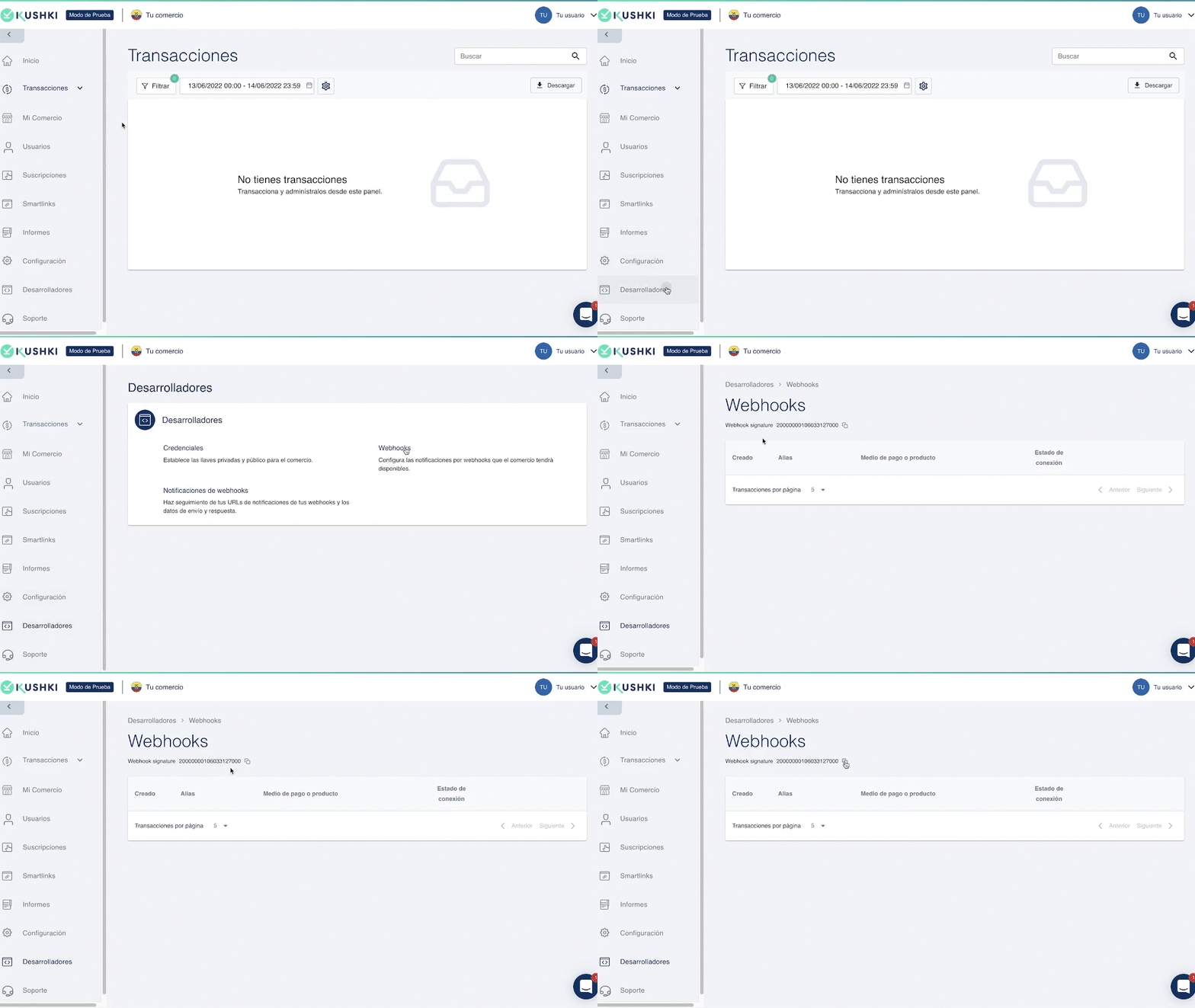
You can view and copy the webhook signature from the Console. To do this, go to Desarrolladores > Webhooks. At the top you can easily copy the webhook signature.
Webhook signature gif

Examples#

Below you'll find some examples of how to perform a signature check in the headings.
X-Kushki-Signature#
JavaScript
Python
PHP
X-Kushki-SimpleSignature#
JavaScript
Python
PHP

According to the functionalities you have integrated, there will be different types of body for requests:
One-time payments with credit and debit cards
One-time payments by wire transfer
One-time payments in cash
Recurring payments with credit card
Payment Links
Chargebacks

Webhooks Retry Policy#

At Kushki we make sure that you receive a Webhook callback correctly. For this reason, the Webhooks retry policy process is performed as shown below:
1.
First immediate retry: this happens via instant messaging (known as Notify Now).
2.
The system awaits a 200/201 status code.
3.
If we receive a different status, 3 retries are made in the next hour and then 4 retries are performed in the next 2 hours.
Considering that our logic of retries to send notifications works with a maximum of 7 retries within 3 hours once Notify Now fails.
4.
After the 7 retries are completed, if you do not receive a successful response, the Webhook is marked as failed and we stop retrying.
If at the end of this submission cycle we have not received a successful status and you want to receive the webhook, please contact our Support Team.

How do retries work over the elapsed time?#

If Notify Now fails, you must wait 20 minutes for the first retry to be sent and the same period of time to complete the hour, as shown below:
First retry: it is sent after 20 minutes.
Second retry: it is sent after 40 minutes.
Third retry: it is sent after 60 minutes (1 hour).
After 60 minutes (1 hour) and if the third retry fails, you must wait 30 minutes for the fourth retry to be sent until the next 2 hours are completed as described below:
Fourth retry: it is sent after 30 minutes.
Fifth retry: it is sent after 60 minutes.
Sixth retry: it is sent after 90 minutes.
Seventh retry: it is sent after 120 minutes.
Note
Keep in mind that these times are estimates and may be subject to variations.

Good practices
Check important points when consuming a Webhook.
Modificado en 2026-10-14 19:45:56
Anterior
Notifications
Siguiente
Good Practices
Built with