
Printing on SmartPOS terminal
🚧 Early Release — Beta
Requirements
Before you start
Business-Code to sign the requests.terminalSerial if you integrate over Cloud.How it works
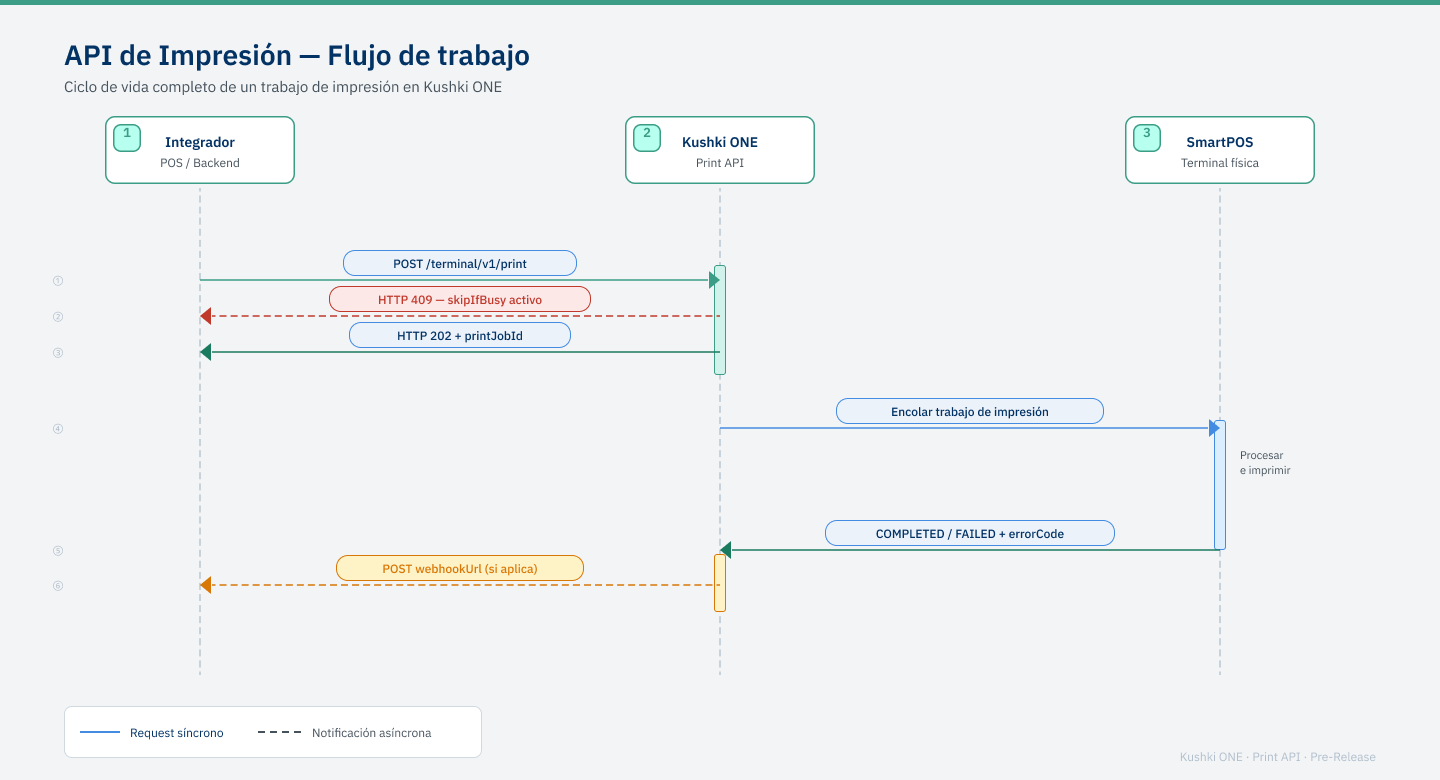
1.
commands array with the receipt layout.2.
202 Accepted right away.3.
4.
| Topology | Base URL |
|---|---|
| Local Network (LAN / Wi-Fi) | http://{TERMINAL_IP}:6868/terminal/v1 or https://{TERMINAL_IP}:6869/terminal/v1 |
| Cloud (Internet) — UAT | https://uat-cloudt.kushkipagos.com/terminal/v1/{terminalSerial} |
| Cloud (Internet) — Production | https://cloudt.kushkipagos.com/terminal/v1/{terminalSerial} |
Routes by topology
POST /terminal/v1/print and query with GET /terminal/v1/print_job. On Cloud you queue with POST /sync/print and query with POST /sync/print_job. See Option B: query the status for the details of each method.Authentication
| Element | Value |
|---|---|
Authorization | Basic followed by the SHA-512 hash. The Basic prefix is required |
timestamp | Unix timestamp in seconds, within ±5 minutes of server time |
| Body | The encrypted envelope {"data": "<iv_hex>:<ciphertext_hex>"} |
commands array shown on this page is the plaintext you encrypt, not what travels on the wire. The full flow is on Authentication and request encryption.Local Network and Localhost: send the encrypted_http_communication header
encrypted_http_communication: true, in UAT and in production. Cloud does not require it. Details in Authentication and request encryption.The status query is a GET on the local network
GET, so the encrypted value travels as the data query parameter and no other parameter may be sent: the print_job_id goes inside the encrypted payload.Use cases
| Use case | Description |
|---|---|
| Payment receipt | Direct sale, pre-authorization capture, refund or void |
| Discount coupon | A code for the customer's next purchase |
| QR code | Wi-Fi password, loyalty link, digital receipt, product information |
| Loyalty and promotions | Point balance, reward tiers, special offers |
| Pre-check or order summary | Kitchen ticket or table summary before the final charge |
| Reversal record | A printed record of a cancellation or refund |
| Reprint | Print a previous receipt again with the same printJobId |
| Free content | Text, image, QR or barcode, with no transaction involved |
The commands array is a blank canvas
Anatomy of a receipt
commands array.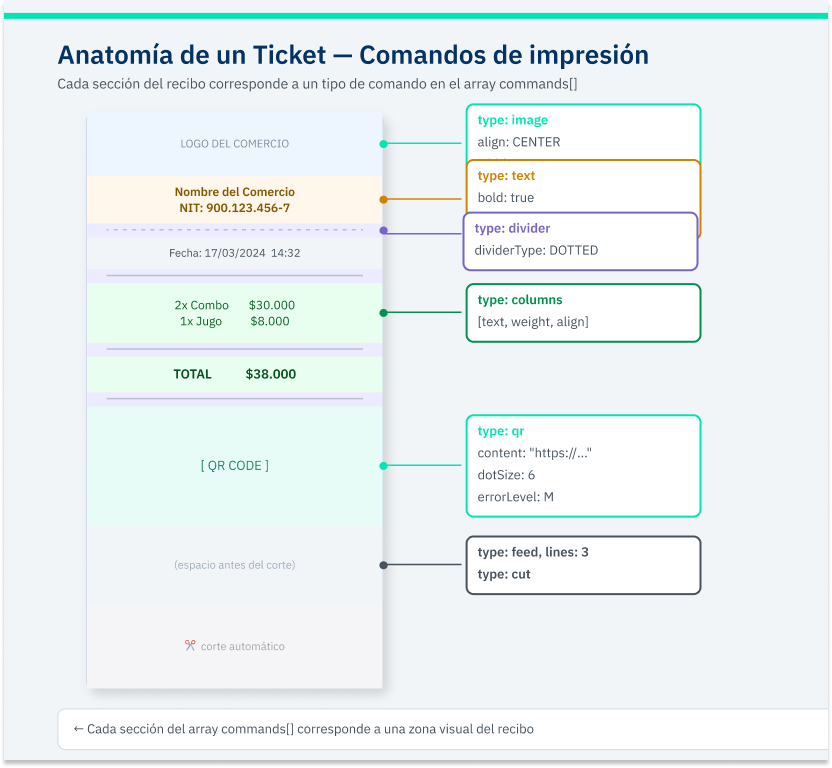
Request structure
| Field | Type | Required | Description |
|---|---|---|---|
commands | array | ✅ | Ordered list of print commands |
printJobId | string | — | Idempotency key. If you leave it out, a UUID is generated |
externalReference | string | — | Your own free-form reference, for example Table-14 |
webhookUrl | string | — | URL that will receive the result when the job finishes |
skipIfBusy | boolean | — | With true, returns 409 immediately if the queue is busy. Defaults to false |
Command types
| Type | Description |
|---|---|
text | A line of text with size, alignment, bold, italic and underline |
columns | A multi-column row with proportional widths, ideal for product and price |
divider | A full-width separator line: SOLID, DOTTED or EMPTY |
feed | Advances the paper N blank lines |
space | Inserts precise vertical space in pixels |
cut | Triggers the cutter. Safely ignored on terminals without one |
image | Prints a PNG or JPG image in Base64. Use algorithm: BINARIZATION for logos |
qr | Generates a QR code on the printer hardware |
barcode | Generates a CODE128 barcode on the hardware |
Command rules
type property is mandatory on every command: it is the discriminator that defines its structure.align, dividerType, errorLevel, algorithm) always go in uppercase.data:image/png;base64, prefix.Full example
{
  "printJobId": "TICKET-190209",
  "externalReference": "Table-14",
  "webhookUrl": "https://api.yourbusiness.com/webhook/print-events",
  "skipIfBusy": false,
  "commands": [
    { "type": "image", "base64Image": "iVBORw0KGgoAAAANSUhEUg...", "align": "CENTER", "width": 300, "algorithm": "BINARIZATION" },
    { "type": "text", "text": "EL BUEN SABOR RESTAURANT\n", "align": "CENTER", "size": 32, "bold": true },
    { "type": "text", "text": "Tax ID: 900.123.456-7\n", "align": "CENTER", "size": 22 },
    { "type": "divider", "dividerType": "DOTTED" },
    { "type": "columns", "columns": [
        { "text": "2x Burger Combo", "weight": 2, "align": "LEFT" },
        { "text": "30,000.00 COP", "weight": 1, "align": "RIGHT" } ] },
    { "type": "columns", "columns": [
        { "text": "1x Fresh Juice", "weight": 2, "align": "LEFT" },
        { "text": "8,000.00 COP", "weight": 1, "align": "RIGHT" } ] },
    { "type": "divider", "dividerType": "SOLID" },
    { "type": "columns", "columns": [
        { "text": "TOTAL", "weight": 2, "align": "LEFT" },
        { "text": "38,000.00 COP", "weight": 1, "align": "RIGHT" } ] },
    { "type": "qr", "content": "https://yourbusiness.com/receipt/TICKET-190209", "dotSize": 6, "errorLevel": "M", "align": "CENTER" },
    { "type": "feed", "lines": 3 },
    { "type": "cut" }
  ]
}JavaScript
Python
{
  "printJobId": "TICKET-190209",
  "status": "PENDING",
  "message": "Impresión encolada correctamente"
}| Code | Meaning |
|---|---|
202 Accepted | Job queued. Returns the printJobId and PENDING status |
400 Bad Request | Malformed payload or unknown enumerated value |
409 Conflict | A job is already PENDING or IN_PROGRESS |
Job result
Option A: webhook
webhookUrl when queueing, the terminal makes a POST to that URL when the job turns COMPLETED or FAILED.{
"printJobId": "TICKET-190209",
"status": "COMPLETED",
"externalReference": "Table-14"
}{
"printJobId": "TICKET-190209",
"status": "FAILED",
"externalReference": "Table-14",
"errorCode": "OUT_OF_PAPER",
"errorMessage": "La impresora está sin papel."
}This webhook does not retry
2xx code within 5 seconds, the terminal does not retry: it carries on so the printer is not blocked. Answer fast, make your endpoint idempotent and use the status query as a fallback in flows where losing the confirmation is costly.The field is webhookUrl
events_webhook_url, which belongs to the transaction webhook. The two channels use different parameter names and share no delivery policy.Option B: query the status
GET /terminal/v1/print_job?print_job_id=TICKET-190209POST /terminal/v1/{terminalSerial}/sync/print_job{
"print_job_id": "TICKET-190209"
}On Cloud the identifier goes in the body
POST and sends print_job_id in the request body, not as a query parameter in the URL. Sending it in the URL returns a validation error.status is COMPLETED or FAILED.{
"printJobId": "TICKET-190209",
"status": "COMPLETED"
}Job statuses
status | Description |
|---|---|
PENDING | Queued, waiting its turn |
IN_PROGRESS | The driver is sending commands to the printer |
COMPLETED | Receipt printed and cut successfully |
FAILED | Physical error during printing. Check errorCode |
The webhook only reports final states
PENDING or IN_PROGRESS. If you need to follow those intermediate states, use the status query.Hardware error codes
errorCode are OUT_OF_PAPER, COVER_OPEN, COVER_INCOMPLETE, PAPER_JAM, PRINTER_HOT, MOTOR_HOT, CUTTER_ERROR, OFFLINE and UNKNOWN_ERROR. They arrive with type: TERMINAL-PRINTER in the error body.TER-004 with type: TERMINAL, and over HTTP as a 409.Print endpoints do return real HTTP codes
200 and the outcome lives in the body — printing answers 202 when the job is queued, 404 when the print_job_id does not exist and 409 while the printer is busy.TER-004 means two different things: on a print endpoint the printer is busy and you retry in a few seconds; on a payment endpoint the cardholder cancelled on the terminal and you must not retry. The endpoint you called tells you which one.Best practices
printJobId so you can reprint the same receipt and discard duplicates in your system.externalReference to tie the receipt to your order, table or invoice.2xx before processing it. A slow endpoint means you lose the notification.FAILED as an operational condition, not an integration error: show the errorMessage to the operator so they can fix the physical problem.Modificado en 2026-10-07 14:32:03