1. Kushki One Payment App
Kushki Docs
English
  • Español
  • English
  • Home
  • Quick Start
    • Frequently Asked Questions
    • Moving to Production
    • Policy for Important API Changes
    • Test Data
    • Error Codes
    • Latest Features
  • Payment Glossary
    • Payments Glossary
  • One-time card payments (Online)
    • Supported card brands
    • Functionalities by business model
    • How do third party commissions work?
    • Integration guide Third Party Commissions
    • Network Tokens
    • One-step Payments
      • How do Card Payments Work?
      • Accept a Card Payment
      • Direct charge (without token)
      • Accept One-Time Payments with OTP
      • OTP Authentication Error Codes
      • Error codes for single card payments
    • Two-steps Payments
      • How do single payments with authorization and capture work?
      • Receive payments with authorization and capture
    • Refunds
      • Returns, cancellations, and refunds
    • 3DS Authentication
      • Introduction to 3DS
      • 3DS API integration
      • 3DS integration with kushki.js library
      • 3DS API integration plus kushki.js library
      • 3DS Error Codes
    • Apple Pay Payments
      • Apple Pay Configuration
      • Apple Pay Sandbox testing
  • Recurring Card Payments (Online)
    • Functionalities by business model
    • External subscriptions to Kushki
    • Authenticate your subscriptions with 3DS
    • Accept one-click payments with 3DS
    • Error codes in recurring charges
    • Apple Pay for Subscriptions
    • Scheduled payments
      • How do Credit or Debit Card Payment Recurring Charges Work?
      • Create a recurring charge
      • Manage your Scheduled Charges
    • OneClick Payments
      • Accepting One-Click Payments
      • How do OneClick payments with authorization and capture work?
      • Receive one-click payments with authorization and capture
  • Card-present payments
    • Card present payments
    • Accept card present payments
    • Test data
    • Webhooks for card present
    • Cloud Terminal API
      • Cloud terminal API overview
      • Take payments
      • Cancel a payment request
      • Check the status of a payment request
      • How to print a customized ticket?
    • App-to-app
      • App-to-app overview
      • Take payments
    • Terminal SDK
      • Terminal SDK Introduction
      • Take payments
    • Raw card-present API
      • Raw card-present API overview
      • Cryptographic key exchange
      • Sample script to encrypt information
      • Take Payments
      • Frequently Asked Questions
      • Error codes for card-present transactions
    • Transactions
      • Transactions
      • Cancel payments
    • Kushki One
      • First Steps
      • Autenticación y Cifrado de Requests
      • Accept payments with Kushki One
      • Amount Format
      • Async services and webhooks
      • Printing on SmartPOS terminal
      • Unified Error Catalog — Kushki ONE Connect
    • Kushki One Payment App
      • Overview
      • Process a payment
      • Split payment on the terminal
      • Refunds and PreAuth & Capture
      • Review Your Transactions
      • Terminal Setup
  • Wire Transfers
    • How do Payments by Wire Transfers Work?
    • Banks and transaction details for bank transfer payments
    • Receive Wire Transfers
    • Check the Status of a Transaction
  • Money Disbursement
    • Wire Transfer
      • How Does a Payment Distribution by Wire Transfer Work?
      • Payment Distribution to Bank Accounts
      • Error codes for transfer dispersions
  • Payment Links
    • Smartlinks
  • Plugins
    • Shopify
      • Shopify
      • Plugin Operation
    • VTEX
      • VTEX Integration Guide
  • Payment forms and buttons
    • Kajita
      • How Does it Work?
      • Payment Kajitas
    • Payment Button
      • Overview
      • Generate a payment button
  • Branch Offices Management
    • How to Onboard Submerchants via API
  • Notifications
    • Webhooks
    • Good Practices
    • Check your Webhooks
    • One-time Payments Webhooks
      • Webhook for One-Time Payments made with a card
      • Webhook for One-Time Payments by Wire Transfer
      • Webhook for One-Time Payments in Cash
    • Recurring Payments Webhooks
      • Webhook for Recurring Payments Made with Card
    • Payment Distribution Webhooks
      • Webhook for payment disbursement through wire transfer
    • Payment button Webhooks
      • Webhooks with Payment Button
    • Smartlinks Webhooks
      • Webhooks with Smartlinks
    • Refunds Webhooks
      • Webhook for Voids and Refunds
      • Chargeback Webhooks
HomeMexico 🇲🇽
Ecuador 🇪🇨Chile 🇨🇱Colombia 🇨🇴Peru 🇵🇪
HomeMexico 🇲🇽
Ecuador 🇪🇨Chile 🇨🇱Colombia 🇨🇴Peru 🇵🇪
Status
Soporte / Support
English
  • Español
  • English
  1. Kushki One Payment App

Review Your Transactions

Filter individual sales, check the detail of each payment, and generate the daily closing report
Filter individual sales, check the detail of each payment, and generate the daily closing report — all from the terminal.

Sales List#

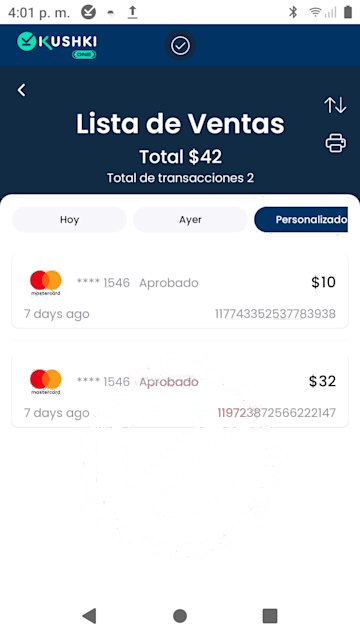
The Sales List is the chronological record of all transactions processed on the terminal. The cashier uses it to verify a recent sale; the administrator, to audit activity for the day or a specific date range.

How to access#

Go to Transactions → Sales List from the top navigation bar. The screen loads the current day's transactions (Today) by default, sorted from most recent to oldest.
Lista de ventas

Transaction information#

FieldDescription
Brand and last 4 digitsIdentifies the card (e.g. Mastercard **** 1546).
StatusApproved or Declined.
AmountTotal amount charged, including taxes and tip.
Relative timeHow long ago the transaction was processed (e.g. "1 hour ago").
Ticket #Unique 18-digit reference. Only visible on approved transactions.

Period and advanced filters#

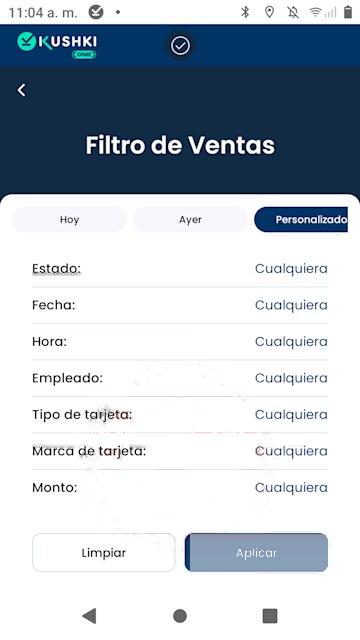
Three quick-access options at the top: Today, Yesterday, and Custom. Selecting Custom opens the advanced filter panel:
Filtro de ventas
FieldDescription
StatusApproved, Declined, or Any.
DateSpecific date range.
TimeTime interval within the day.
EmployeeCashier associated with the transactions.
Card typeCredit or Debit.
Card brandVisa, Mastercard, or others.
AmountMinimum and maximum value range.
Tap Apply to filter or Clear to reset to the full view.
The Employee filter only works correctly if each cashier logs into the app with their personal user account. If everyone uses the same login, this field will not be useful for identifying who processed each transaction.

Transaction detail#

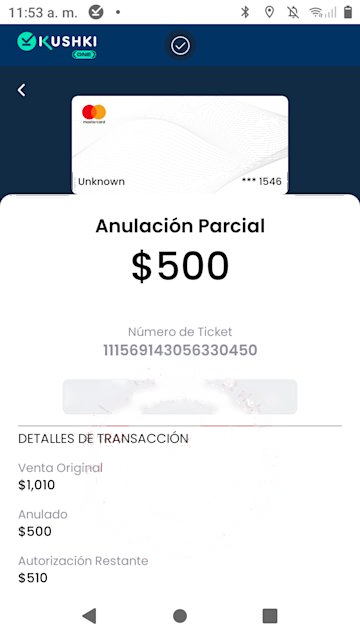
Tapping any transaction in the list opens the detail screen with complete information: card brand, Ticket #, itemized amount (subtotal, tax, tip), entry method, and — if applicable — the partial refund history for that sale.
Detalle de transacción
From the detail screen you can print a copy of the original receipt using the Print Receipt button, and start a refund directly with the Refund button.

Sort and print the list#

The sort icon (↑↓ arrows, top right corner) toggles the chronological order. The printer icon generates a physical copy of the full list with the filters currently active.

Sales Summary#

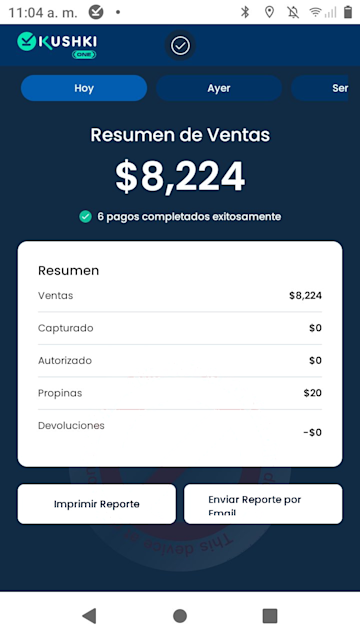
The Sales Summary is the terminal's closing report. It consolidates the total amount sold, the breakdown by transaction type, and the tips received for the selected period.

How to access#

Go to Transactions → Sales Summary. The screen loads the summary for the active period (Today by default).
Resumen de ventas

Available periods#

Today, Yesterday, Week (last 7 days), and Month (current calendar month). Selecting Custom activates the same advanced filters as the Sales List: Status, Date, Time, Employee, Card Type and Brand, and Amount.

How to read the breakdown#

FieldWhat it represents
SalesGross total charged — sum of all approved payments for the period.
CapturedAmount from pre-authorizations already confirmed. Usually $0 for direct sales.
AuthorizedAmount reserved but not yet captured (open pre-authorizations).
TipsTotal accumulated tips for the period.
RefundsTotal refunds processed. Appears as a negative value.
For merchants without Auth & Capture, the Captured and Authorized fields will always show $0. The actual sales total is entirely in Sales.

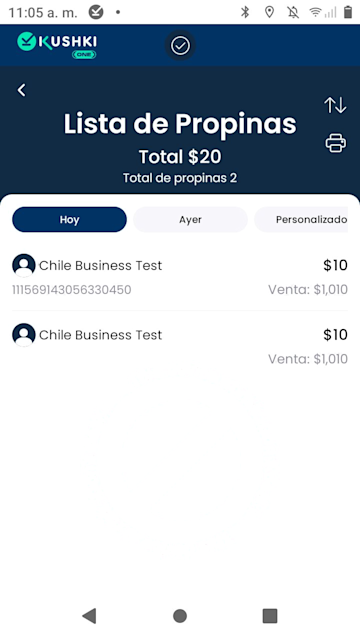
Tips List#

From the Sales Summary you can access the Tips List, which shows the accumulated total for the period and the detail per transaction: tip amount, card brand, time, and Ticket #.
Listado de propinas

Share the report#

ActionDescription
Print ReportGenerates a physical receipt on the terminal's printer with the period breakdown.
Send by EmailGenerates an HTML report with logo, date, total, transaction list (last 4 digits, time, Ticket #, amount, UUID), and applied filters.
The email report reflects exactly the filters active at that moment. For a complete daily report, make sure all filters are set to Any before sending it.

Terminal settings
Configure users, refunds, tips, and receipts so the terminal operates according to your merchant's needs.
Refunds and Auth & Capture
Learn how to process refunds and manage pre-authorizations from the terminal.

Modificado en 2026-10-05 17:13:22
Anterior
Refunds and PreAuth & Capture
Siguiente
Terminal Setup
Built with