1. One-step Payments
Kushki Docs
English
  • Español
  • English
  • Home
  • Quick Start
    • Frequently Asked Questions
    • Moving to Production
    • Policy for Important API Changes
    • Test Data
    • Error Codes
    • Latest Features
  • Payment Glossary
    • Payments Glossary
  • One-time card payments (Online)
    • Supported card brands
    • Functionalities by business model
    • How do third party commissions work?
    • Integration guide Third Party Commissions
    • Network Tokens
    • One-step Payments
      • How do Card Payments Work?
      • Accept a Card Payment
      • Direct charge (without token)
      • Accept One-Time Payments with OTP
      • OTP Authentication Error Codes
      • Error codes for single card payments
    • Two-steps Payments
      • How do single payments with authorization and capture work?
      • Receive payments with authorization and capture
    • Refunds
      • Returns, cancellations, and refunds
    • 3DS Authentication
      • Introduction to 3DS
      • 3DS API integration
      • 3DS integration with kushki.js library
      • 3DS API integration plus kushki.js library
      • 3DS Error Codes
    • Apple Pay Payments
      • Apple Pay Configuration
      • Apple Pay Sandbox testing
  • Recurring Card Payments (Online)
    • Functionalities by business model
    • External subscriptions to Kushki
    • Authenticate your subscriptions with 3DS
    • Accept one-click payments with 3DS
    • Error codes in recurring charges
    • Apple Pay for Subscriptions
    • Scheduled payments
      • How do Credit or Debit Card Payment Recurring Charges Work?
      • Create a recurring charge
      • Manage your Scheduled Charges
    • OneClick Payments
      • Accepting One-Click Payments
      • How do OneClick payments with authorization and capture work?
      • Receive one-click payments with authorization and capture
  • Card-present payments
    • Card present payments
    • Accept card present payments
    • Test data
    • Webhooks for card present
    • Cloud Terminal API
      • Cloud terminal API overview
      • Take payments
      • Cancel a payment request
      • Check the status of a payment request
      • How to print a customized ticket?
    • App-to-app
      • App-to-app overview
      • Take payments
    • Terminal SDK
      • Terminal SDK Introduction
      • Take payments
    • Raw card-present API
      • Raw card-present API overview
      • Cryptographic key exchange
      • Sample script to encrypt information
      • Take Payments
      • Frequently Asked Questions
      • Error codes for card-present transactions
    • Transactions
      • Transactions
      • Cancel payments
    • Kushki One
      • First Steps
      • Autenticación y Cifrado de Requests
      • Accept payments with Kushki One
      • Amount Format
      • Async services and webhooks
      • Printing on SmartPOS terminal
      • Unified Error Catalog — Kushki ONE Connect
    • Kushki One Payment App
      • Overview
      • Process a payment
      • Split payment on the terminal
      • Refunds and PreAuth & Capture
      • Review Your Transactions
      • Terminal Setup
  • Wire Transfers
    • How do Payments by Wire Transfers Work?
    • Banks and transaction details for bank transfer payments
    • Receive Wire Transfers
    • Check the Status of a Transaction
  • Money Disbursement
    • Wire Transfer
      • How Does a Payment Distribution by Wire Transfer Work?
      • Payment Distribution to Bank Accounts
      • Error codes for transfer dispersions
  • Payment Links
    • Smartlinks
  • Plugins
    • Shopify
      • Shopify
      • Plugin Operation
    • VTEX
      • VTEX Integration Guide
  • Payment forms and buttons
    • Kajita
      • How Does it Work?
      • Payment Kajitas
    • Payment Button
      • Overview
      • Generate a payment button
  • Branch Offices Management
    • How to Onboard Submerchants via API
  • Notifications
    • Webhooks
    • Good Practices
    • Check your Webhooks
    • One-time Payments Webhooks
      • Webhook for One-Time Payments made with a card
      • Webhook for One-Time Payments by Wire Transfer
      • Webhook for One-Time Payments in Cash
    • Recurring Payments Webhooks
      • Webhook for Recurring Payments Made with Card
    • Payment Distribution Webhooks
      • Webhook for payment disbursement through wire transfer
    • Payment button Webhooks
      • Webhooks with Payment Button
    • Smartlinks Webhooks
      • Webhooks with Smartlinks
    • Refunds Webhooks
      • Webhook for Voids and Refunds
      • Chargeback Webhooks
HomeMexico 🇲🇽
Ecuador 🇪🇨Chile 🇨🇱Colombia 🇨🇴Peru 🇵🇪
HomeMexico 🇲🇽
Ecuador 🇪🇨Chile 🇨🇱Colombia 🇨🇴Peru 🇵🇪
Status
Soporte / Support
English
  • Español
  • English
  1. One-step Payments

Direct charge (without token)

This functionality is available for the following models:
☑ Acquirer

☐ Aggregator
To learn about which types of cards are enabled for each of the affiliation models, please refer to our guide of supported card brands.
Receiving direct payments with debit and credit cards on your site involves capturing the card information and sending the payment to Kushki for processing. This integration method is simpler because there is no need to request a token and then a charge to process a direct charge or a pre-authorization; you just need to use a single direct charge service.
Important
This method of processing requires PCI compliance.

Limitations#

Available only with Kushki acquiring in Chile 🇨🇱, Colombia 🇨🇴, Mexico 🇲🇽, and Peru 🇵🇪.
Only supports single charges and pre-authorizations with Visa and Mastercard.
Not compatible with Sift Science or TransUnion anti-fraud tools.
Not compatible with Kushki's 3DS authentication (you can use your own anti-fraud authentication engine instead).
Not compatible with Kushki's OTP authentication.
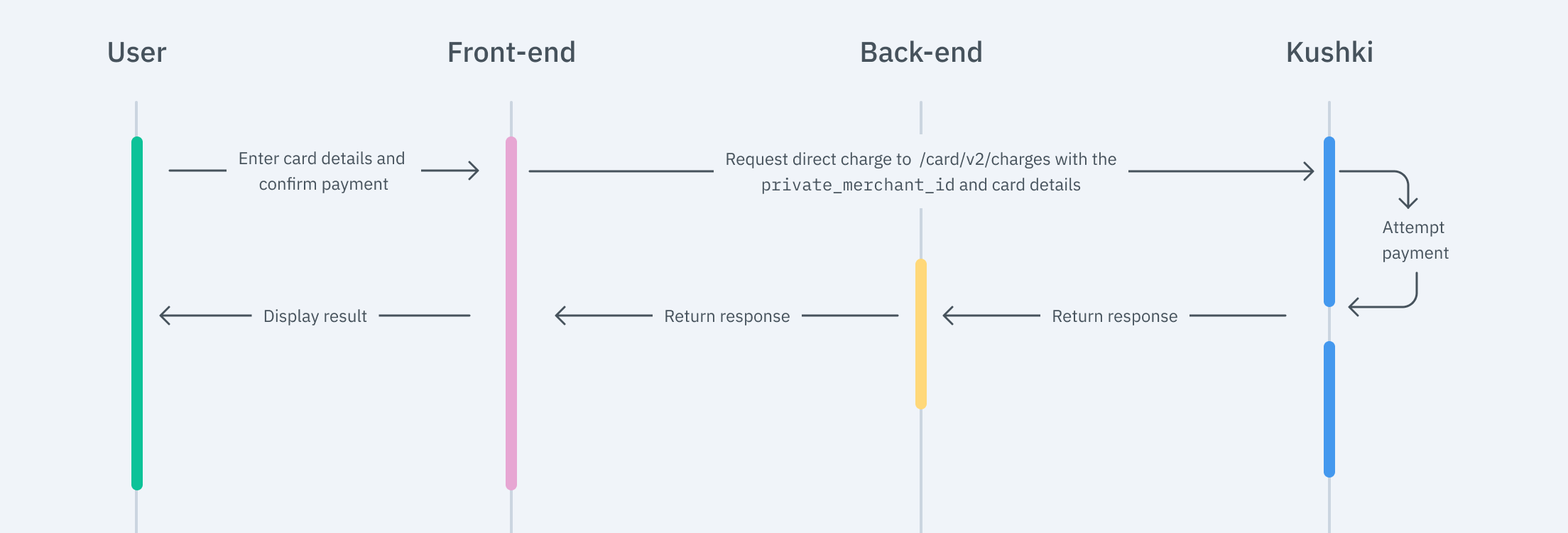
The payment flow you will integrate is as follows:
cargo directo en

Simple Charge#

To perform a simple card charge, you will need to use the card and customer data to make a call to our non-token payment endpoint to initiate the charge.
JavaScript
Python
PHP

Deferred Charges#

If you want to make a payment with deferred options, be sure to send the deferred object with the grace period, months, and credit type parameters (received when checking deferred options for a BIN). As a response to this call, you will receive the name of the deferred payment option, the type (which corresponds to creditType when executing the charge), the available months, and the grace period (skip payments), as shown in the following sample response. This is the information you will need when executing the charge:
[
   {
      "months":[
         "3",
         "6",
         "9",
         "12"
      ],
      "monthsOfGrace":[],
      "name":"Interest-free for cardholder",
      "type":"03"
   }
]
And here's how you should send the deferred object in a charge:
{
  "card": {
    "name": "John Doe",
    "number": "5311220000122112",
    "expiryMonth": "12",
    "expiryYear": "30",
    "cvv": "123"
  },
  "amount": {
    "subtotalIva": 0,
    "subtotalIva0": 500,
    "ice": 0,
    "iva": 0,
    "currency": "USD",
    "isDeferred": true,
    "deferred": {
      "graceMonths": "00",
      "creditType": "03",
      "months": 3
    }
  },
  "metadata": {
    "Referencia": "99999"
  },
  "contactDetails": {
    "documentType": "CC",
    "documentNumber": "1234567890",
    "email": "user@example.com",
    "firstName": "John",
    "lastName": "Doe",
    "phoneNumber": "+593912345678"
  },
  "orderDetails": {
    "siteDomain": "example.com",
    "shippingDetails": {
      "name": "John Doe",
      "phone": "+593912345686",
      "address1": "Eloy Alfaro 139 y Catalina Aldaz",
      "address2": "centro 123",
      "city": "Quito",
      "region": "Pichincha",
      "country": "Ecuador"
    },
    "billingDetails": {
      "name": "John Doe",
      "phone": "+593912345686",
      "address1": "Eloy Alfaro 139 y Catalina Aldaz",
      "address2": "centro 123",
      "city": "Quito",
      "region": "Pichincha",
      "country": "Ecuador"
    }
  },
  "productDetails": {
    "product": [
      {
        "id": "198952AB",
        "title": "eBook Digital Services",
        "price": 10000,
        "sku": "10101042",
        "quantity": 1
      }
    ]
  },
  "fullResponse": "v2"
}
Important
The deferred object should only be sent in cases where the card has the option to make deferred payments; in all other cases, the mentioned object should be omitted.
Important
The types of deferred payment options available for your customer will depend on the card's BIN.
Check out our API Reference for more information.

External 3DS Authentication#

If you have your own 3DS authentication engine, include the threeDomainSecure object in your request.
Depending on the brand, the fields to send may vary:
VisaMastercard
cavvdirectoryServerTransactionID
ecieci
xiducaf
specificationVersionspecificationVersion
CellcollectionIndicator
The eci (Electronic Commerce Indicator) field allows the following values:
Visa:
eci: 05 y 06 represent secure transactions.
eci: 07 represents risky transactions. To process risky transactions, set the acceptRisk field to true.
Mastercard:
eci: 01 and 02 represent secure transactions.
eci: 00 represents risky transactions. To process risky transactions, set the acceptRisk field to true.
Important
By setting the acceptRisk field to true, the merchant or PSP will assume responsibility in case of a chargeback.
Here is an example of a charge that includes the object: threeDomainSecure:

{
  "card": {
    "name": "John Doe",
    "number": "5311220000122112",
    "expiryMonth": "12",
    "expiryYear": "30",
    "cvv": "123"
  },
  "amount": {
    "subtotalIva": 0,
    "subtotalIva0": 5000,
    "ice": 0,
    "iva": 0,
    "currency": "MXN",
    "isDeferred": false
  },
  "fullResponse": "v2",
  "metadata": {
    "Referencia": "99999"
  },
  "contactDetails": {
    "documentType": "CC",
    "documentNumber": "1234567890",
    "email": "user@example.com",
    "firstName": "John",
    "lastName": "Doe",
    "phoneNumber": "+593912345678"
  },
  "orderDetails": {
    "siteDomain": "example.com",
    "shippingDetails": {
      "name": "John Doe",
      "phone": "+593912345686",
      "address1": "Eloy Alfaro 139 y Catalina Aldaz",
      "address2": "centro 123",
      "city": "Quito",
      "region": "Pichincha",
      "country": "Ecuador"
    },
    "billingDetails": {
      "name": "John Doe",
      "phone": "+593912345686",
      "address1": "Eloy Alfaro 139 y Catalina Aldaz",
      "address2": "centro 123",
      "city": "Quito",
      "region": "Pichincha",
      "country": "Ecuador"
    }
  },
  "productDetails": {
    "product": [
      {
        "id": "198952AB",
        "title": "eBook Digital Services",
        "price": 10000,
        "sku": "10101042",
        "quantity": 1
      }
    ]
  },
  "threeDomainSecure": {
    "cavv": "AAABBoVBaZKAR3BkdkFpELpWIiE=",
    "eci": "07",
    "xid": "NEpab1F1MEdtaWJ2bEY3ckYxQzE=",
    "specificationVersion": "2.2.0",
    "acceptRisk": false
  }
}

Process external subscriptions with Kushki#

With Kushki, you can process charges if you have your own subscription engine. There are two options for this:

Option 1. Without sending CVV#

1.
Request Kushki to activate the service on your account.
2.
Send the charge without CVV. Make sure to include the externalSubscriptionID field with the ID of the subscription from your external engine, with a length of 20 or fewer alphanumeric characters. This way, Kushki will recognize it as a subscription managed by an external engine.
{
  "card": {
    "name": "John Doe",
    "number": "5311220000122112",
    "expiryMonth": "12",
    "expiryYear": "30",
    "cvv": "123"
  },
  "amount": {
    "subtotalIva": 0,
    "subtotalIva0": 5000,
    "ice": 0,
    "iva": 0,
    "currency": "MXN",
    "isDeferred": false
  },
  "metadata": {
    "Referencia": "99999"
  },
  "contactDetails": {
    "documentType": "CC",
    "documentNumber": "1234567890",
    "email": "user@example.com",
    "firstName": "John",
    "lastName": "Doe",
    "phoneNumber": "+593912345678"
  },
  "orderDetails": {
    "siteDomain": "example.com",
    "shippingDetails": {
      "name": "John Doe",
      "phone": "+593912345686",
      "address1": "Eloy Alfaro 139 y Catalina Aldaz",
      "address2": "centro 123",
      "city": "Quito",
      "region": "Pichincha",
      "country": "Ecuador"
    },
    "billingDetails": {
      "name": "John Doe",
      "phone": "+593912345686",
      "address1": "Eloy Alfaro 139 y Catalina Aldaz",
      "address2": "centro 123",
      "city": "Quito",
      "region": "Pichincha",
      "country": "Ecuador"
    }
  },
  "productDetails": {
    "product": [
      {
        "id": "198952AB",
        "title": "eBook Digital Services",
        "price": 10000,
        "sku": "10101042",
        "quantity": 1
      }
    ]
  },
  "externalSubscriptionID": "662829373638",
  "fullResponse": "v2"
}

Option 2. Sending CVV in the initial transaction#

1.
Send initialRecurrence in the transactionMode parameter and process the charge. For this initial transaction, make sure to send the CVV.
{
  "card": {
    "name": "John Doe",
    "number": "5311220000122112",
    "expiryMonth": "12",
    "expiryYear": "30",
    "cvv": "123"
  },
  "amount": {
    "subtotalIva": 0,
    "subtotalIva0": 5000,
    "ice": 0,
    "iva": 0,
    "currency": "MXN",
    "isDeferred": false
  },
  "metadata": {
    "Referencia": "99999"
  },
  "contactDetails": {
    "documentType": "CC",
    "documentNumber": "1234567890",
    "email": "user@example.com",
    "firstName": "John",
    "lastName": "Doe",
    "phoneNumber": "+593912345678"
  },
  "orderDetails": {
    "siteDomain": "example.com",
    "shippingDetails": {
      "name": "John Doe",
      "phone": "+593912345686",
      "address1": "Eloy Alfaro 139 y Catalina Aldaz",
      "address2": "centro 123",
      "city": "Quito",
      "region": "Pichincha",
      "country": "Ecuador"
    },
    "billingDetails": {
      "name": "John Doe",
      "phone": "+593912345686",
      "address1": "Eloy Alfaro 139 y Catalina Aldaz",
      "address2": "centro 123",
      "city": "Quito",
      "region": "Pichincha",
      "country": "Ecuador"
    }
  },
  "productDetails": {
    "product": [
      {
        "id": "198952AB",
        "title": "eBook Digital Services",
        "price": 10000,
        "sku": "10101042",
        "quantity": 1
      }
    ]
  },
  "citMit": "C101",
  "transactionMode": "initialRecurrence",
  "fullResponse": "v2"
}
2.
Ensure you save the transactionReference from the completed charge in the previous step.
3.
For subsequent transactions without CVV, send subsequentRecurrence in the transactionMode parameter, and make sure to include the transactionReference in the initialRecurrenceReference field.
{
  "card": {
    "name": "John Doe",
    "number": "5311220000122112",
    "expiryMonth": "12",
    "expiryYear": "30"
  },
  "amount": {
    "subtotalIva": 0,
    "subtotalIva0": 5000,
    "ice": 0,
    "iva": 0,
    "currency": "MXN",
    "isDeferred": false
  },
  "metadata": {
    "Referencia": "99999"
  },
  "contactDetails": {
    "documentType": "CC",
    "documentNumber": "1234567890",
    "email": "user@example.com",
    "firstName": "John",
    "lastName": "Doe",
    "phoneNumber": "+593912345678"
  },
  "orderDetails": {
    "siteDomain": "example.com",
    "shippingDetails": {
      "name": "John Doe",
      "phone": "+593912345686",
      "address1": "Eloy Alfaro 139 y Catalina Aldaz",
      "address2": "centro 123",
      "city": "Quito",
      "region": "Pichincha",
      "country": "Ecuador"
    },
    "billingDetails": {
      "name": "John Doe",
      "phone": "+593912345686",
      "address1": "Eloy Alfaro 139 y Catalina Aldaz",
      "address2": "centro 123",
      "city": "Quito",
      "region": "Pichincha",
      "country": "Ecuador"
    }
  },
  "productDetails": {
    "product": [
      {
        "id": "198952AB",
        "title": "eBook Digital Services",
        "price": 10000,
        "sku": "10101042",
        "quantity": 1
      }
    ]
  },
  "transactionMode": "subsequentRecurrence",
  "initialRecurrenceReference": "c76e2057-fe15-4f90-990c-5d35d130f018",
  "fullResponse": "v2"
}

Test your integration.#

There are test cards you can use in the UAT environment to ensure your integration is ready. Use them with any CVV, postal code, and future expiration date.
Approved transaction: 5451951574925480
Declined transaction at token request (front-end): 4574441215190335
Declined transaction at charge request (back-end): 4349003000047015
Modificado en 2026-10-21 20:24:33
Anterior
Accept a Card Payment
Siguiente
Accept One-Time Payments with OTP
Built with