1. Recurring Card Payments (Online)
Kushki Docs
English
  • Español
  • English
  • Home
  • Quick Start
    • Frequently Asked Questions
    • Moving to Production
    • Policy for Important API Changes
    • Test Data
    • Error Codes
    • Latest Features
  • Payment Glossary
    • Payments Glossary
  • One-time card payments (Online)
    • Supported card brands
    • Functionalities by business model
    • How do third party commissions work?
    • Integration guide Third Party Commissions
    • Network Tokens
    • One-step Payments
      • How do Card Payments Work?
      • Accept a Card Payment
      • Direct charge (without token)
      • Accept One-Time Payments with OTP
      • OTP Authentication Error Codes
      • Error codes for single card payments
    • Two-steps Payments
      • How do single payments with authorization and capture work?
      • Receive payments with authorization and capture
    • Refunds
      • Returns, cancellations, and refunds
    • 3DS Authentication
      • Introduction to 3DS
      • 3DS API integration
      • 3DS integration with kushki.js library
      • 3DS API integration plus kushki.js library
      • 3DS Error Codes
    • Apple Pay Payments
      • Apple Pay Configuration
      • Apple Pay Sandbox testing
  • Recurring Card Payments (Online)
    • Functionalities by business model
    • External subscriptions to Kushki
    • Authenticate your subscriptions with 3DS
    • Accept one-click payments with 3DS
    • Error codes in recurring charges
    • Apple Pay for Subscriptions
    • Scheduled payments
      • How do Credit or Debit Card Payment Recurring Charges Work?
      • Create a recurring charge
      • Manage your Scheduled Charges
    • OneClick Payments
      • Accepting One-Click Payments
      • How do OneClick payments with authorization and capture work?
      • Receive one-click payments with authorization and capture
  • Card-present payments
    • Card present payments
    • Accept card present payments
    • Test data
    • Webhooks for card present
    • Cloud Terminal API
      • Cloud terminal API overview
      • Take payments
      • Cancel a payment request
      • Check the status of a payment request
      • How to print a customized ticket?
    • App-to-app
      • App-to-app overview
      • Take payments
    • Terminal SDK
      • Terminal SDK Introduction
      • Take payments
    • Raw card-present API
      • Raw card-present API overview
      • Cryptographic key exchange
      • Sample script to encrypt information
      • Take Payments
      • Frequently Asked Questions
      • Error codes for card-present transactions
    • Transactions
      • Transactions
      • Cancel payments
    • Kushki One
      • First Steps
      • Autenticación y Cifrado de Requests
      • Accept payments with Kushki One
      • Amount Format
      • Async services and webhooks
      • Printing on SmartPOS terminal
      • Unified Error Catalog — Kushki ONE Connect
    • Kushki One Payment App
      • Overview
      • Process a payment
      • Split payment on the terminal
      • Refunds and PreAuth & Capture
      • Review Your Transactions
      • Terminal Setup
  • Wire Transfers
    • How do Payments by Wire Transfers Work?
    • Banks and transaction details for bank transfer payments
    • Receive Wire Transfers
    • Check the Status of a Transaction
  • Money Disbursement
    • Wire Transfer
      • How Does a Payment Distribution by Wire Transfer Work?
      • Payment Distribution to Bank Accounts
      • Error codes for transfer dispersions
  • Payment Links
    • Smartlinks
  • Plugins
    • Shopify
      • Shopify
      • Plugin Operation
    • VTEX
      • VTEX Integration Guide
  • Payment forms and buttons
    • Kajita
      • How Does it Work?
      • Payment Kajitas
    • Payment Button
      • Overview
      • Generate a payment button
  • Branch Offices Management
    • How to Onboard Submerchants via API
  • Notifications
    • Webhooks
    • Good Practices
    • Check your Webhooks
    • One-time Payments Webhooks
      • Webhook for One-Time Payments made with a card
      • Webhook for One-Time Payments by Wire Transfer
      • Webhook for One-Time Payments in Cash
    • Recurring Payments Webhooks
      • Webhook for Recurring Payments Made with Card
    • Payment Distribution Webhooks
      • Webhook for payment disbursement through wire transfer
    • Payment button Webhooks
      • Webhooks with Payment Button
    • Smartlinks Webhooks
      • Webhooks with Smartlinks
    • Refunds Webhooks
      • Webhook for Voids and Refunds
      • Chargeback Webhooks
HomeMexico 🇲🇽
Ecuador 🇪🇨Chile 🇨🇱Colombia 🇨🇴Peru 🇵🇪
HomeMexico 🇲🇽
Ecuador 🇪🇨Chile 🇨🇱Colombia 🇨🇴Peru 🇵🇪
Status
Soporte / Support
English
  • Español
  • English
  1. Recurring Card Payments (Online)

Accept one-click payments with 3DS

Product in beta version 🔐👨‍💻
Please note that the 3DS functionality at the time of charging is in beta version. Stay tuned for its official release!
Do you have your own 3DS authentication engine?
If so, please make sure to send the threeDomainSecure object when you save the card or execute the charge.
This functionality is available for the following models:
☑ Acquirer

☐ Aggregator
To ensure the security of your merchant, the Kushki fraud prevention team will ask you to activate 3DS validation, either at the time of saving the card or at the time of executing the payment, as it is explained below.
By having the 3DS validation service active, your customers will be asked to complete an extra verification step (hereinafter challenge) with the card issuer to complete certain transactions. In general, said challenge consists of an OTP sent by the bank to your customer's email or telephone.

How does 3DS validation work?#

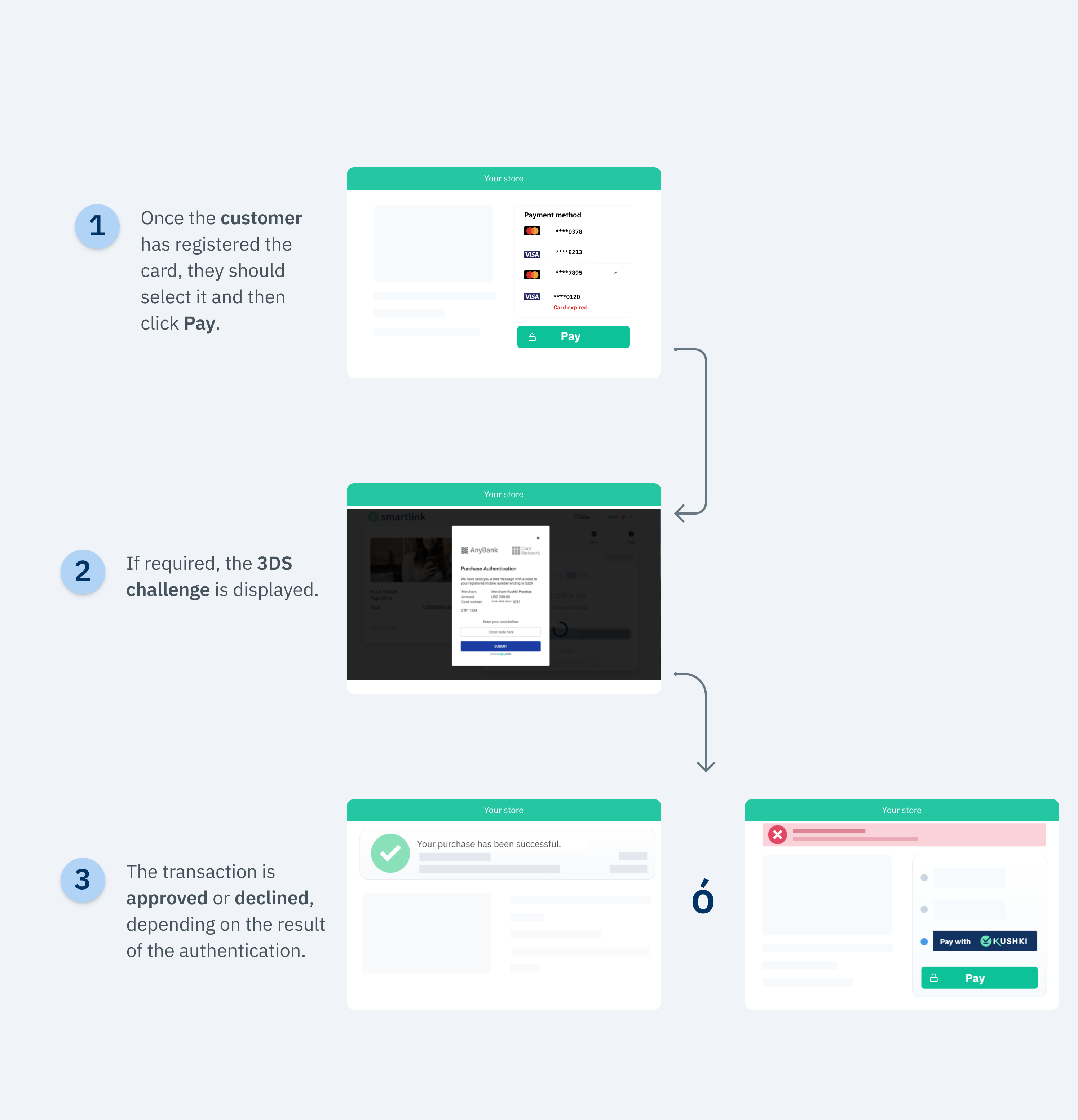
Once the user saves the card, they can make one-click payments. When they click the pay button, Kushki will validate if 3DS authentication is required for the transaction. If such validation is required, your customer will be presented with a challenge whose experience could vary depending on the brand and the issuing bank. When the user completes the challenge, they will be able to finalize the transaction.
The 3DS authentication flow with Kushki for one-click payments is as follows:
3DS Charges one-click
Important
Keep in mind that, due to our risk policies, the payment methods available and the type of integration may vary at the time you complete the affiliation process. We will tell you how to proceed if this process applies to your merchant.

Supported brands on 3DS#

Marcas de tarjetas soportadas Perú - Débito
Do you want to receive payments with 3DS?
Contact us to activate 3DS in your merchant.
Basically, integrating 3DS authentication in one-click payments consists of 2 stages: Registration and Collection.

Registration#

Follow the instructions described in our Accepting One-click Payments guide to request the card registration token from your front-end and execute the registration or tokenization of the card from the back-end. As a result, you will get a subscriptionId, which you can use to execute one-click payments. To perform 3DS authentication at card enrollment, follow the instructions in our Accept Recurring Payments with 3DS guide.

Payment#

1. Set up your front-end#

We will take advantage of the fact that our Kushki.js library has been imported and set up previously to use a method that will be very helpful to verify the reliability of the charge.
First, it is necessary to obtain the subscription ID of the card that will be charged.
Then, request the charge token, and send it to your back-end.
Check the full reference on our Kushki.js reference
Remember to include the amount and the currency object in this request, these will be necessary to display the 3DS validation modal.
When 3DS is enabled, the response from the requestDeviceToken() method will look like this:
Below is the description of these variables:
ParameterTypeDescription
authRequiredBooleanThis field tells you whether a 3DS challenge is required or not.
acsURLurlsIt refers to the URL of the challenge page that the user must go through (Access Control System).
specificationVersionStringIt refers to the applicable 3DS version.
authenticationTransactionIdStringID of the verified transaction from the brands.
paReqStringIt stands for Payer Authentication Request. It is a field encoded in base64 that contains information about your merchant and the cardholder and that is sent to the issuer for authentication purposes.
Note: If you are testing in a UAT environment, you must send sandbox.
Once you receive the Token response with the above structure, you must send the security object to Kushki by consuming the requestValidate3DS method:
If the value of the authRequired variable is equal to true, the 3DS validation modal will be presented, and your client will then receive the value to enter via email or text message.
If the value of the authRequired variable is equal to false, the modal will not be presented for 3DS validation.
Successful response you will receive in the callback function will be:
{
  isValid: true
}
In case of error, the response of the callback function will be something like:
{ 
  "message":"error-message", 
  "code":"error-code"
}
If the transaction is declined for the authentication, its result will be included as part of the response of the charge with 322 and any of the subcodes specified in the Error codes guide.
The cardholder will have up to a maximum of 3 retries to complete the 3DS authentication.

2. Set up your back-end#

Once the payment token has been received and the transaction has been authenticated, follow the instructions in our guide Accepting One-click Payments.
Important ❗️⛔️
Be sure to send the CVV of your customer's card when executing the charge request.

3. Test your integration#

Below you will find some test cards that you can use in test mode (UAT) to make sure your integration is ready. Use them with any CVV, enter a future expiration date and once the 3DS modal appears, enter 1234 as the validation code.
Transaction approved with 3DS authentication required:
4456528080389860
4456529267234200
4456529165328302
4456524869770255
4456523340069956
Transaction approved without 3DS validation:
4456540000000063
4456543371713314
4456541982068615
4456541249811088
Important
To enable 3DS in test mode in your merchant, it is required to have an additional configuration by Kushki.

4. Prepare your certification#

Follow the guidelines described in our Accepting One-click Payments guide.
Modificado en 2026-10-14 19:43:28
Anterior
Authenticate your subscriptions with 3DS
Siguiente
Error codes in recurring charges
Built with