
Take payments
Android
iOS
Accept payments with a terminal from your mobile point of sale through our POS app. You can integrate your app on Android using Intents and Links.Execute an action in our POS application through an Intent on Android from your application. Install the SDK and send the required parameters when executing an action. Add the SDK in your project's Add the following necessary dependencies: Create an instance of Next, every mandatory or optional parameter should be set to the instance: These are all the parameters you can configure when making a request.
Discover all the operations available through App to App integrations. Send a request with the required payment settings from your system to a terminal to perform the desired transaction. Start the POS application via the If the information submitted is correct, the POS app will open to the payment screen with the transaction settings configured. Follow the steps on the screen to complete the payment process with the terminal. Please review the documentation to perform a cancellation. You must enable the option in the settings menu to use tipping via Intents. Follow the steps below to enable tipping. Click on the top left icon and select the Settings option. 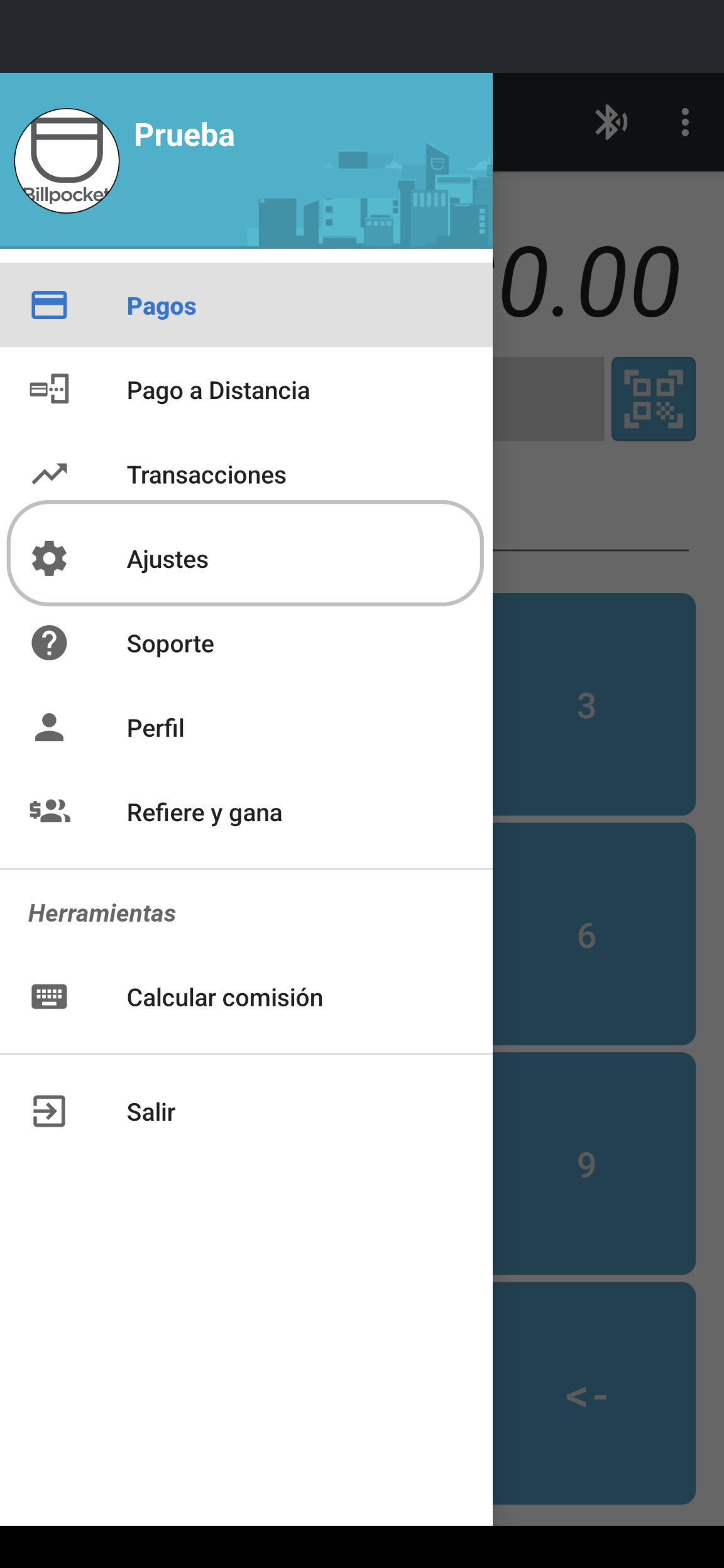
Activate the Propina option. 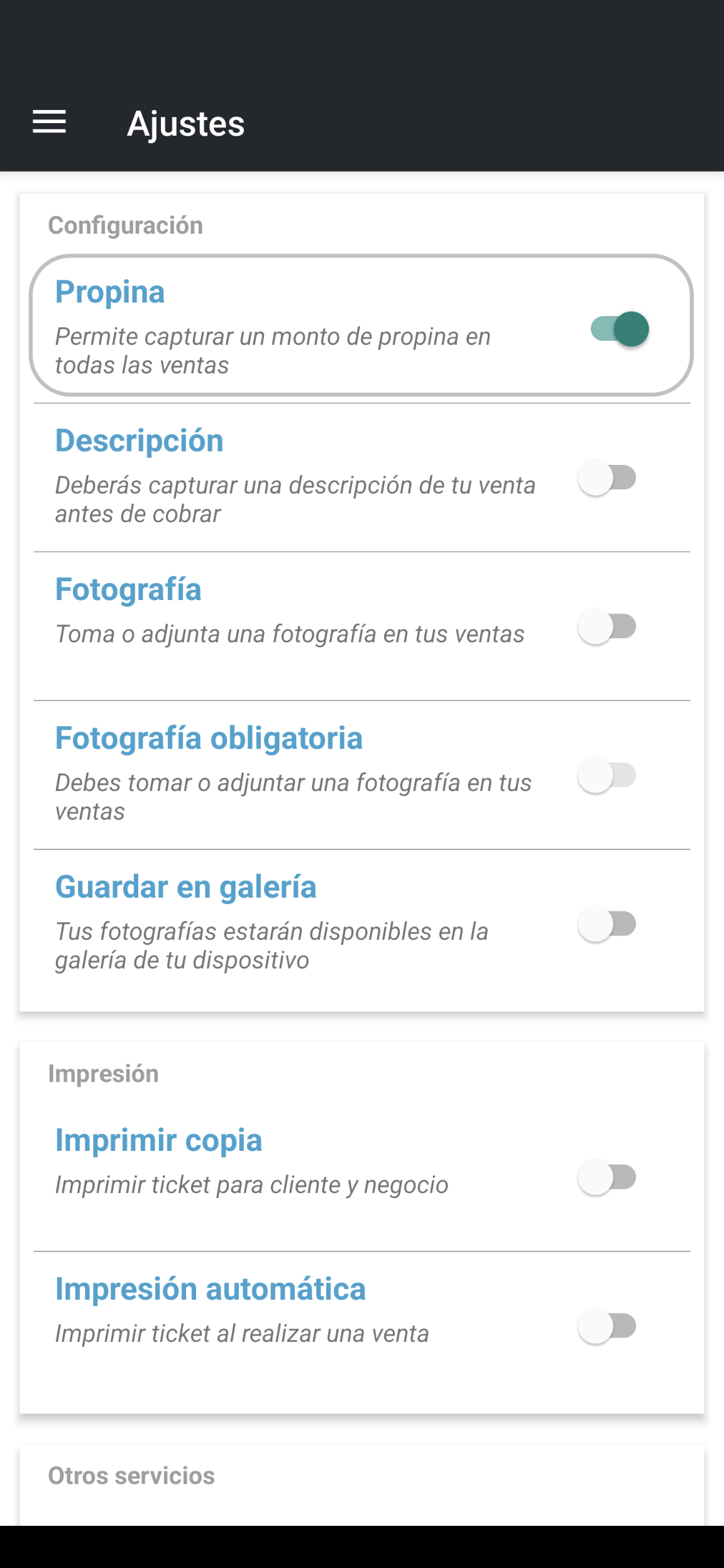
If a transaction is set to a tip greater than 0, the tip amount will be displayed in a new label below the transaction amount. 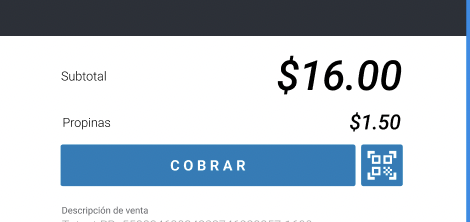
If no tip amount is submitted in the request or if it is equal to 0 and the tip option is enabled, the tip selection dialog will be displayed. 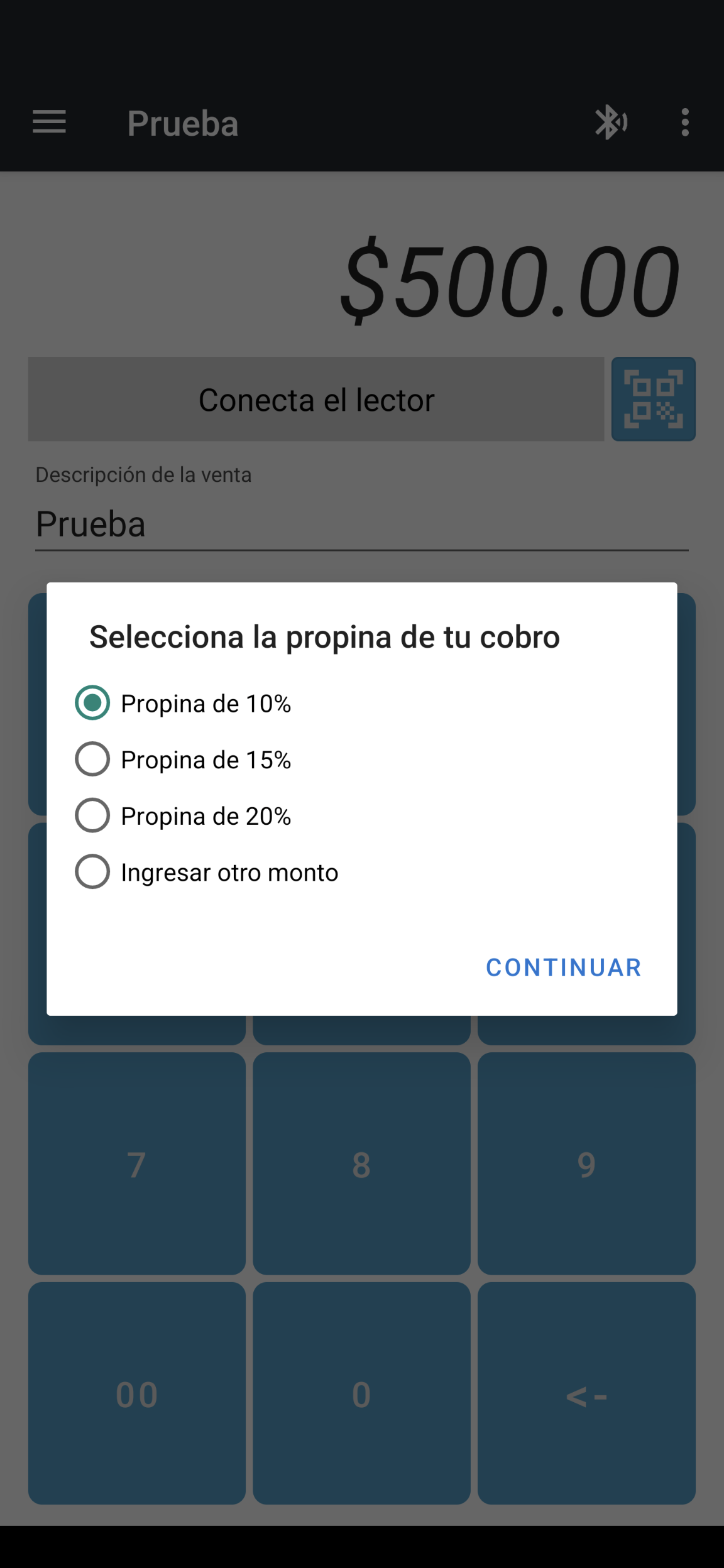
The response will be received as an Intent by the Depending on the result of the operation, you may receive additional information through some of the following properties. Remember that not all properties will be available in the response. It will depend on the result of the operation.
Simulate different scenarios with test data. Perform an action in our POS app using custom URL schemes on Android from your native or web app. Set the URL with all the parameters required to open the POS app and perform the operation. The POS app will open when a link with the custom URL scheme You need to have our POS app installed and configured on the same device as the point of sale app. These are all the parameters you can configure when making a request.
Discover all the operations available through App to App integrations. Send a request with the required payment settings from your system to a terminal to perform the desired transaction. Below is an example of how to call the POS application. If the information submitted is correct, the POS app will open to the payment screen with the settings configured for the transaction. Follow the steps on the screen to complete the payment process with the terminal. Please review the documentation to perform a cancellation. You can also create an Intent from an app running in Chrome to perform an operation with the POS app. Note: Integrations via Chrome Intents do not return a response via a callback. Instead, implement a [webhook]((/card-present-payments/webhooks) to receive the response from the operation. Please review the documentation on Android Intents with Chrome. Receive the response of a request via a URL callback. The response is returned to a custom URL scheme that you define. You must register the custom URL scheme within your application so that it can handle incoming requests. Please review the documentation on how to register a custom URL scheme in Android. Example response to a custom URL scheme: Depending on the result of the operation, you may receive additional information through some of the following properties. Remember that not all properties will be available in the response. It will depend on the result of the operation.
Simulate different scenarios with the test data. Please review the Android reference for Intents or Links for more detailed information.
Intents
Adding the SDK to your proyect
build.gradle file.Building the Intent
BPIntentBuilder class and set an action:Request data model
| Property | Type | Required | Description |
|---|---|---|---|
| transaction | String | Yes | Transaction type: venta: Sale operation. devolucion: Refund operation. |
| userToken | String | Yes | User token |
| identifier | String | Yes | Send an identifier generated on your side for transaction traceability. It will be returned in the response. 256 characters maximum. |
| amount | Number | Yes | Transaction amount. Do not include tip. Two decimals. |
| urlScheme | String | Yes | App, webhook or url scheme to be called at the end of any transaction. This app should be ready to handle the POS app call. 50 characters maximum. |
| tip | Number | No | Tip included in the transaction. Two decimals. |
| msi | Integer | No | Defer a payment. Choose the number of monthly installments to defer payment:
6: 6 installments. |
| reference | String | No | Text reference to identify the transaction. 256 characters maximum. |
| String | No | Customer’s email (when provided). 150 characters maximum. | |
| phone | String | No | Customer's phone number (when provided). 14 characters maximum. |
| showPhotoButton | Boolean | No | It allows you to attach a photo during the transaction. The default value is false. |
| mandatoryPhoto | Boolean | No | Make photography mandatory during the transaction. You will need to set the showPhotoButton property to true. |
| deviceToken | String | No | String identifier for the device. |
| 3pID | String | No | Specify an identifier for the third party requesting the transaction. |
| hidePrinter | Boolean | No | Specify if the printer option should be displayed after a successful transaction or not. |
| skipMailPrint | Boolean | No | Specify if the ticket should be automatically sent after a successful transaction or not, this requires a mail or phone number set and will skip the send ticket activity. |
| xpLandscape | Boolean | No | Specify whether the POS application will launch in landscape mode. Only applies to large screens. |
| deviceName | String | No | Name to identify the device. |
| setTimerFinishTRX | Integer | No | Set the timer (in seconds) to continue to the next screen in case there is no user interaction on the confirmation screen. |
| autoPaymentEnabled | Boolean (true or false) | No | When this parameter is sent as true, the payment process will be triggered automatically without waiting for confirmation via the Pay button. |
Operations
Sale
builder function by sending an Intent with all the required parameters.Tipping
Response
onActivityResult method of the calling activity.| Property | Type | Description |
|---|---|---|
| result | String | The result of the operation. It can be:
|
| statusinfo | String | In case of error, additional information will be returned. |
| amount | Number | Monto de la transacción (sin propina incluida). Dos decimales. |
| tip | Number | Tip included in the transaction. |
| reference | String | Text reference to identify the transaction. |
| transactionId | String | Transaction id. |
| msi | Integer | If it is a deferred payment, the number of installments will be returned.
|
| authorization | String | Authorization given by the issuer bank |
| creditcard | String | Las 4 digits of the card. |
| String | Customer’s email (when provided). | |
| phone | String | Customer's phone number (when provided). |
| cardtype | String | Card type. |
| arqc | String | Card’s chip validated cryptogram (when available). |
| aid | String | Card’s chip application identifier (when available). |
| applabel | String | Card’s chip application label (when available). |
| url | String | Identifier to obtain a digital voucher. |
| identifier | String | Transaction amount. Do not include tip. |
| bank | String | Card issuer. |
| accountType | String | Account type:
|
| name | String | Cardholder name. |
| bp_version | String | POS app version. |
Links
Billpocket:// is clicked.Request data model
| Property | Type | Required | Description |
|---|---|---|---|
| transaction | String | Yes | Transaction type: venta: Sale operation. devolucion: Refund operation. |
| userToken | String | Yes | User token. |
| identifier | String | Yes | Send an identifier generated on your side for transaction traceability. It will be returned in the response. 256 characters maximum. |
| amount | Number | Yes | Transaction amount. Do not include tip. Two decimals. |
| urlScheme | String | Yes | App, webhook or url scheme to be called at the end of any transaction. This app should be ready to handle the POS app call. 50 characters maximum. |
| tip | Number | No | Tip included in the transaction. Two decimals. |
| msi | Integer | No | Defer a payment. Choose the number of monthly installments to defer payment:
6: 6 installments. |
| reference | String | No | Text reference to identify the transaction. 256 characters maximum. |
| String | No | Customer’s email (when provided). 150 characters maximum. | |
| phone | String | No | Customer's phone number (when provided). 14 characters maximum. |
| showPhotoButton | Boolean | No | It allows you to attach a photo during the transaction. The default value is false. |
| mandatoryPhoto | Boolean | No | Make photography mandatory during the transaction. You will need to set the showPhotoButton property to true. |
| deviceToken | String | No | String identifier for the device. |
| 3pID | String | No | Specify an identifier for the third party requesting the transaction. |
| hidePrinter | Boolean | No | Specify if the printer option should be displayed after a successful transaction or not. |
| skipMailPrint | Boolean | No | Specify if the ticket should be automatically sent after a successful transaction or not, this requires a mail or phone number set and will skip the send ticket activity. |
| xpLandscape | Boolean | No | Specifies whether the POS application will launch in landscape mode. Only applies to large screens. |
| deviceName | String | No | Name to identify the device. |
| enableDialogTip | Boolean | No | Set the property to true to display the tip dialog during checkout. For the dialog to be displayed, the tip must be omitted or sent with the value of $0. |
| autoPaymentEnabled | integer (1 for true or o for false) | No | When this parameter is sent as 1, the payment process will be triggered automatically without waiting for confirmation via the Pay button. |
Operations
Sale
Chrome Intents
Response
myApp://identifier=bpTRX&amount=10.00&authorization=BP6602&result=aprobada&reference=Venta%2520-%2520B99773E6BA6&creditcard=3292&cardtype=MASTERCARD&aid=A0000000041010&tip=1.01&url=68a30855f20923fc0d20eeaeee11061a62ab0eec&arqc=3C2A4D155F23AA81&bank=Bancomer%2520%252F%2520Banamex&name=%2520PERFIL%2520EJECUTIVO%252FPRG%2520%2520%2520%2520%2520&bp_version=4.3.0&transactionid=111029&accountType=DEBIT&applabel=Debit%2520Mastercard| Property | Type | Description |
|---|---|---|
| result | String | The result of the operation:
|
| statusinfo | String | In case of error, additional information will be returned. |
| identifier | String | Identifier sent during the sale for traceability. |
| amount | Number | Transaction amount. Do not include tip. |
| authorization | String | Authorization given by the issuer bank |
| transactionId | String | Transaction id. |
| tip | Number | Tip included in the transaction. |
| msi | Integer | If it is a deferred payment, the number of installments will be returned.
|
| reference | String | Text reference to identify the transaction. |
| String | Customer’s email (when provided). | |
| phone | String | Customer's phone number (when provided). |
| creditcard | String | Las 4 digits of the card. |
| cardtype | String | Card type. |
| arqc | String | Card’s chip validated cryptogram (when available). |
| aid | String | Card’s chip application identifier (when available). |
| applabel | String | Card’s chip application label (when available). |
| url | String | Identifier to obtain a digital voucher. |
| bank | String | Card issuer. |
| accountType | String | Account type:
|
| name | String | Cardholder name. |
| bp_version | String | POS app version. |
Modificado en 2026-10-14 19:44:26